Appearance
The Appearance section is available only to Admin users. It allows the Admin to customize VistaBridge branding, theme colors, default map settings, and login page content and background.
Regular users will not see the Appearance option under Account Settings. However, they will see the changes saved by the Admin, including updated branding, theme colors, default map settings, and login page customization. Regular users cannot access or modify these appearance settings.
The Appearance section contains four tabs: Map & Basemap, Logo & Branding, Color Theme, and Login Page.
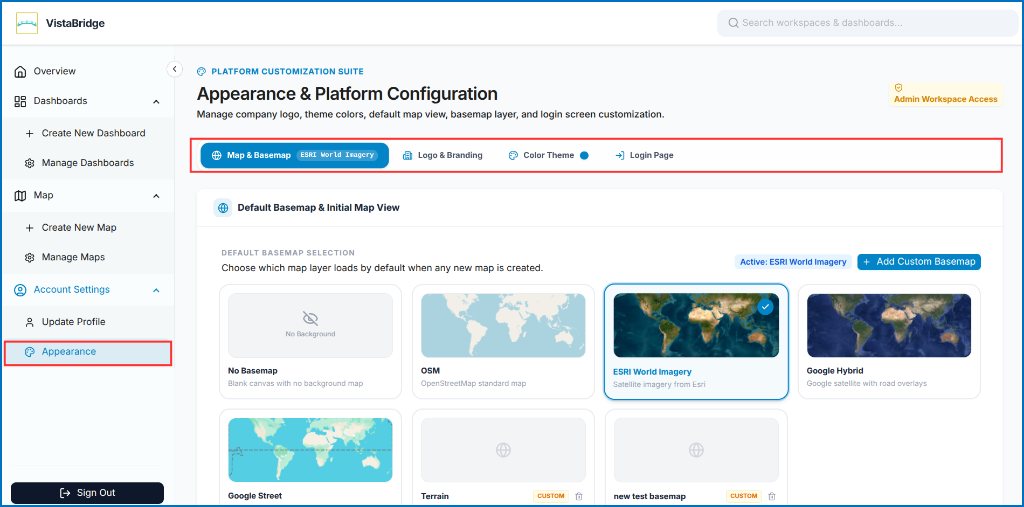 Figure: Appearance Settings Overview
1. Map & Basemap
This section allows the Admin to configure the default basemap and initial map view for newly created maps.
Default Basemap Selection
Choose which background map layer loads by default when any new map is created:
- No Basemap: Displays a blank map canvas without a background map.
- OSM: Displays the OpenStreetMap standard map.
- ESRI World Imagery: Displays satellite imagery from Esri.
- Google Hybrid: Displays satellite imagery with road overlays.
- Google Street: Displays the Google Maps standard street map.
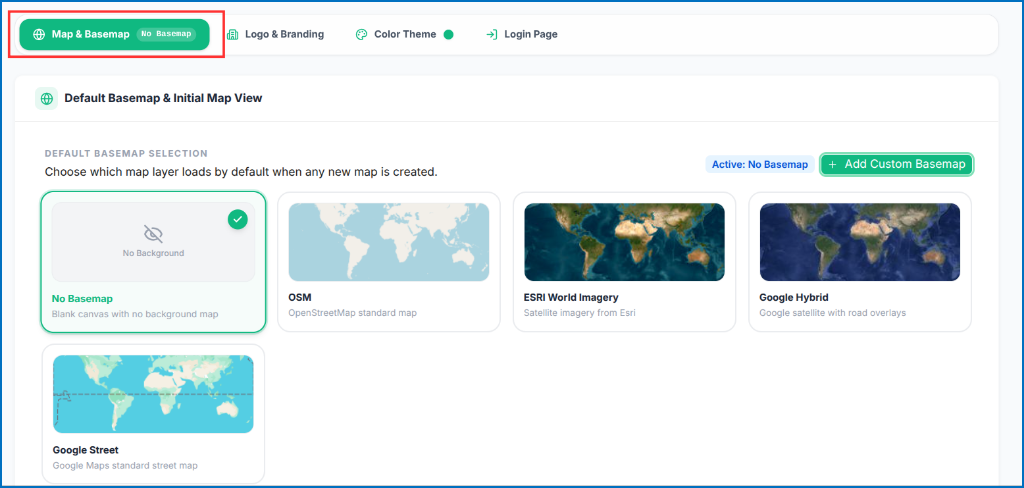 Figure: Default Basemap Selection
- Initial Map Center Coordinates & Zoom Level: Set the default map center using latitude and longitude coordinates and specify the initial zoom level.
- Detect Current Location: Detect the current location to configure the map center coordinates.
 Figure: Initial Map Center Coordinates & Zoom Level
- Save Appearance & Defaults: Save the selected basemap and default map view settings.
- Reset to Default: Restore the default appearance and map configuration settings.
 Figure: Save Appearance & Defaults Controls
2. Logo & Branding
This section allows the Admin to customize the company or product name and logo displayed in VistaBridge.
- Company / Product Name: Enter the company or product name. The maximum allowed length is 20 characters. The name is displayed in the top navigation bar and login screen header.
- Company / Product Logo: Upload a company logo by clicking the upload area or dragging and dropping the image file. Supported formats are PNG, JPG, SVG, and WebP, with a maximum file size of 2 MB.
- Live Top Bar Branding Preview: Preview how the configured name and logo appear in the top navigation bar, along with the theme highlight color.
- Reset to Default: Restore the default appearance settings.
- Save Appearance & Defaults: Save the configured branding settings.
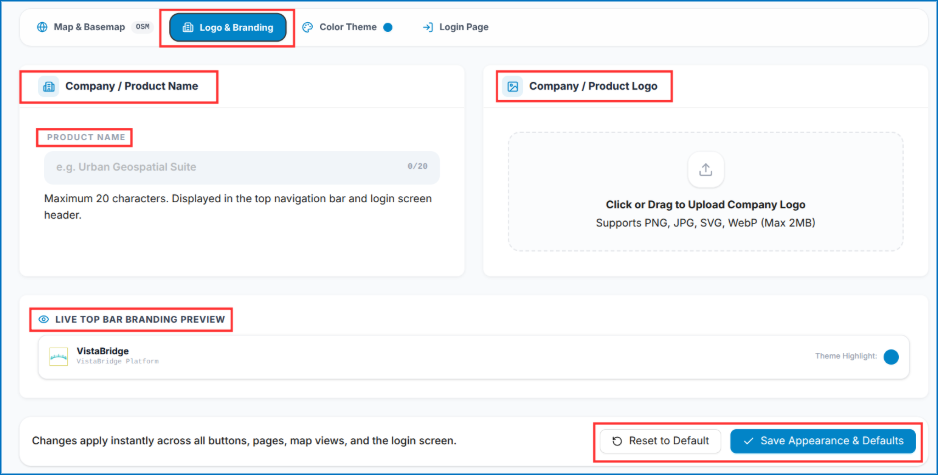 Figure: Logo & Branding Configuration
3. Color Theme
This section allows the Admin to customize the primary brand color used across the VistaBridge interface.
- Select Theme Palette Preset: Choose from the available palettes: Ocean Blue, Electric Indigo, Emerald Green, Royal Purple, Sunset Amber, Crimson Rose, Teal Cyan, or Midnight Slate.
- Custom Brand HEX Color: Select a custom color using the color picker or enter a HEX color code.
- Live Component Theme Preview: Preview how the selected color appears on primary action buttons, outlined buttons, and active tag badges.
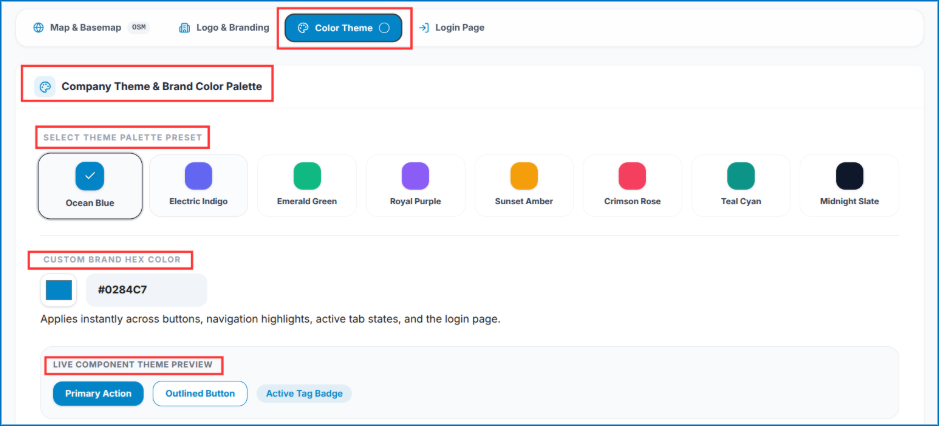 Figure: Color Theme Palette and Live Preview
- Reset to Default: Restore the default appearance settings.
- Save Appearance & Defaults: Save the selected theme and color settings.
 Figure: Color Theme Save and Reset Actions
The selected color applies to buttons, navigation highlights, active tab states, and the login page.
4. Login Page
This section allows the Admin to customize the content and background wallpaper displayed on the VistaBridge login page.
- Main Headline: Configure the main heading displayed on the login page.
- Subtitle / Mission Description: Add or update the description displayed below the main headline.
- Right Panel Quote Subtext: Configure the supporting quote or text displayed on the right panel of the login page.
- Upload Custom Wallpaper: Upload a custom wallpaper in PNG, JPG, or WebP format. The maximum supported file size is 5 MB.
- Curated Satellite & Planetary Wallpapers: Select from the available wallpaper options, including NASA Blue Marble, Dark Space Satellite, Orbital Night Grid, and Cyber Matrix Terra.
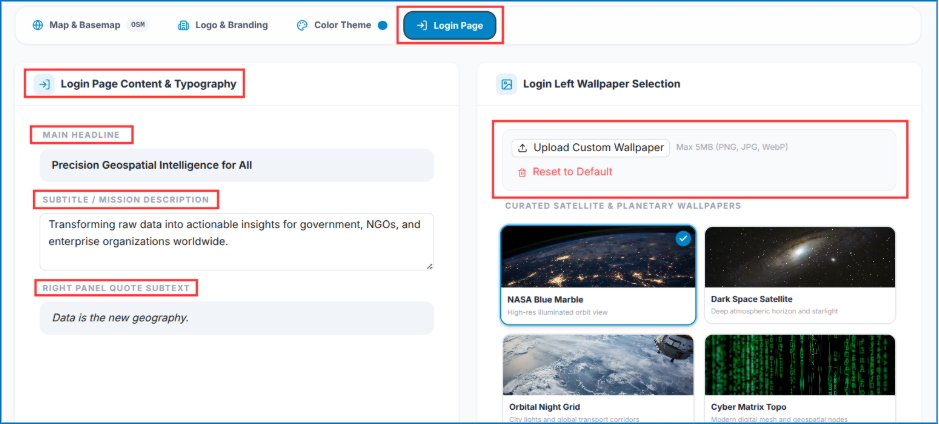 Figure: Login Page Content and Wallpaper Configuration
- Interactive Login Screen Live Mockup: The Interactive Login Screen Live Mockup provides a preview of the login page with the configured branding, wallpaper, headline, description, and quote.
- Reset to Default: Restore the default wallpaper settings.
- Save Appearance & Defaults: Save the configured appearance settings.
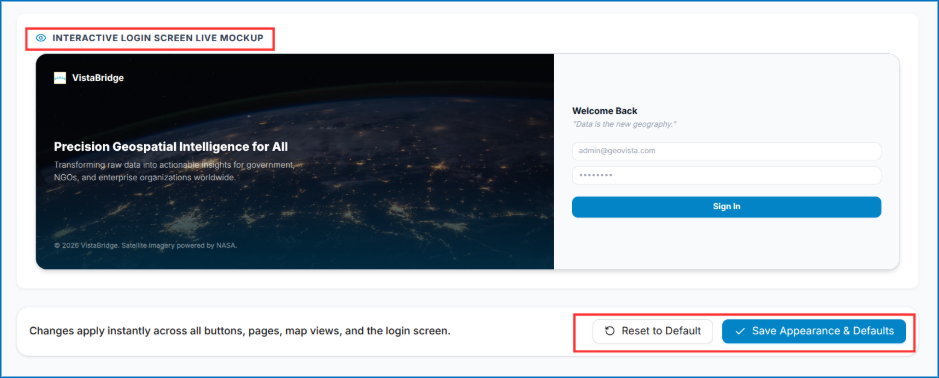 Figure: Interactive Login Screen Live Mockup
Applying Appearance Changes
After configuring the required options, click Save Appearance & Defaults to save the changes. Use Reset to Default to restore the default settings where applicable.
Admin Access & Global Visibility
Saved appearance changes are reflected for users across the applicable areas of VistaBridge. Only Admin users can access and modify the Appearance settings.