Interactive Map Editor Interface
After opening or creating a map, the Edit Map window will appear. Users can edit, configure, and analyze spatial datasets using various tools available on the interface:
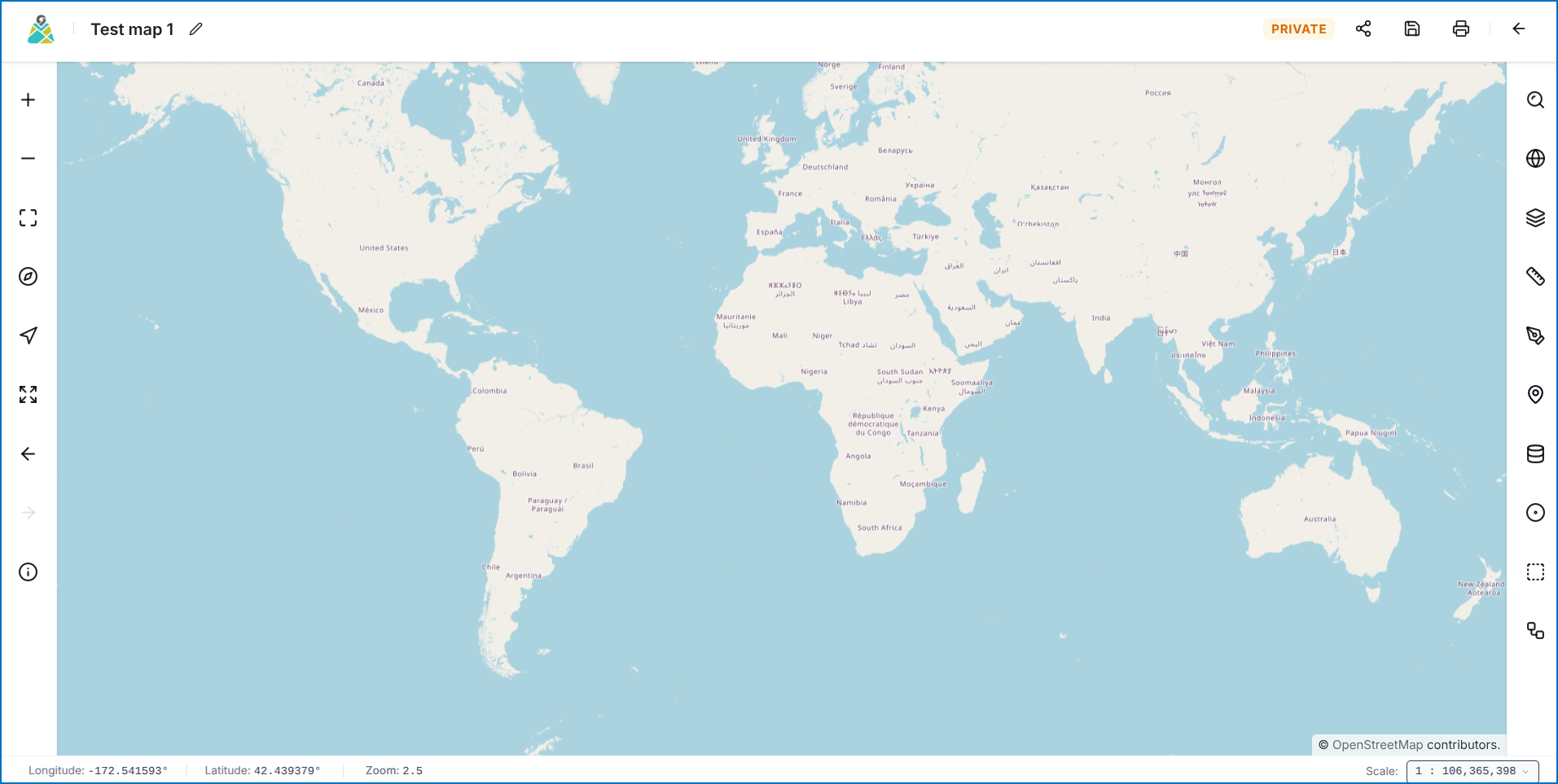 Figure: VistaBridge Map Editor Interface
1. Left-Side Map Navigation Controls
The left-side panel provides the following map navigation tools:
- Zoom In — Zoom into the map view.
- Zoom Out — Zoom out of the map view.
- Toggle Full Screen — Expand map to full-screen view.
- Reset North — Reset map orientation to true north.
- Zoom to Current Location — Center map on user's geographic location.
- Full Extent — Zoom to the entire layer extent.
- Previous Extent — Navigate to the previous zoom extent.
- Next Extent — Navigate to the next zoom extent.
- Toggle Info Popup — Enable or disable map feature information popups.
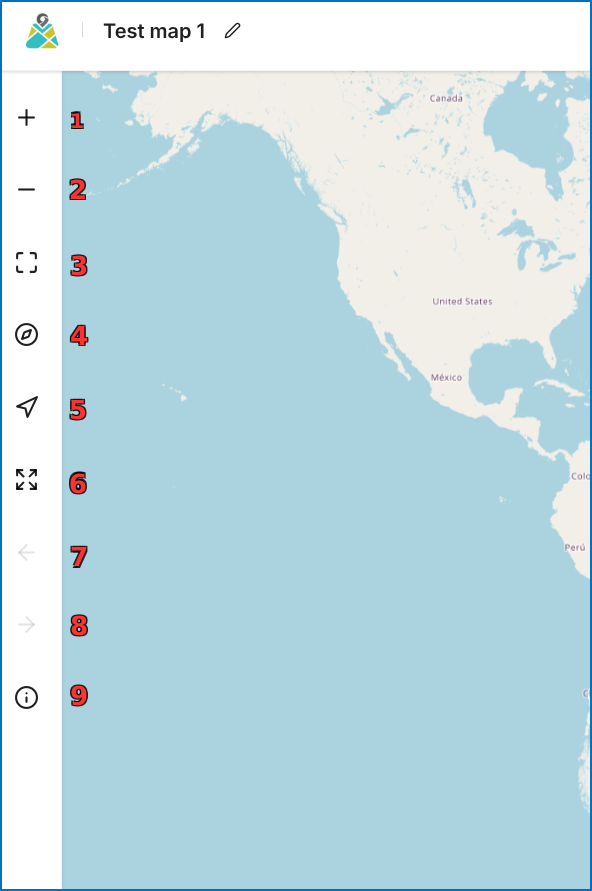 Figure: Left-Side Map Navigation Toolbar
To learn how to navigate the VistaBridge interface using the left-side navigation toolbar, click here to watch the video tutorial.
2. Right-Side Panel Tools Overview
The right-side panel provides comprehensive access to the geospatial toolset:
- Fuzzy Feature Search — Search and filter specific features within accessible layers.
- Basemap Selector — Choose from multiple basemaps (Satellite, Streets, Topo, Canvas).
- Layer List — Inspect and manage layer visibility, opacity, and rendering order.
- Measure Tools — Measure distances and polygon areas on the map.
- Annotation — Draw points, lines, polygons, and text markups.
- Go to XY — Navigate directly to specific coordinates.
- Query by Attributes — Filter layer data using custom attribute expressions.
- Buffer Query — Analyze features within a specified buffer distance.
- Spatial Query — Query geometries using spatial topological relationships.
- WPS Analysis — Execute Web Processing Services for vector and raster analytics.
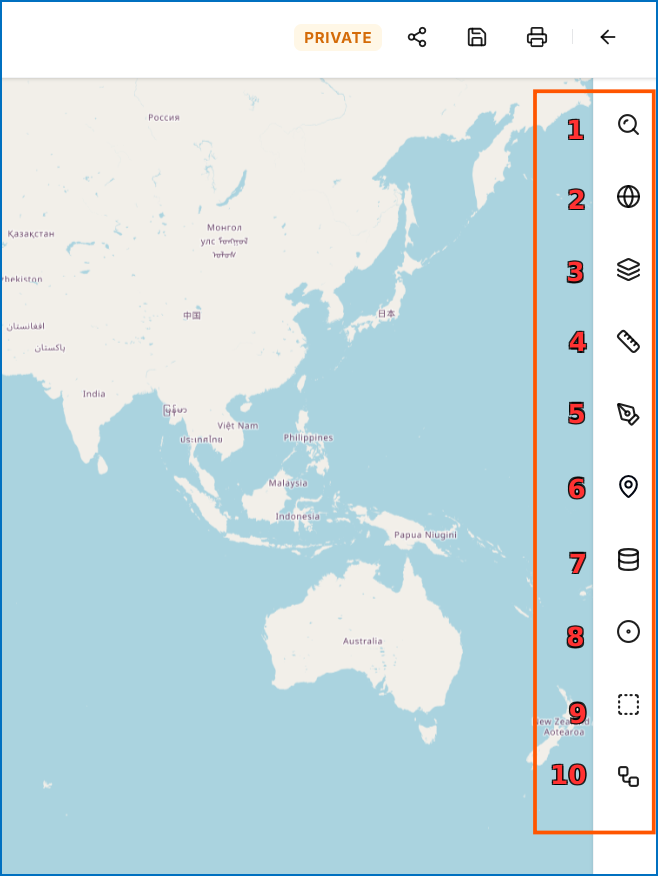 Figure: Right-Side Panel Tools Menu
3. Top Bar Tools
Top Left-Side Tools (Map Details)
You can view and edit map details, title, description, and metadata.
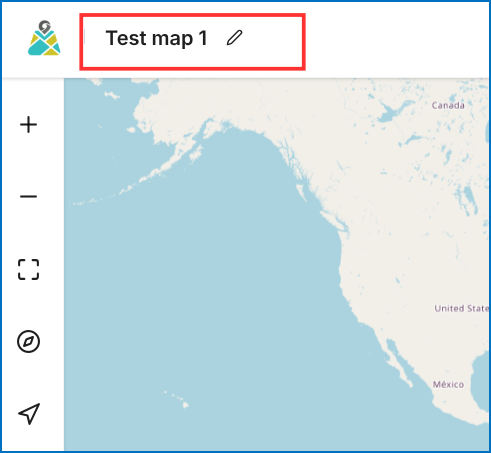 Figure: Top Left-Side Map Details Editor
Top Right-Side Tools (Share, Save, Print)
From here you can Share, Save, and Print the map.
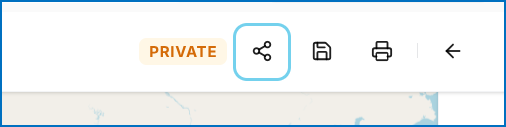 Figure: Top Right-Side Toolbar Controls