Export & Print Dashboard
The Print option allows users to export the configured dashboard as a high-quality PDF document.
1. Export PDF Options
To print and export the dashboard:
- Click the Print icon in the top-right corner of the dashboard workspace.
- The Export PDF Options window will open.
- Enter a File Name.
- Select the required Page Format:
- A4
- A3
- Letter
- Select the required Orientation:
- Landscape
- Portrait
- Select the required Quality:
- High (2x)
- Ultra HD
- Click Edit & Arrange Layout to adjust the dashboard layout before exporting.
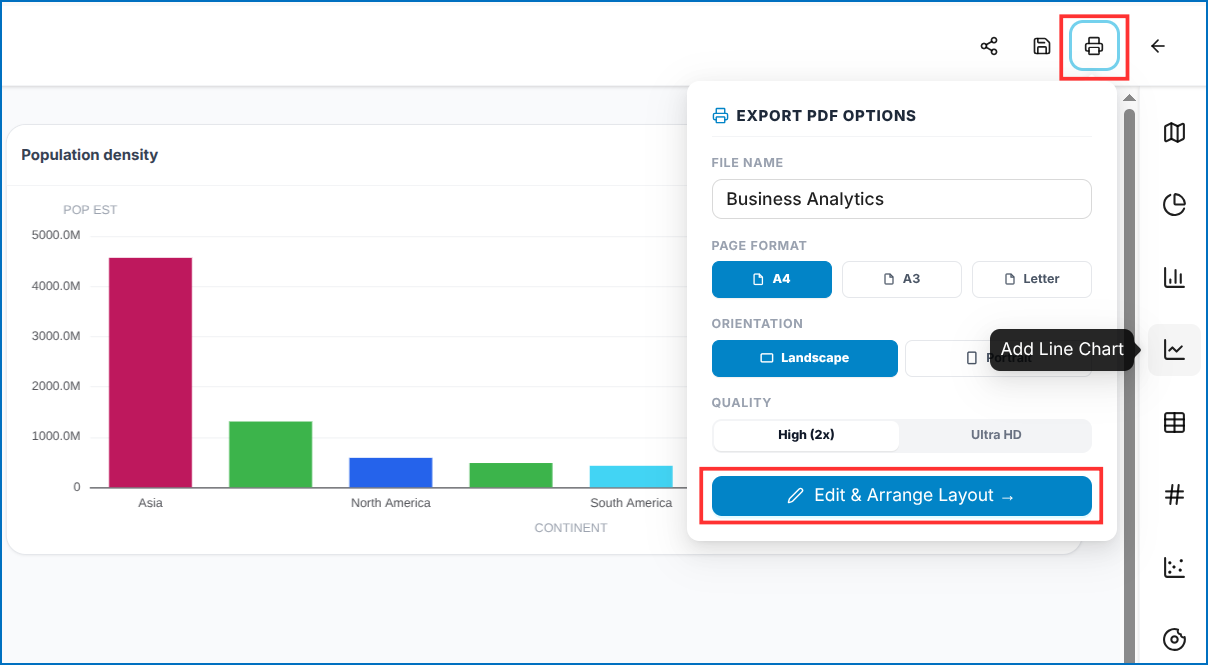 Figure: Export PDF Options Modal
2. Arrange Layout & Download PDF
After clicking Edit & Arrange Layout, the interactive layout designer page will open:
- Arrange Widgets: Drag and adjust the position and size of the map, charts, tables, and other widgets on the export layout canvas.
- Date Display: Use the Date: ON/OFF option to show or hide the generation date on the exported dashboard.
- Page Format: The selected page format and orientation are displayed at the top for visual reference.
- Download PDF: Once the layout is finalized, click Download PDF to generate and download the dashboard as a publication-ready PDF.
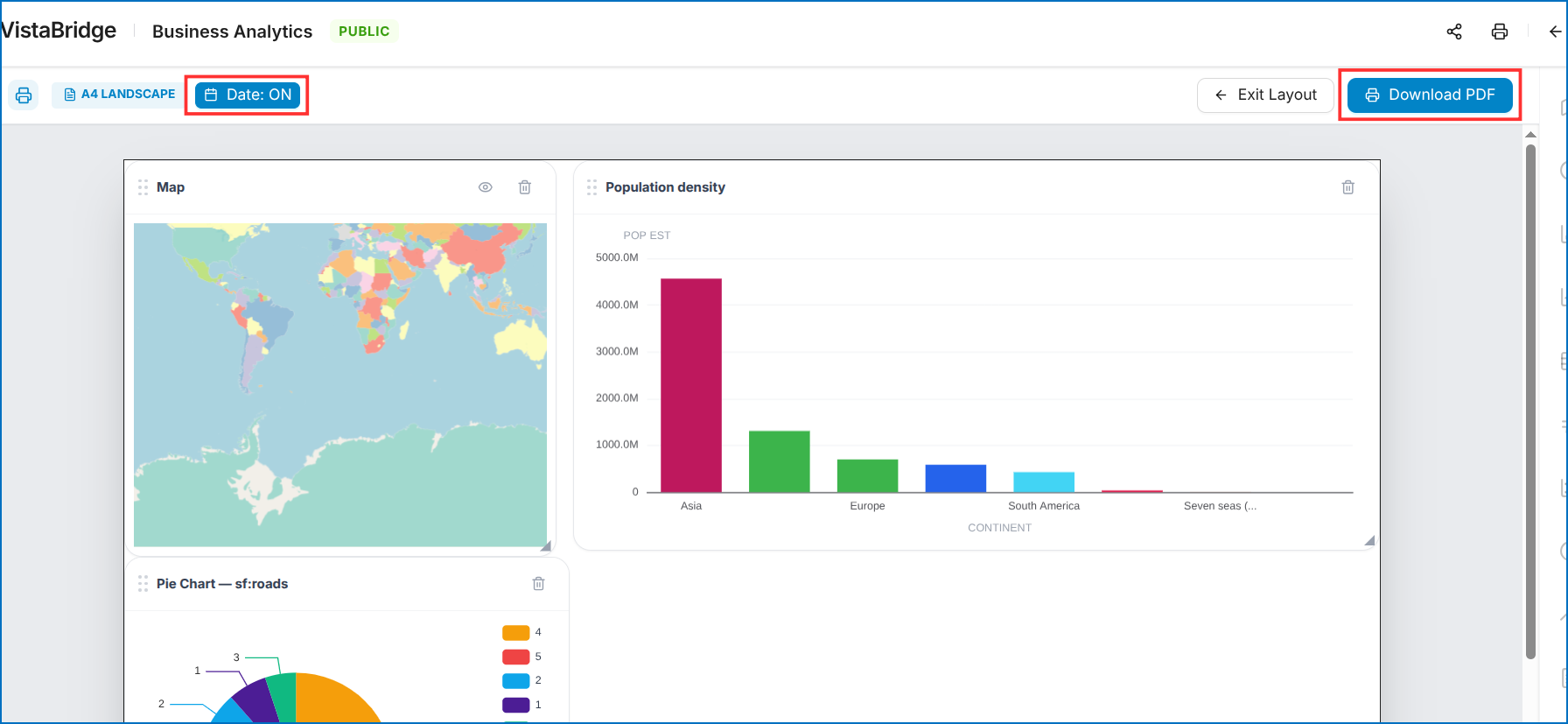 Figure: Arrange Widgets and Download Dashboard Layout Designer