Vector Analysis Operations
WPS (Web Processing Service) is an OGC standard that allows users to perform geospatial processing and analysis through a web service directly in the browser without manually processing the data in a desktop GIS application.
Vector Analysis is used to process and analyze vector layers such as points, lines, and polygons.
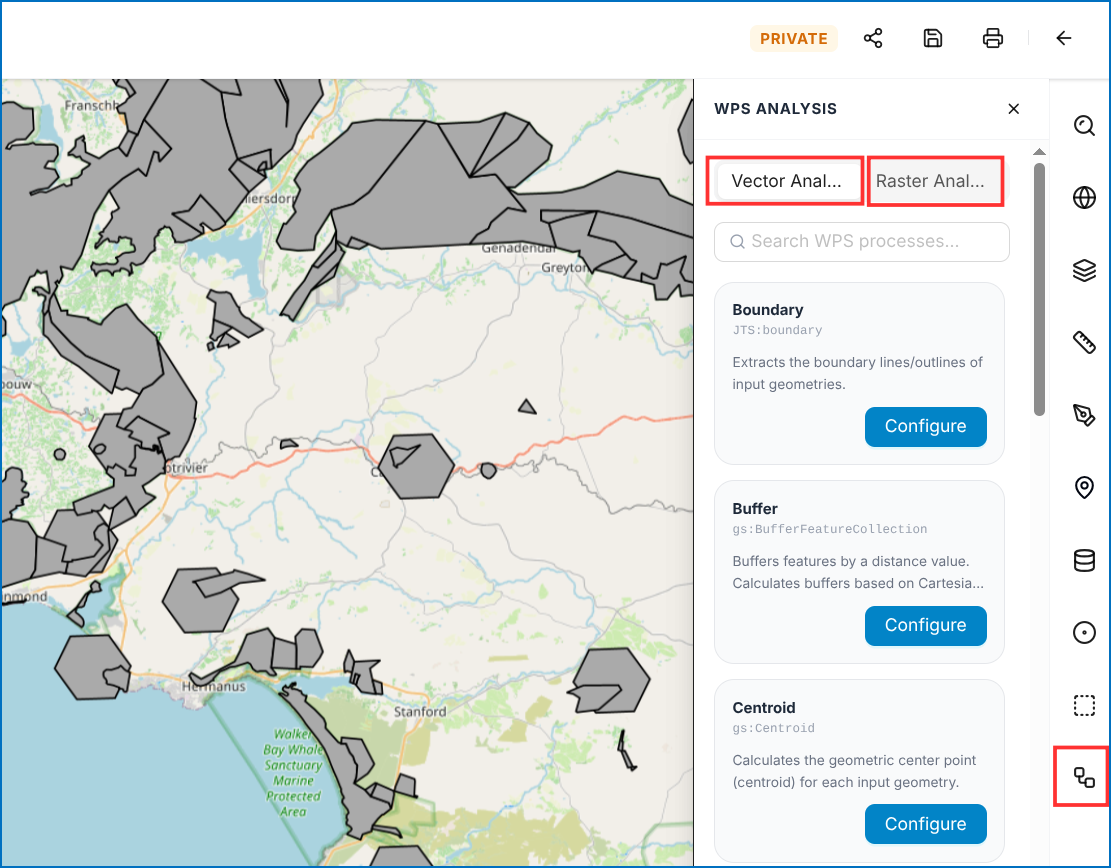 Figure: WPS Vector Analysis Module
1. Boundary Operation
The Boundary operation extracts the boundary lines or outlines of the input geometries. It can be used to obtain the outer boundary of selected point or polygon geometries.
Configure Boundary Analysis
- Click Configure for the Boundary operation.
- The Boundary Operation window will open.
- Under Geom, select the input geometry:
- Select a layer from the dropdown list, or
- Select Draw to create the input geometry manually (Point or Polygon).
- Enter a Result Layer Name.
- Click Execute Analysis.
- The generated boundary line will be added as a resulting layer to the Layer List.
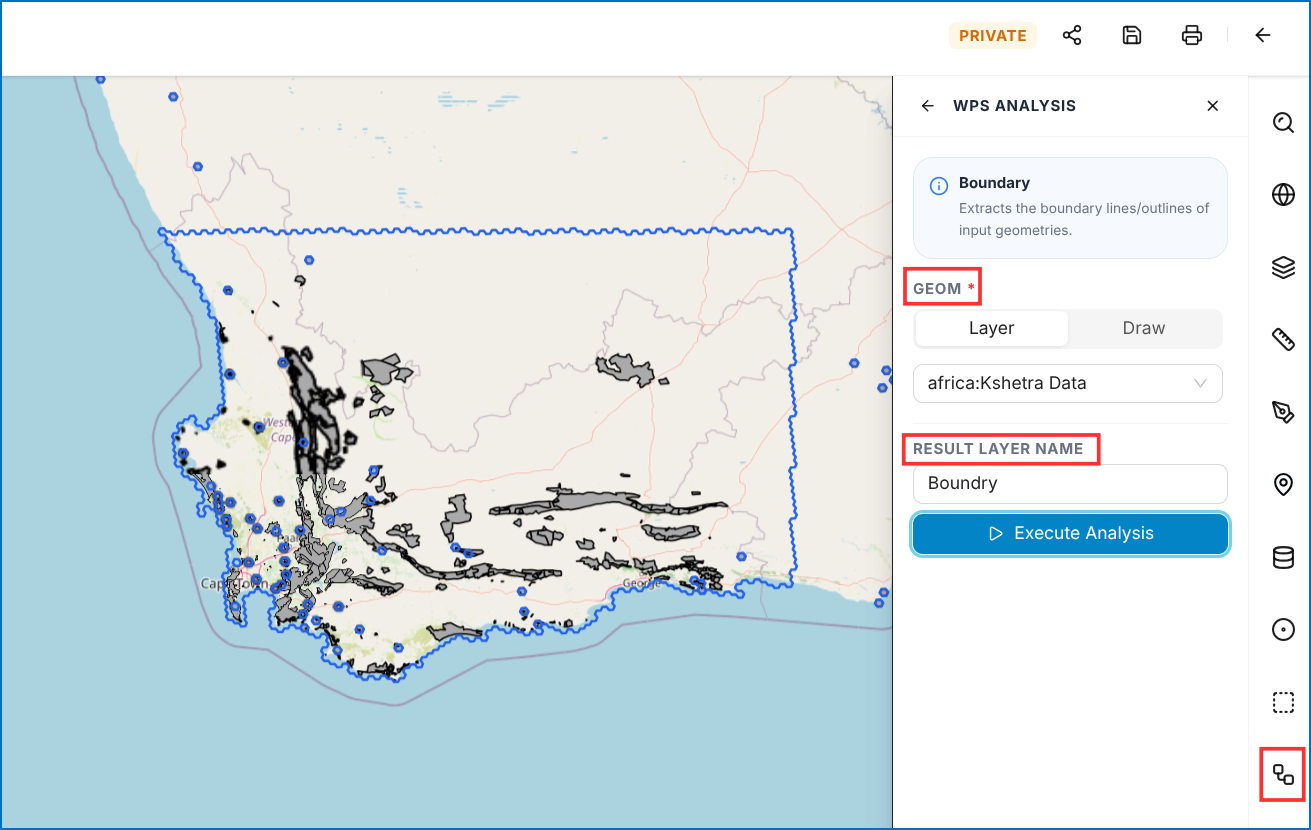 Figure: Boundary Operation Configuration
2. Buffer Operation
The Buffer operation creates a zone around selected features based on a specified distance. It calculates the buffer using Cartesian distance.
Configure Buffer Analysis
- Select the Features field and choose the required vector layer from the dropdown list.
- Enter the required Buffer Distance.
- Select the appropriate Distance Unit, such as Meters, if available.
- Enter a Result Layer Name for the output layer.
- Click Execute Analysis.
- The buffer will be generated and added as a resulting layer in the Layer List.
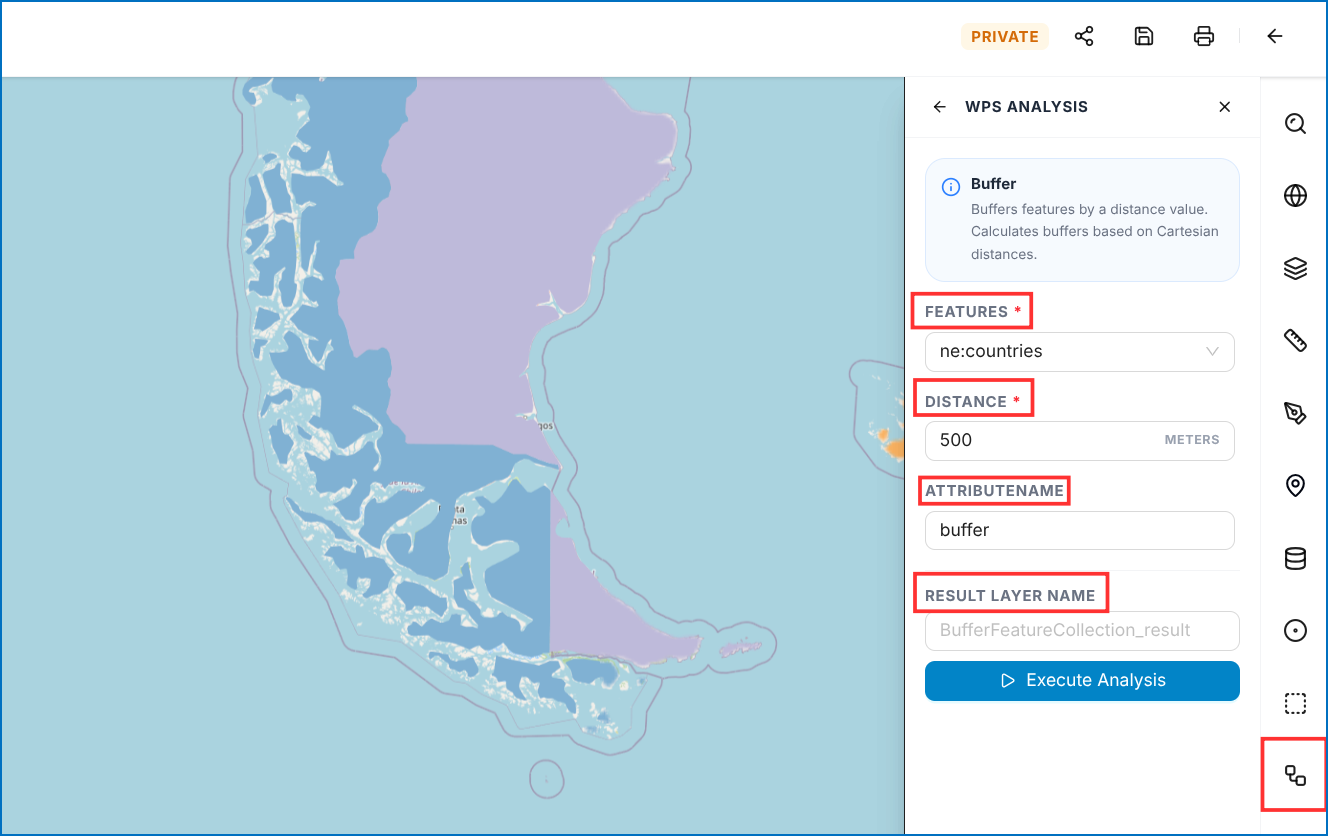 Figure: Buffer Processing Configuration
3. Centroid Calculation
The Centroid operation calculates the geometric center point (centroid) for each input geometry.
Configure Centroid Analysis
- Open the Centroid operation from WPS Analysis.
- Under Features, select the required vector layer from the dropdown list.
- Enter a Result Layer Name for the output layer.
- Click Execute Analysis.
- The centroid point will be generated for each input geometry and added as a resulting layer in the Layer List.
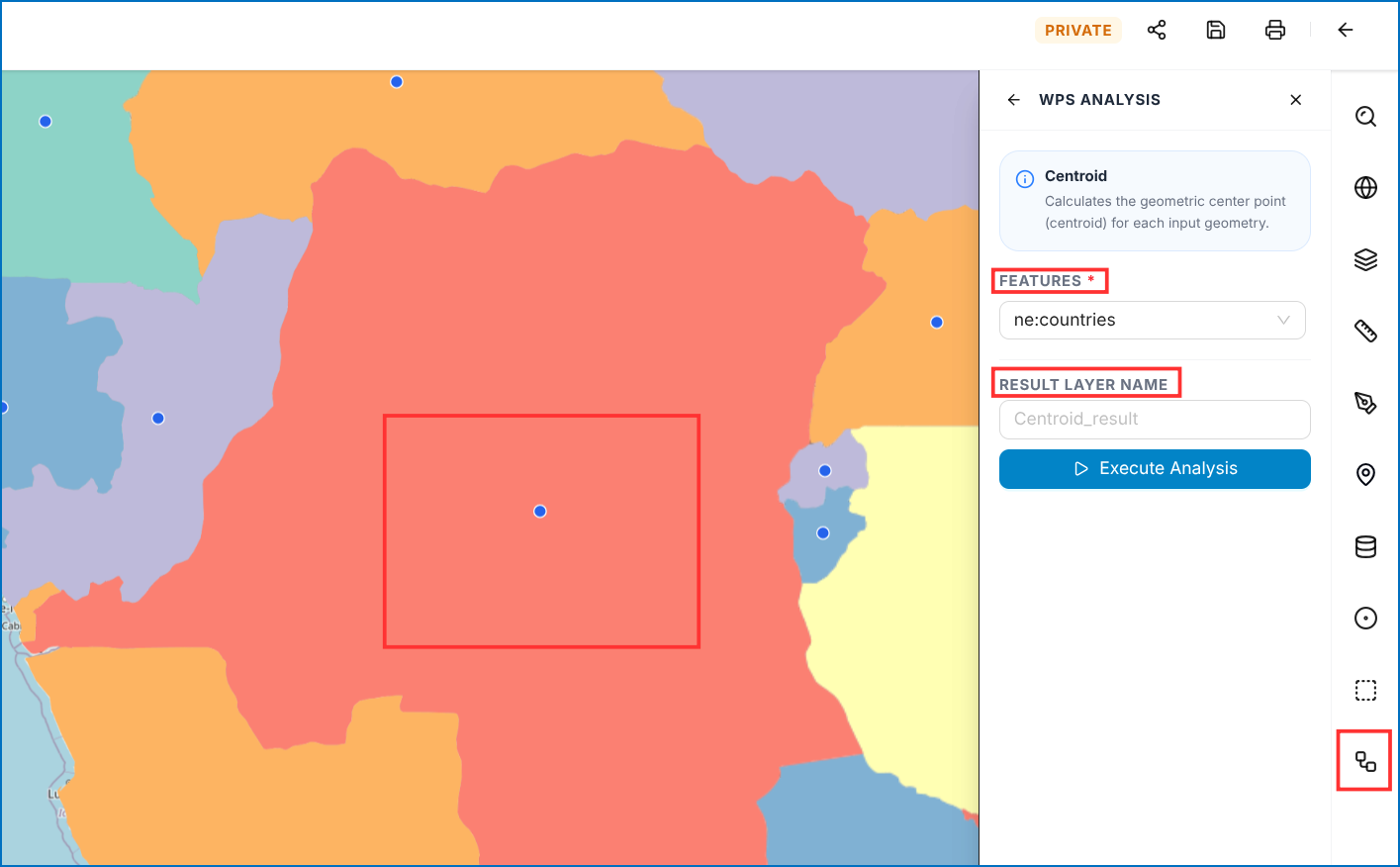 Figure: Centroid Processing Configuration
4. Clip Operation
The Clip operation extracts input features that fall within a specified clipping boundary.
Configure Clip Analysis
To perform a Clip analysis:
- Open the Clip operation from WPS Analysis.
- Under Features, select the required input vector layer from the dropdown list.
- Under Clip, select Layer to choose an existing clipping layer or Draw to define a clipping boundary manually.
- Configure the Preservez option if required.
- Enter a Result Layer Name for the output layer.
- Click Execute Analysis.
- The clipped features will be generated, and the resulting layer will be added to the map.
- Open the Layer List to view the generated result layer.
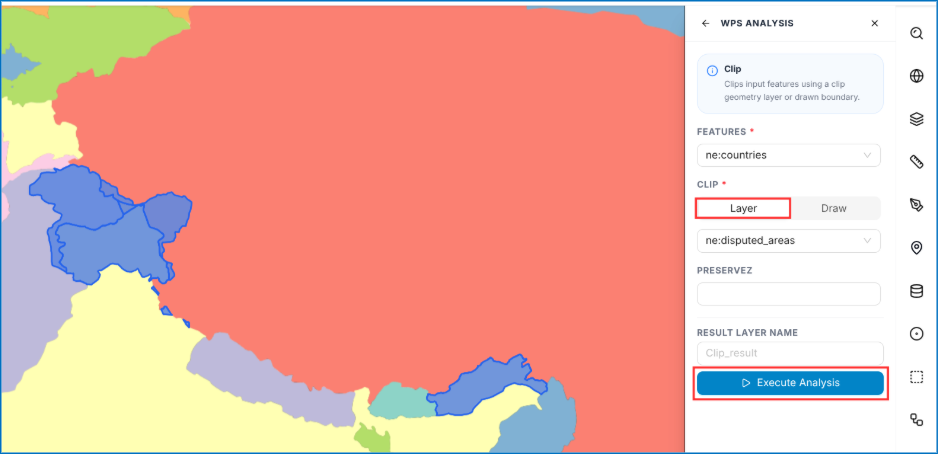 Figure: Clip Processing Configuration
When a clipping layer is selected, the clipped area is highlighted in blue on the map to indicate the selected clipping boundary.
Draw on Map to Clip
To perform Clip Analysis using a drawn polygon:
- Select the required input vector layer from the Features dropdown.
- Under Clip, select Draw.
- Click Draw Polygon.
- Click on the map to mark the required boundary points.
- Double-click to complete the polygon.
- Enter a Result Layer Name.
- Click Execute Analysis to run the Clip operation.
- Once the analysis is complete, the clipped result layer will be created and displayed in the Layer List. From there you can see the resulted layer and with the help of mini tools you can explore data inside that resulted layer.
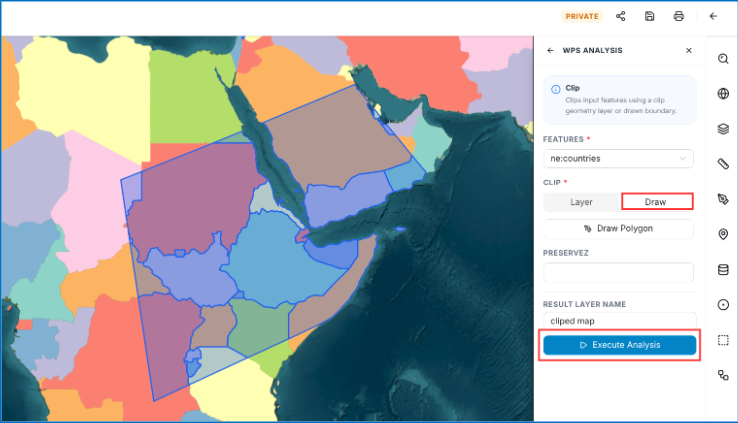 Figure: Clip Analysis using Drawn Boundary Polygon
5. Difference Analysis
The Difference operation calculates the spatial difference (overlay subtraction) of two vector layers, removing the geometric area of one layer from another.
Configure Difference Analysis
To perform a Difference analysis:
- Open WPS Analysis and select Difference.
- Under A, select the input layer (e.g.,
topp:tasmania_state_boundaries). - Under B, select the input layer (e.g.,
topp:tasmania_water_bodies). - Enter a name in the Result Layer Name field.
- Click Execute Analysis.
- The resulting layer will be added to the Layer List.
- Turn off the original input layers to view the result clearly.
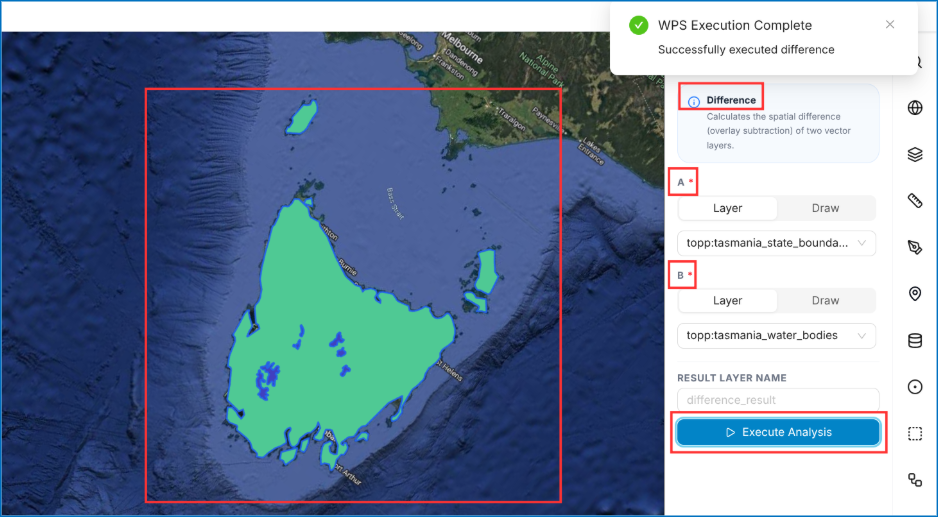 Figure: Difference Operation Configuration
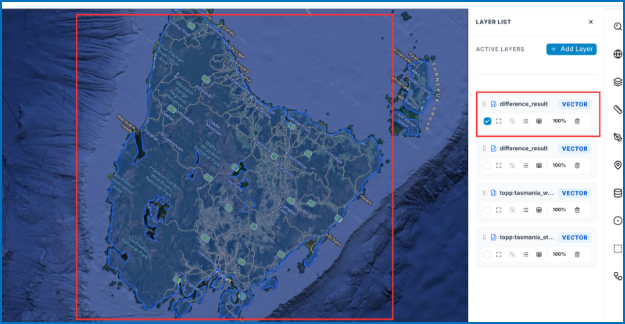 Figure: Difference Output Layer Displayed in Layer List
You can perform multiple vector analysis operations in WPS.