Fuzzy Search & Attribute Filtering
The Fuzzy Search tool allows users to search for specific features within accessible layers. The Fuzzy Search tool allows users to search for specific features within the layers they have access to.
- Click the Fuzzy Search tool.
- Select the layer you want to search (e.g., Country).
- Enter or select a search keyword, such as a country name.
- A list of the accessible layers will be displayed.
- Select the layer you want to search. For example, select the Country layer.
- Enter or select a search keyword, such as a country name.
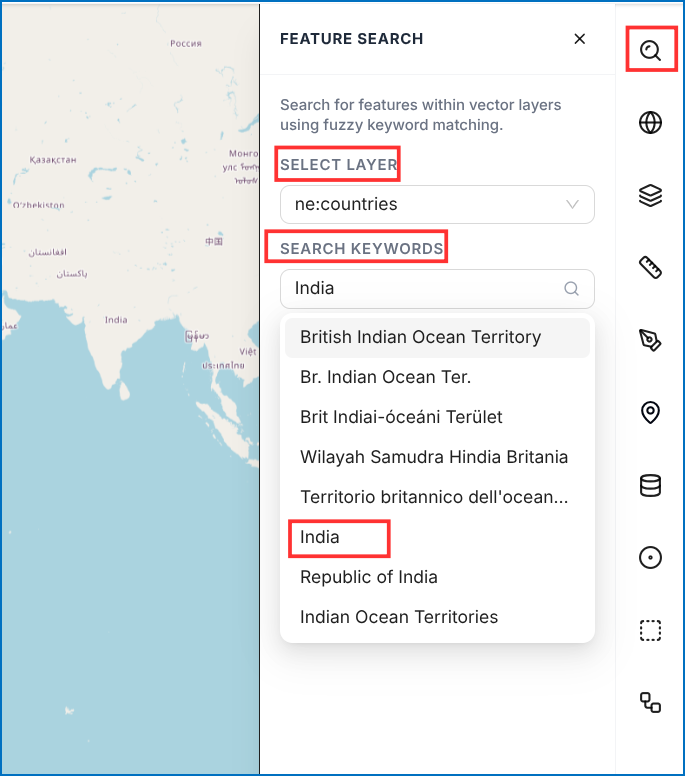 Figure: Fuzzy Search Layer and Keyword Selection
- The search results will display only the matching features.
- The filtered results are displayed in an interactive Attribute Table:
- The search results will display only the features matching the selected keyword from the selected layer.
- After performing the search, the filtered results will be displayed in a table, showing the relevant data from the selected layer.
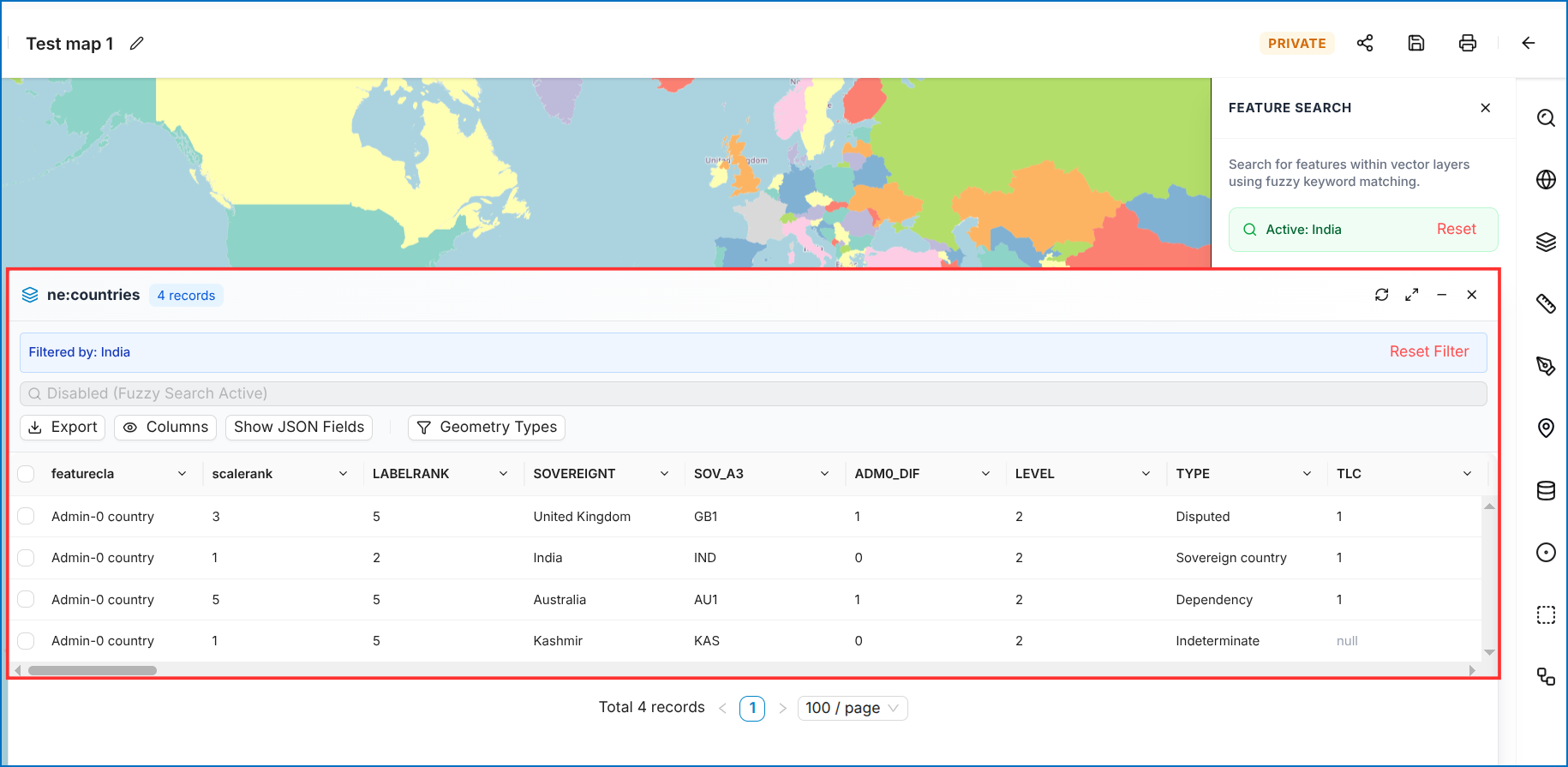 Figure: Filtered Attribute Results Table
Figure: Fuzzy Search Results Table
Figure: Filtered Attribute Results Table
Figure: Fuzzy Search Results Table
Table Operations
- Export — Export table data to CSV or GeoJSON.
- Hide Column — Hide selected columns from the view.
- Show JSON Fields — View raw GeoJSON feature properties.
- Geometry Types — Inspect geometry classification (Point, Line, Polygon).
- Selection Controls —
Select All,Invert Selection,Move to Top, andShow Selected Only. -
Zoom To Feature — Pan and zoom the map to the selected record. After performing a search, the filtered results are displayed in a table. Users can perform various operations on the displayed data:
-
Export – Export the displayed data.
- Hide Column – Hide selected columns from the table.
- Show JSON Fields – View the JSON fields associated with the selected data.
- Geometry Types – View the geometry type of the features.
- Select All – Select all features in the table.
- Invert Selection – Invert the current selection.
- Move to Top – Move selected features to the top of the table.
- Show Selected Only – Display only the selected features.
- Zoom To – Zoom the map to the selected feature.
- Select Feature – Select an individual feature from the table.
You can refresh, minimize, maximize, and cancel the tables top right side to see map view.
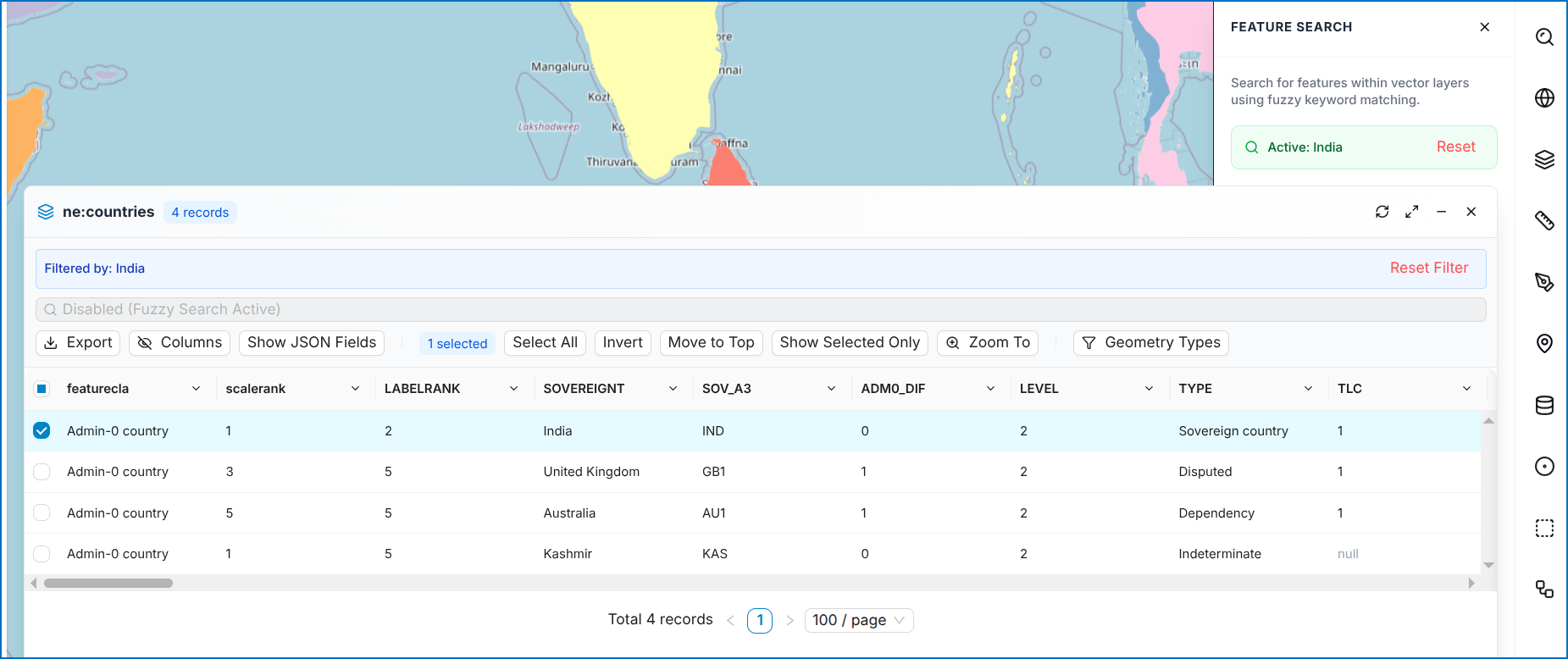 Figure: Attribute Table Operations Toolbar