Measurement Tools
The Measurement Tool allows users to measure distances and surface areas directly on the map. The Measurement Tool allows users to measure distances and areas directly on the map.
Measure Distance / Length
- Select Measure Distance/Length.
- Click points on the map along the path.
- Double-click to finish drawing. Real-time measurement and history are displayed:
- Select the required measurement tool:
- Measure Distance/Length
- Measure Area
- Click on the map to place points and draw the measurement.
- Double-click to finish the drawing.
- After completing the measurement, users can:
- Stop Active Drawing
- Clear All Measurements
- Users can also see the Measurement History and delete previous measurements from the map as required.
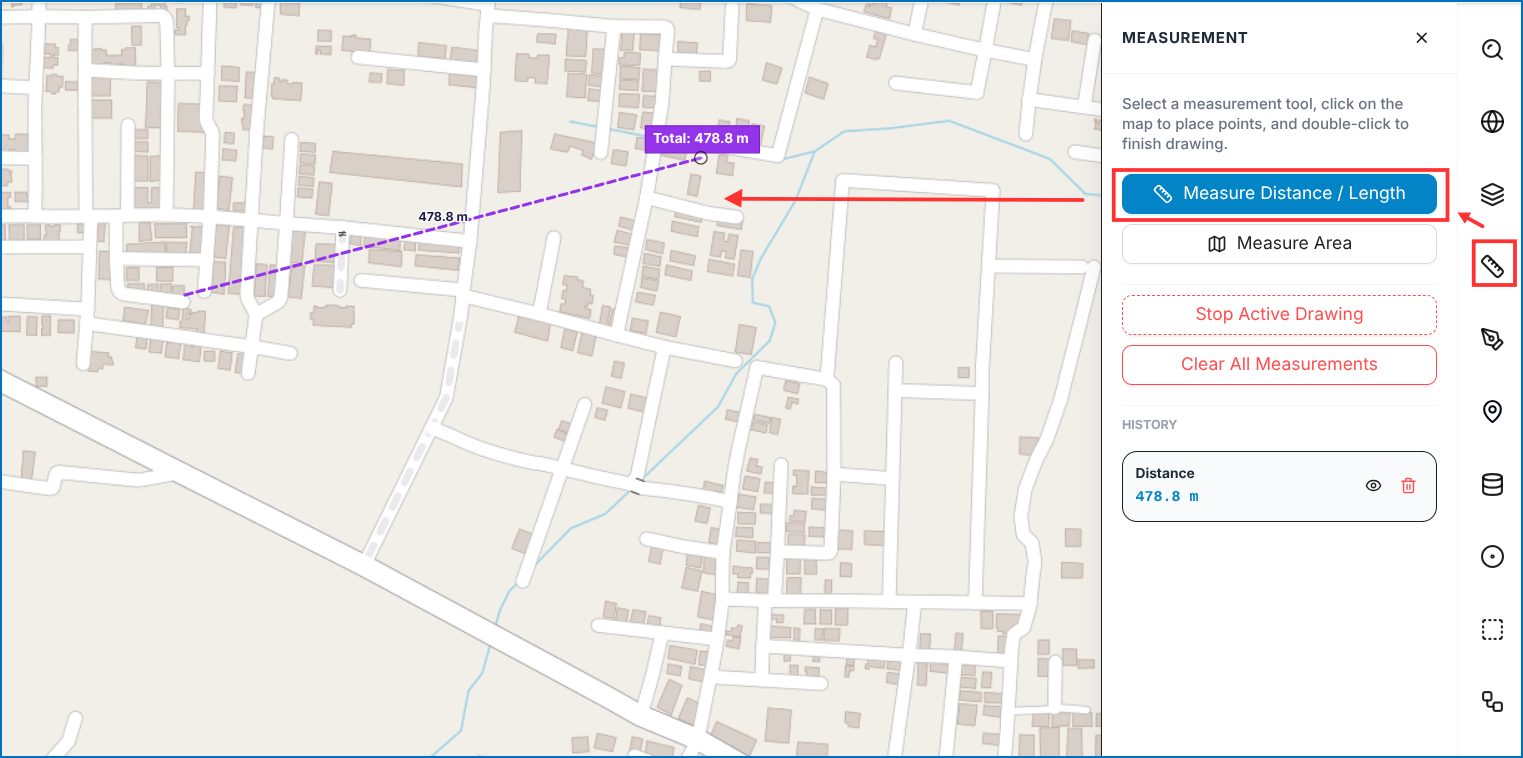 Figure: Distance Measurement & Measurement History
Figure: Measurement Tool - Distance and Measurement History
Figure: Distance Measurement & Measurement History
Figure: Measurement Tool - Distance and Measurement History
Measure Area
- Select Measure Area.
- Click points defining the polygon boundary.
- Double-click to finish drawing and calculate enclosed surface area:
To measure a surface area, select Measure Area, draw the polygon perimeter on the map, and double-click to close the shape. The calculated area is displayed immediately.
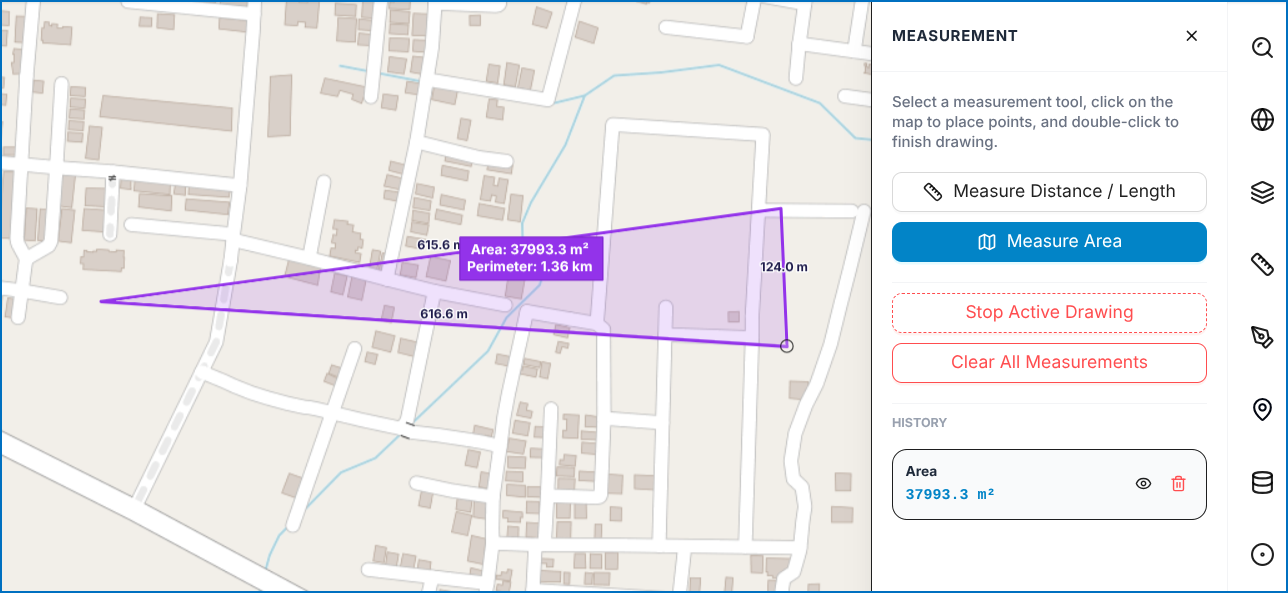 Figure: Polygon Surface Area Measurement
Figure: Measurement Tool - Measure Area
Figure: Polygon Surface Area Measurement
Figure: Measurement Tool - Measure Area