Maps & Geospatial Tools
1. Fuzzy Search & Attribute Filtering
The Fuzzy Search tool allows users to search for specific features within the layers they have access to.
- Click the Fuzzy Search tool.
- Select the layer you want to search (e.g., Country).
- Enter or select a search keyword, such as a country name.
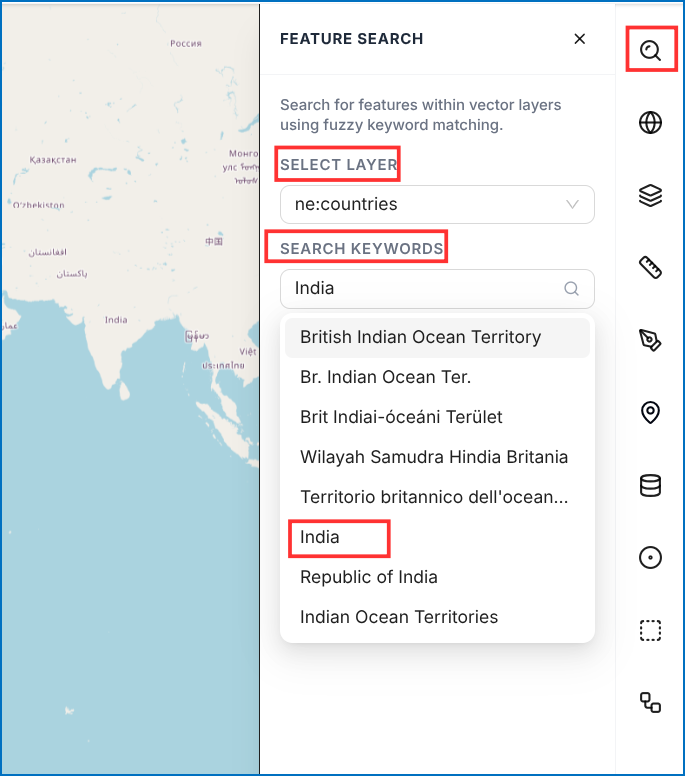 Figure: Fuzzy Search Layer and Keyword Selection
- The search results will display only matching features.
- The filtered results are displayed in an interactive Attribute Table:
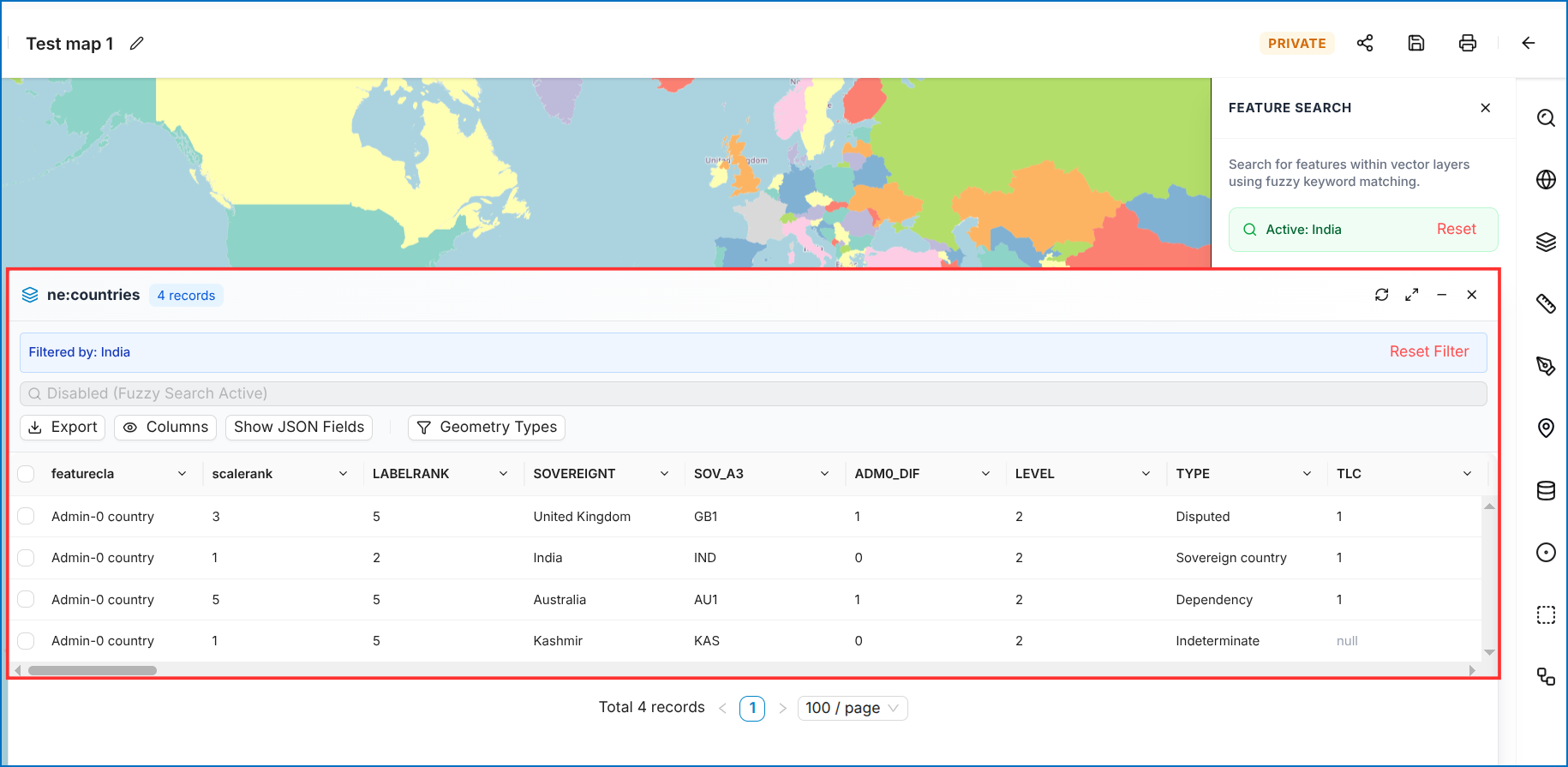 Figure: Filtered Attribute Results Table
Table Operations
- Export — Export the displayed data to CSV or GeoJSON.
- Hide Column — Hide selected columns from the table.
- Show JSON Fields — View JSON fields associated with the data.
- Geometry Types — View geometry types of features.
- Selection Controls —
Select All,Invert Selection,Move to Top, andShow Selected Only. - Zoom To — Zoom the map to the selected feature.
- Select Feature — Select an individual feature from the table.
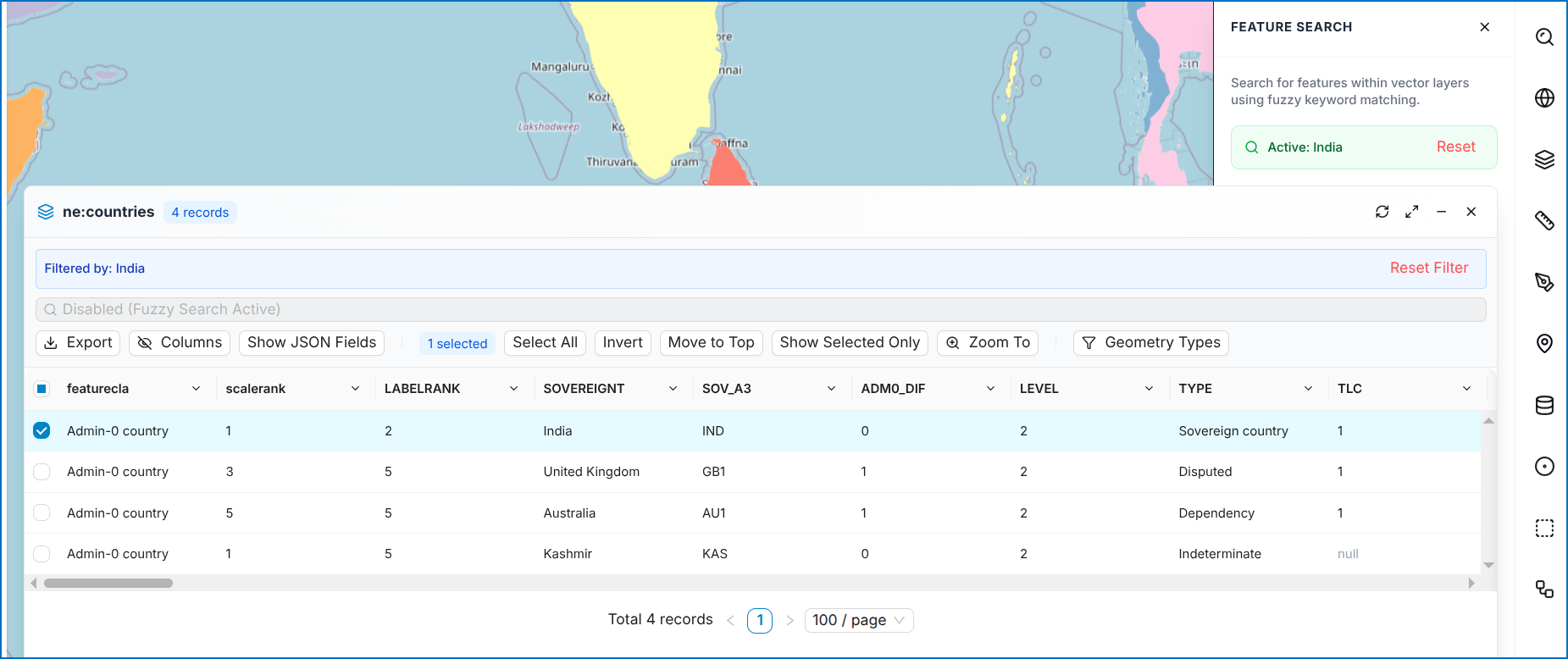 Figure: Attribute Table Operations Toolbar
2. Base Map Layer Selection
VistaBridge provides standard global basemap options: - OSM (OpenStreetMap) — Standard street and road map. - ESRI World Imagery — High-resolution global satellite imagery. - Google Hybrid — Google satellite imagery with road/label overlays. - Google Street — Standard Google street map.
To change the basemap: Click Basemap Selector and choose the required basemap.
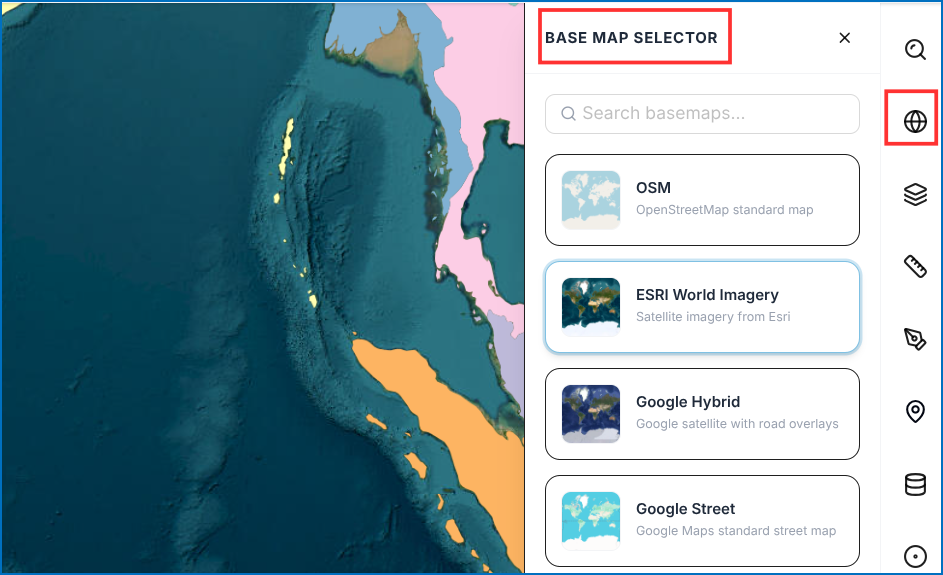 Figure: Basemap Selection Options
3. Layer List Management
The Layer List allows adding and managing multiple layers on the map:
- Click Layer List -> Add Layers.
- Select required layers from the Available Layers table.
- Click Add to Map.
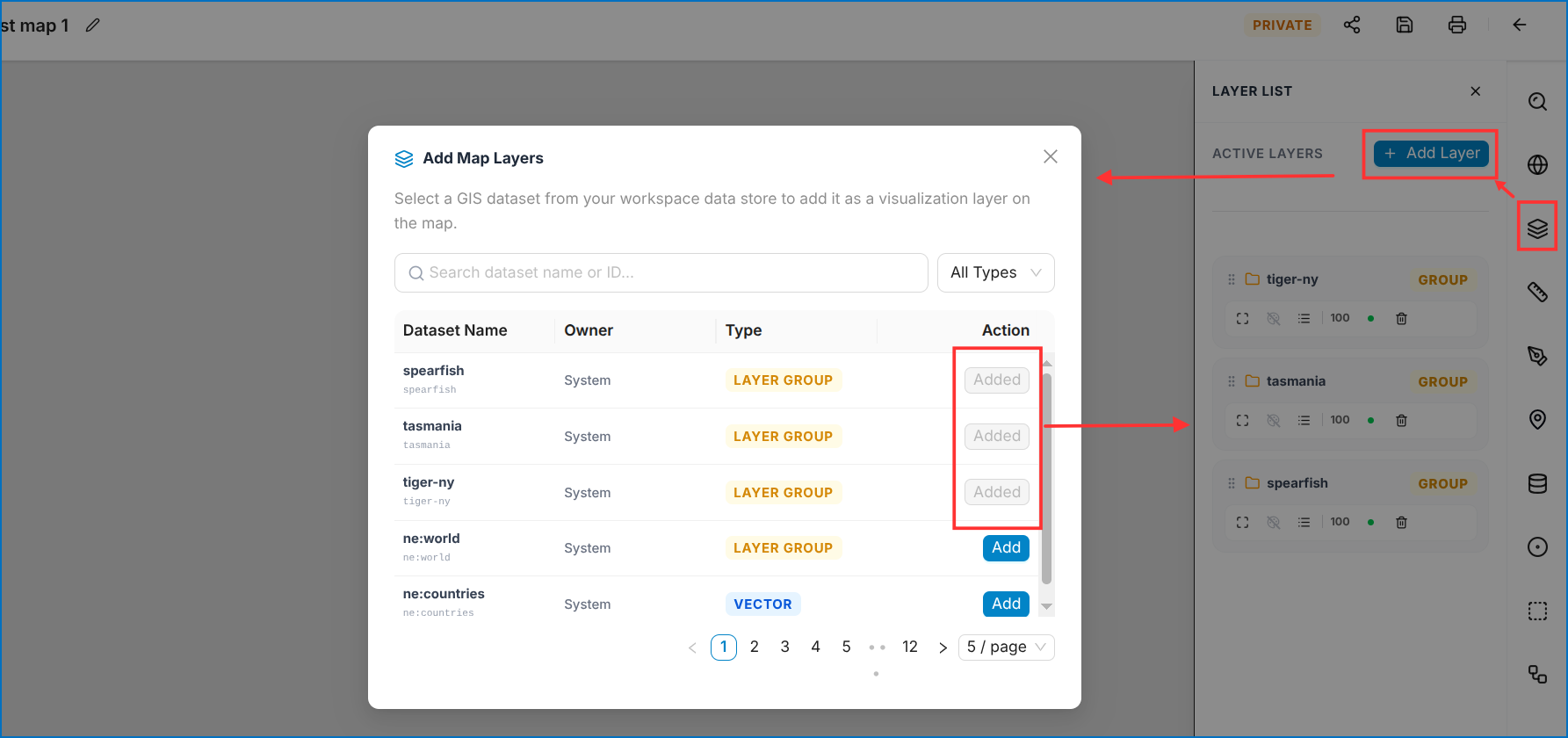 Figure: Available Layers Selection Table
Mini Toolbar Controls
Each layer in the Layer List includes a mini toolbar:
| Control | Name | Description |
|---|---|---|
| 1 | Hide Layer | Toggles layer visibility on/off |
| 2 | Zoom to all | Centers map view to layer full extent |
| 3 | GeoServer style | Applies or modifies GeoServer SLD styles |
| 4 | Legend | Displays symbology legend for the layer |
| 5 | Opacity | Adjusts layer transparency slider |
| 6 | Delete | Removes layer from the workspace |
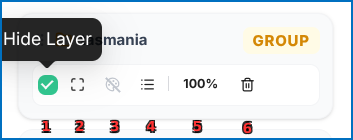 Figure: Layer List with Mini Toolbar Controls
4. Measurement Tools
Measure Distance / Length
- Select Measure Distance/Length.
- Click points along the path on the map.
- Double-click to finish drawing. View measurement and prior records in Measurement History.
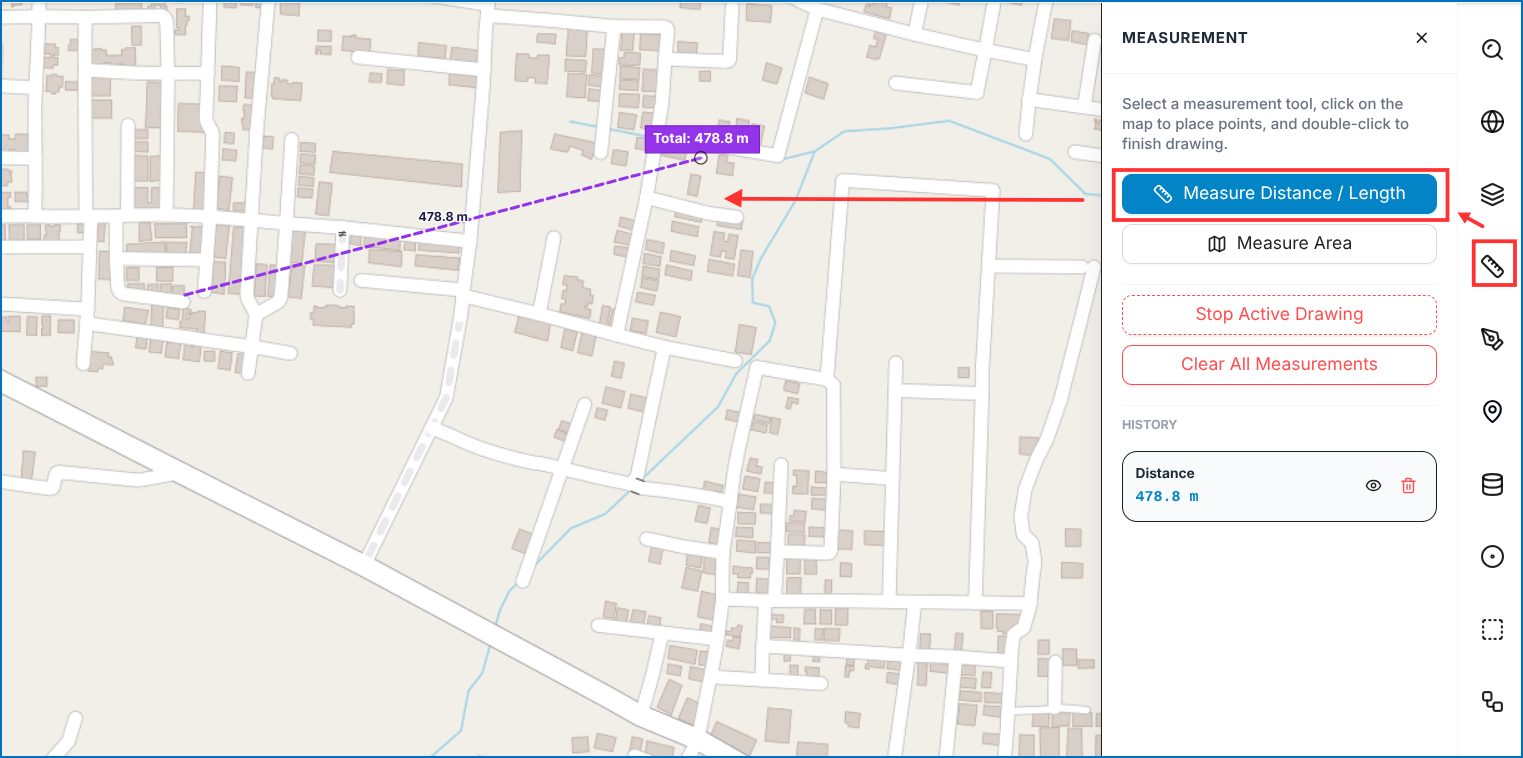 Figure: Distance Measurement & Measurement History
Measure Area
- Select Measure Area.
- Click points defining the polygon boundary.
- Double-click to finish drawing and calculate enclosed area.
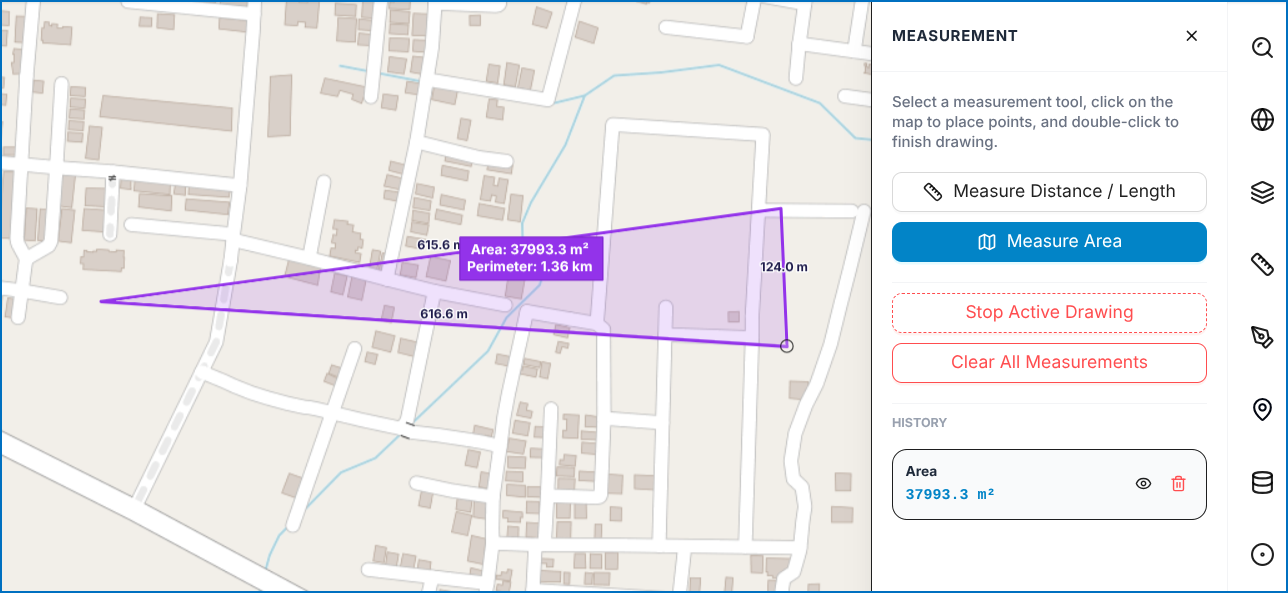 Figure: Polygon Surface Area Measurement
5. Annotation Tools
The Annotation tool allows users to mark and add information directly on the map: - Point - Line & Freehand Line - Square & Rectangle - Circle - Freehand Polygon - Label / Text
Click Save in the top-right corner to save annotations with the workspace, or Clear Annotations to remove all drawings.
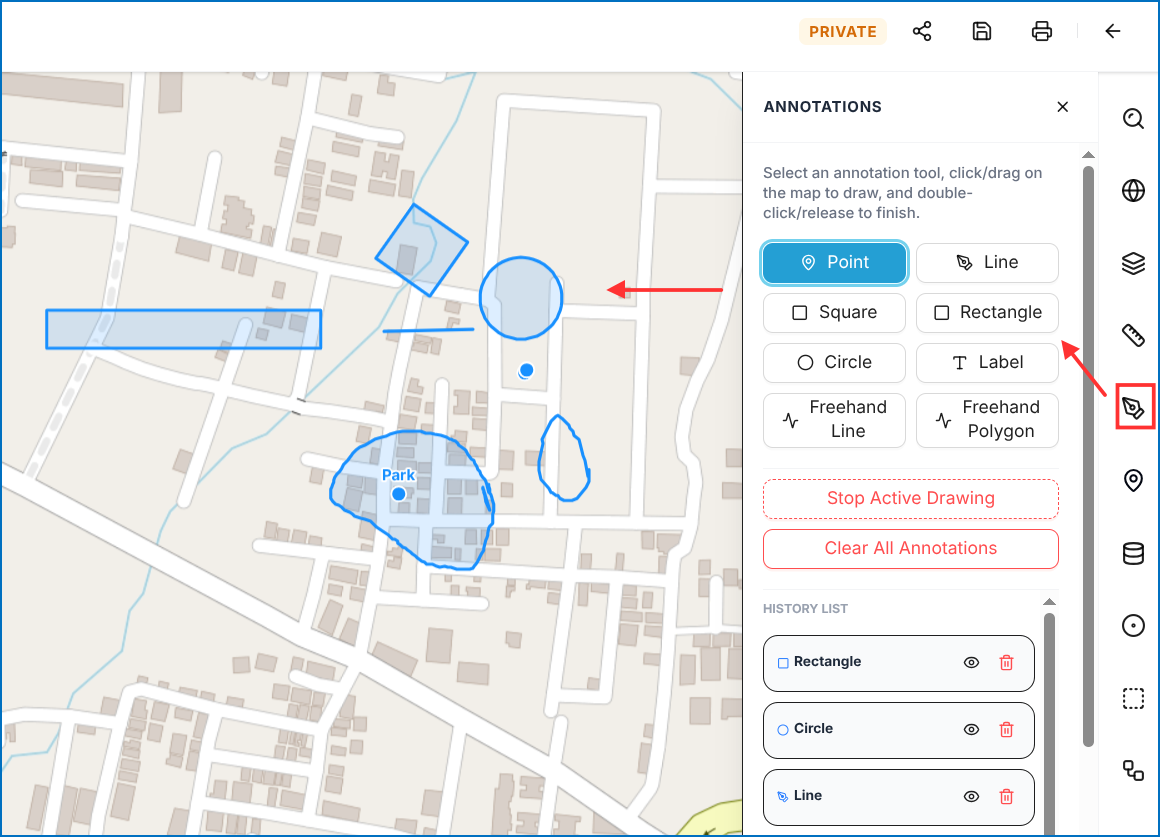 Figure: Map Markup and Annotation Tools
6. GO TO XY Coordinate Locator
Specify geographic locations across three coordinate formats:
Decimal Degrees (DD)
Enter coordinates (e.g., -73.816623, 18.638469), click Go, and optionally bookmark via Save Location.
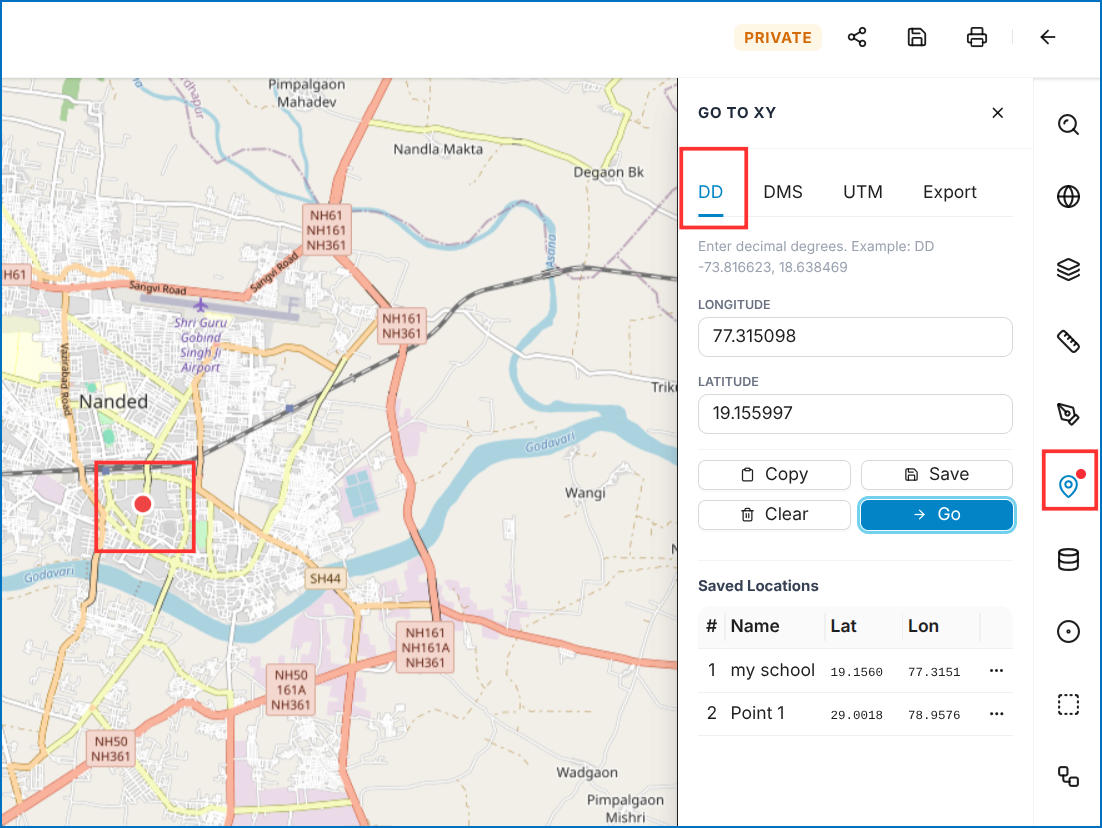 Figure: Decimal Degrees (DD) Navigation & Saved Locations
Degrees, Minutes, and Seconds (DMS)
Enter coordinates in DMS format (deg° min' sec").
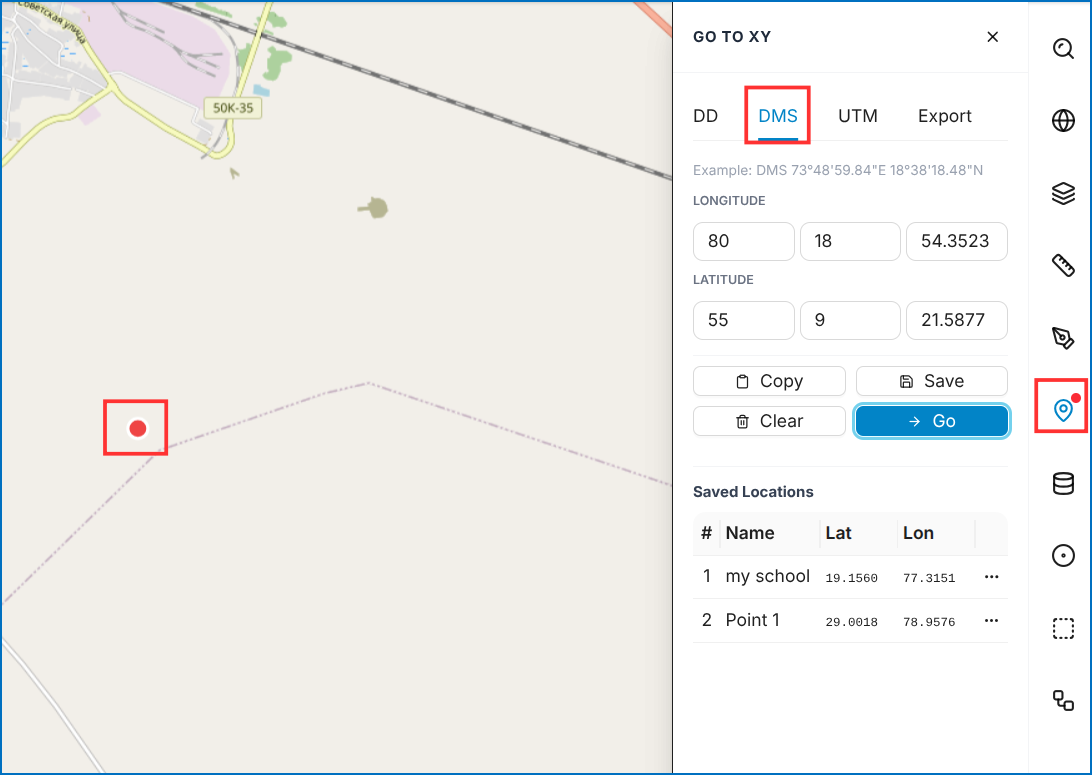 Figure: Degrees, Minutes, and Seconds (DMS) Format
Universal Transverse Mercator (UTM)
Enter coordinates using Easting and Northing values measured in meters.
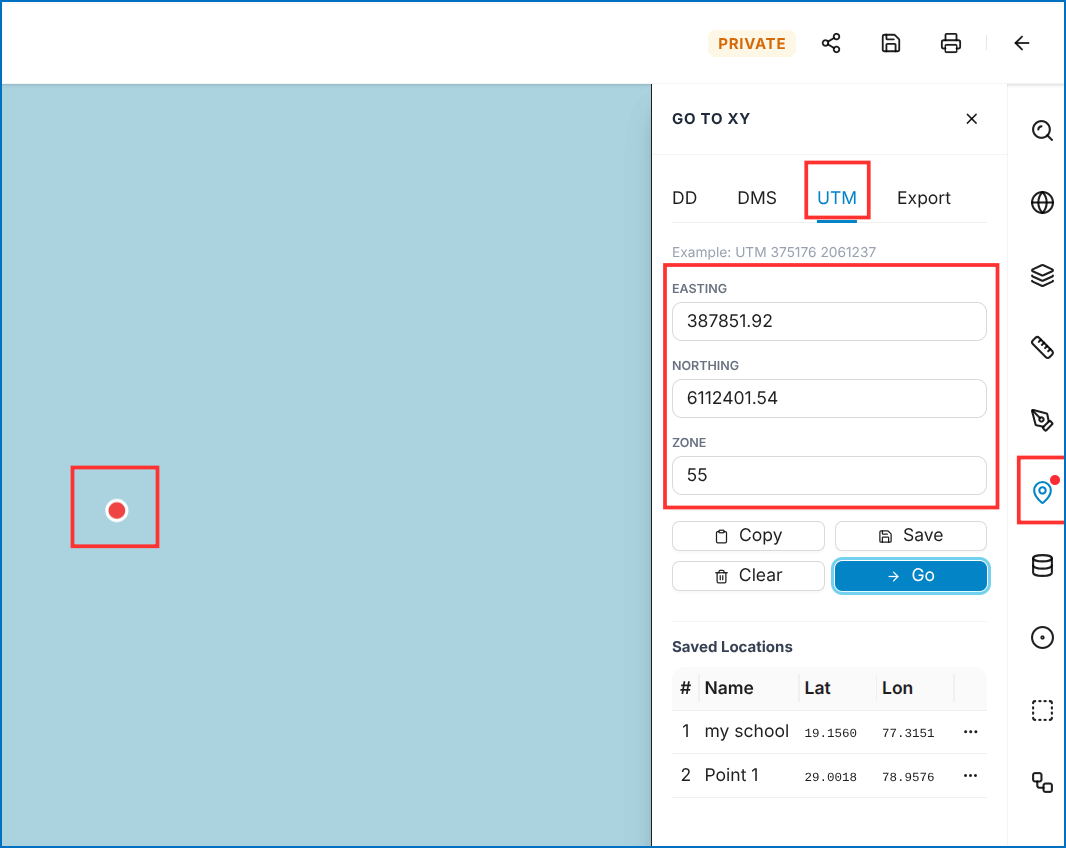 Figure: Universal Transverse Mercator (UTM) Format
Export Saved Coordinates
Export saved coordinate bookmarks to a CSV file:
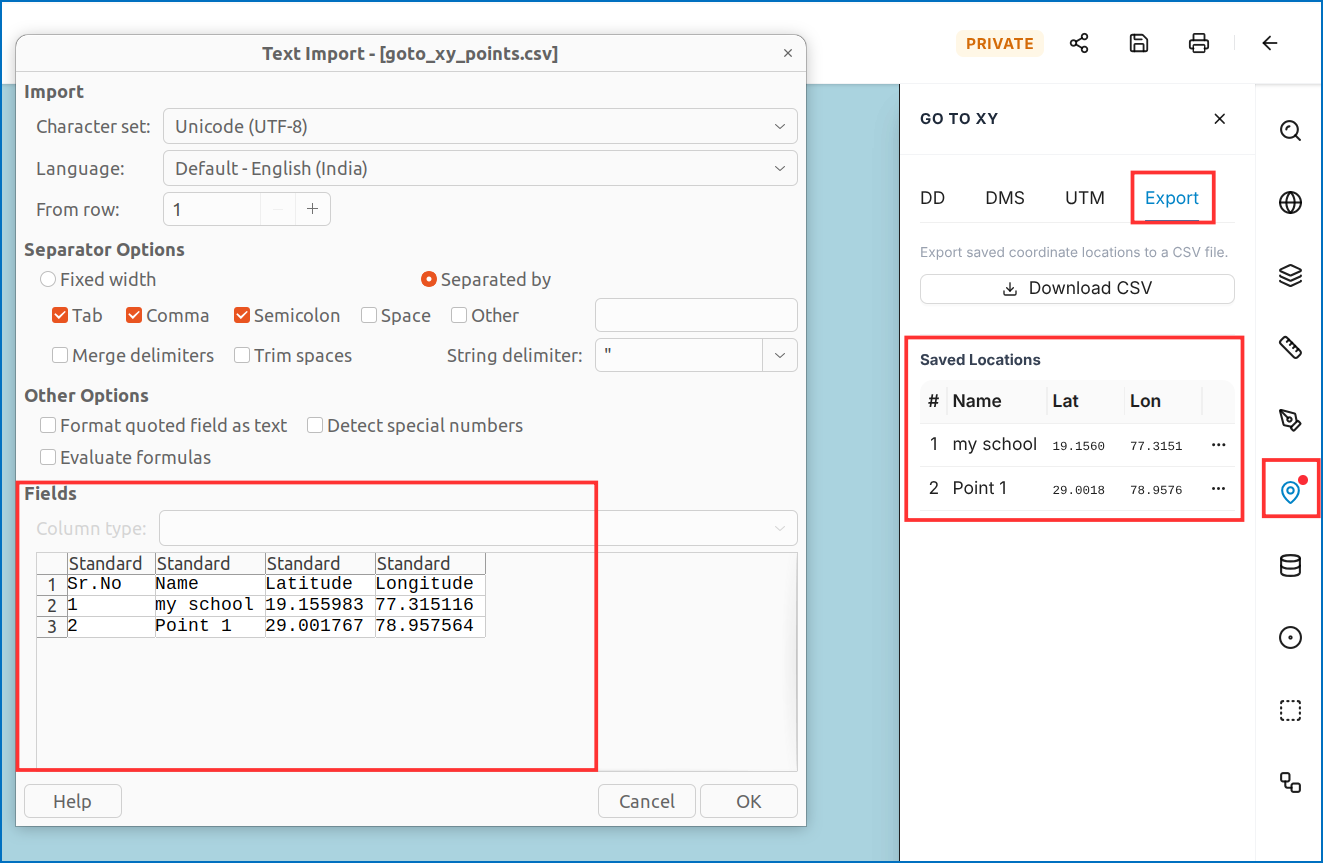 Figure: CSV Coordinate Export
7. Query Tools Engine
7.1 Query by Attribute
Filter features based on attribute values:
1. Select Target Layer.
2. Set Matches (All, Any, None), column, filter (e.g., Contains), and value (e.g., "tan").
3. Click Run Query.
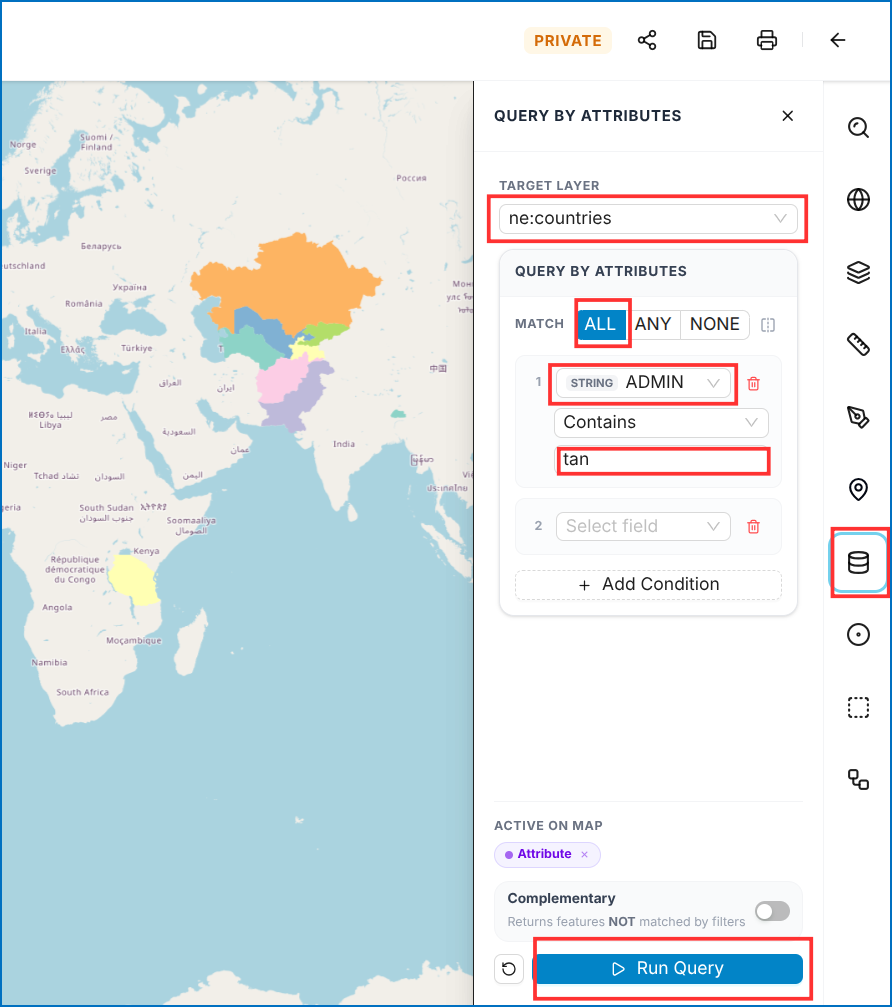 Figure: Query by Attribute Configuration
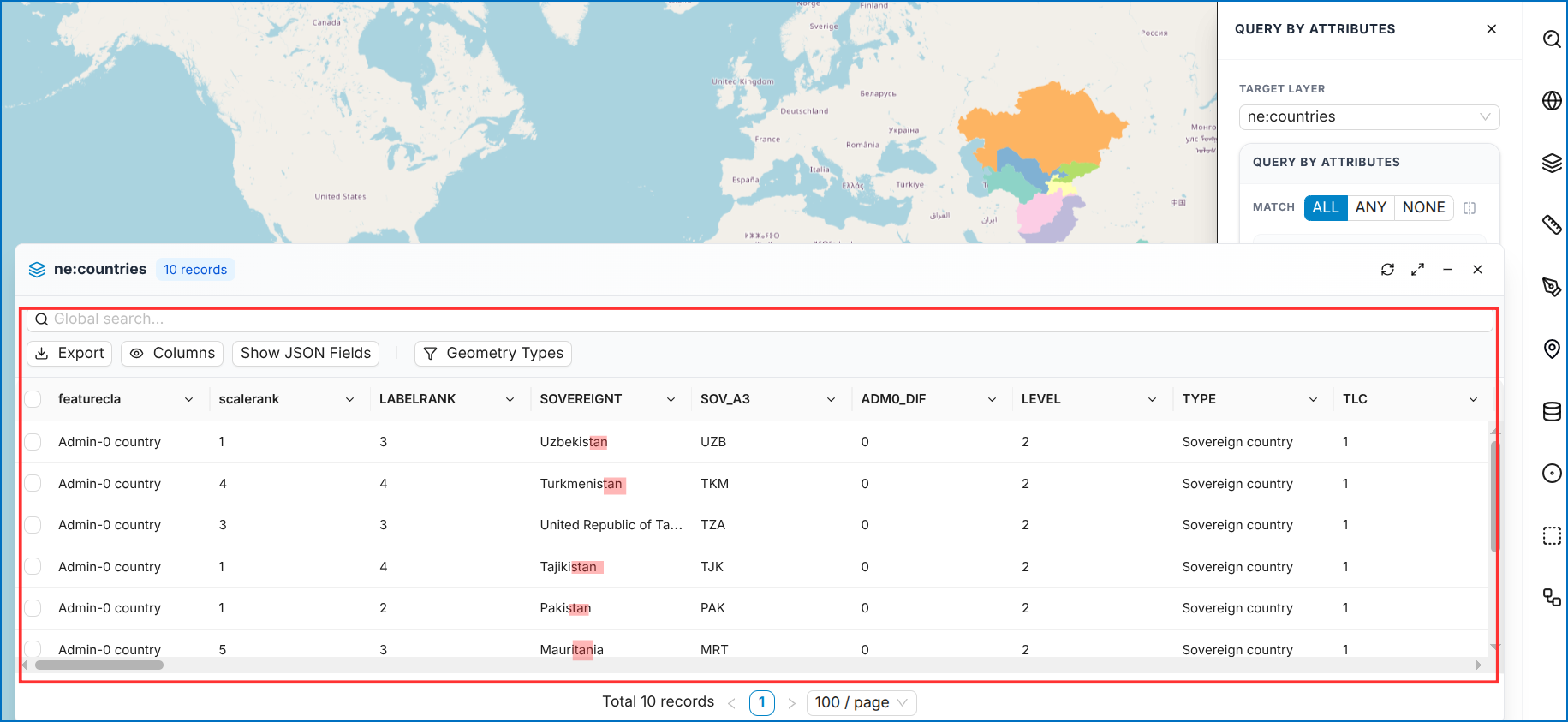 Figure: Filtered Query Results Table
7.2 Buffer Query
Identify features within a distance buffer: 1. Select Target Layer, geometry type, and buffer radius (up to 500 km). 2. Click Draw on Map, draw the shape, and double-click to finish. 3. Click Run Query.
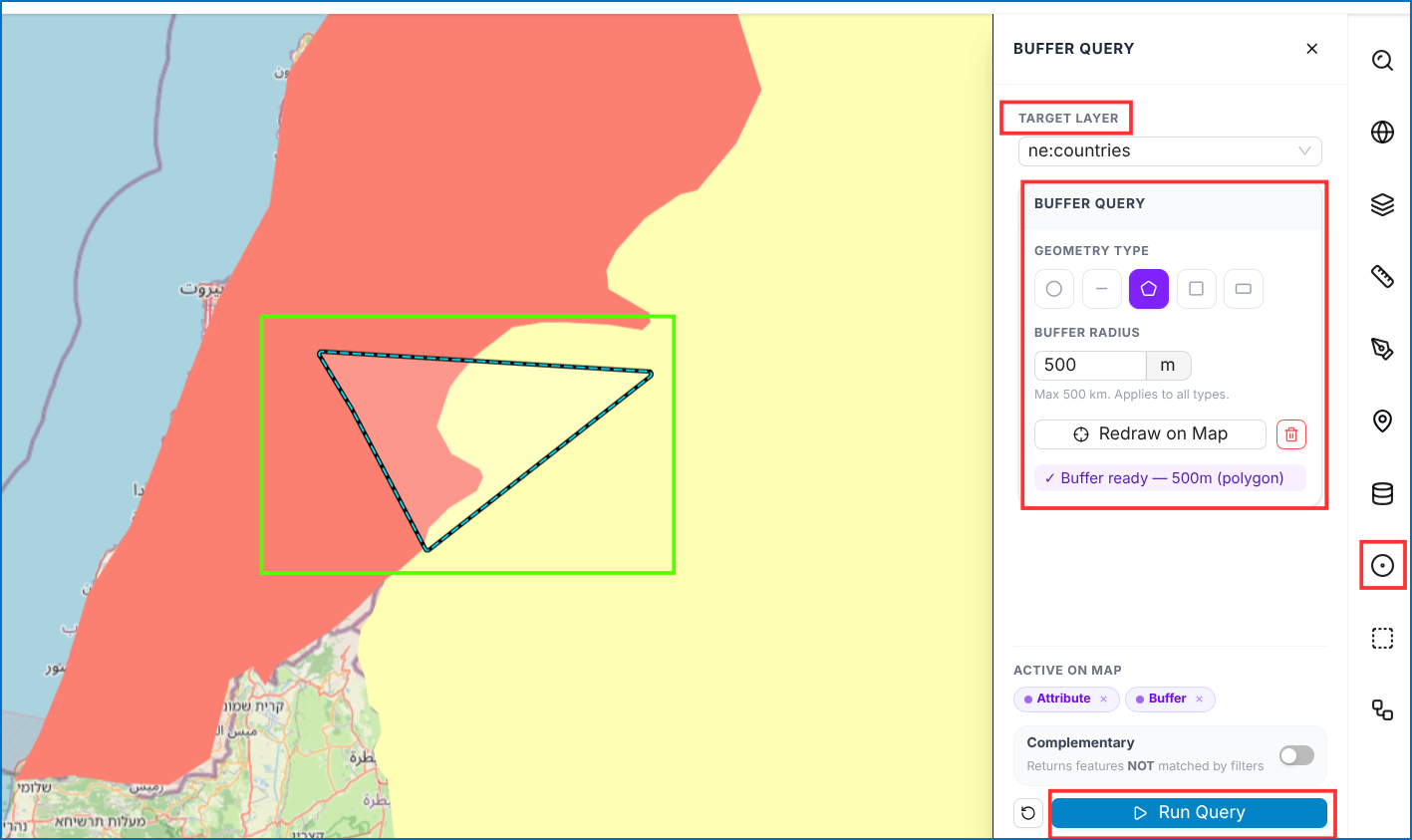 Figure: Buffer Query Configuration on Map
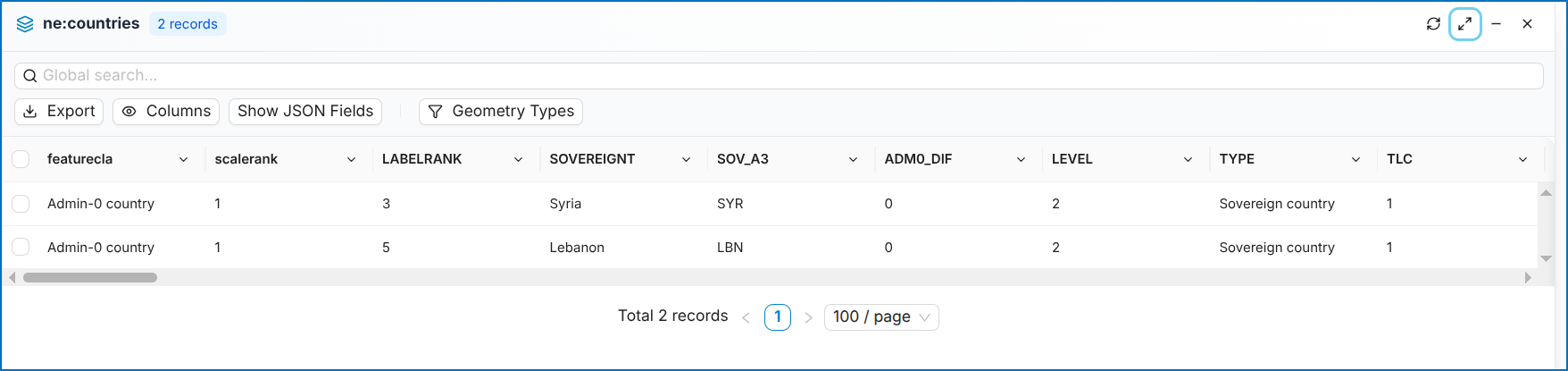 Figure: Buffer Query Results Table
7.3 Spatial Query
Find features based on topological relationships: 1. Select Target Layer, choose Use another layer, select spatial operator (Intersects, Contains, etc.), and reference dataset. 2. Click Run Query.
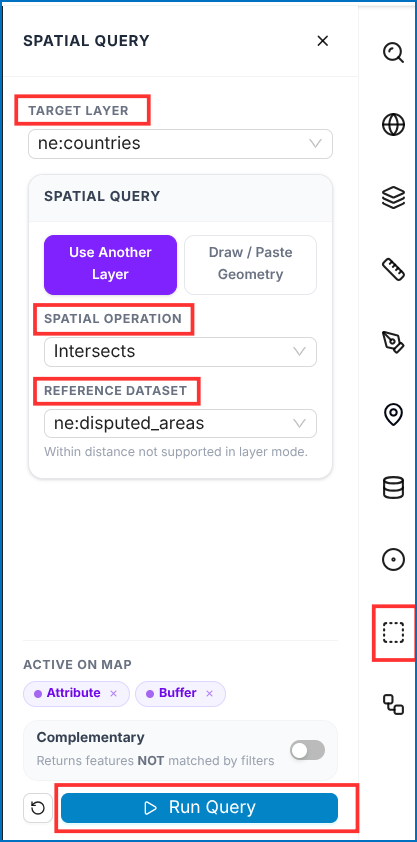 Figure: Spatial Topological Query Configuration
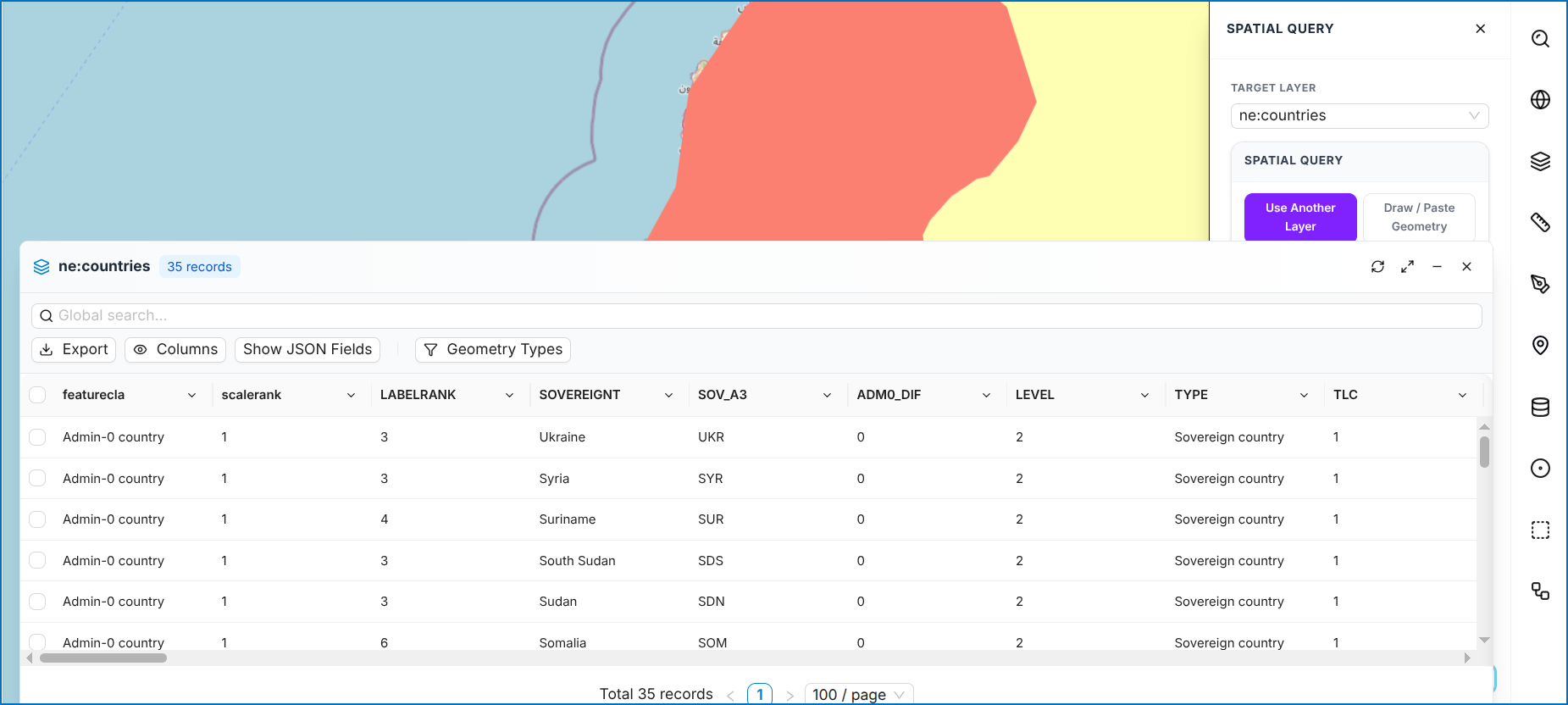 Figure: Spatial Query Output Table
8. Manage Maps Workspace
Manage and preview mapping workspaces: - Search by Workspace Name or ID. - Filter by date. - Preview (Eye Icon) to open map. - Create Map to start a new workspace.
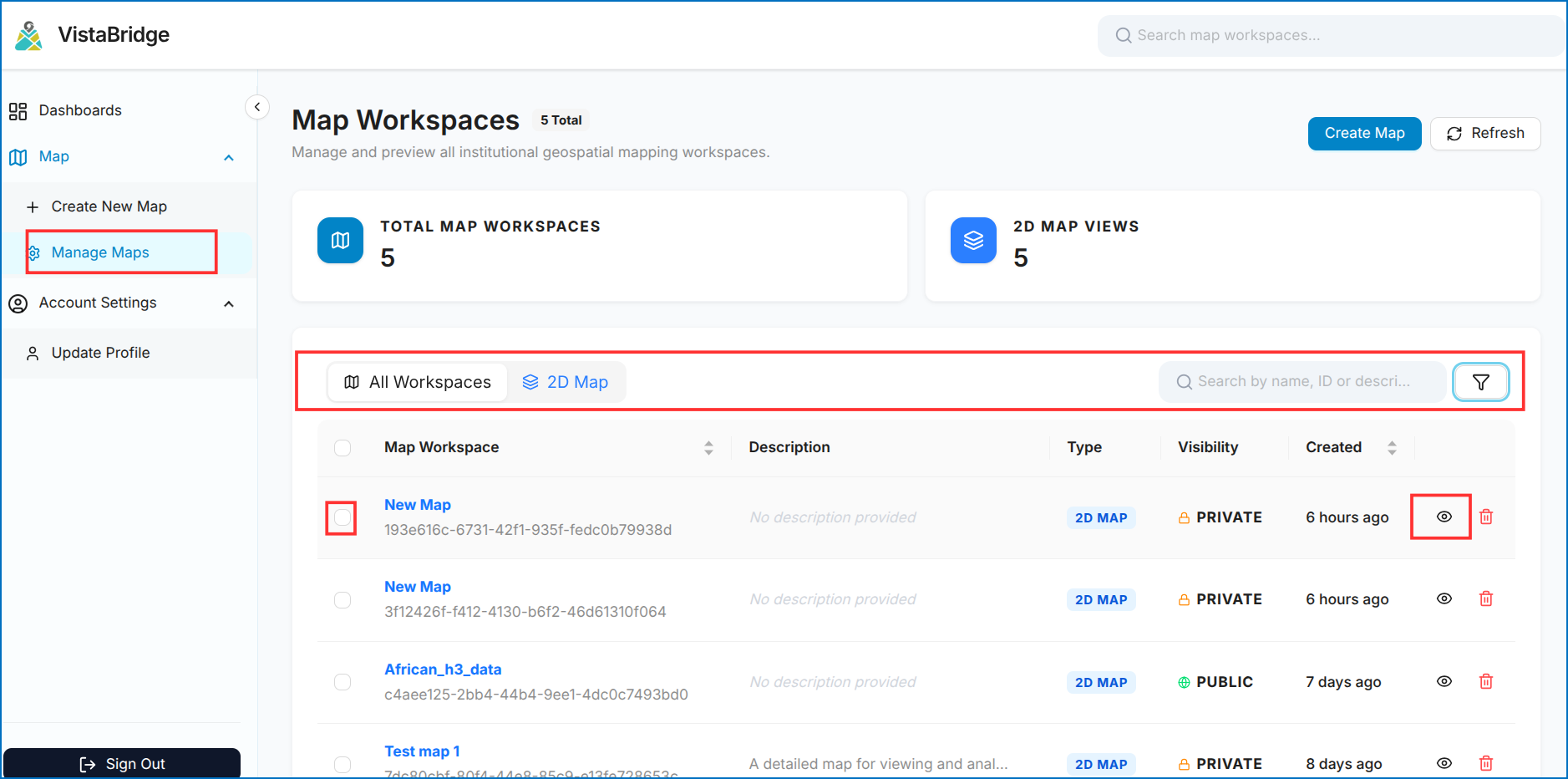 Figure: Manage Maps Workspace Directory