Quick Map
VistaBridge provides a Quick Map option on the Sign In page, allowing users to access the map workspace without logging in.
This option allows users to explore publicly accessible map layers and use the available map tools without requiring an authenticated account.
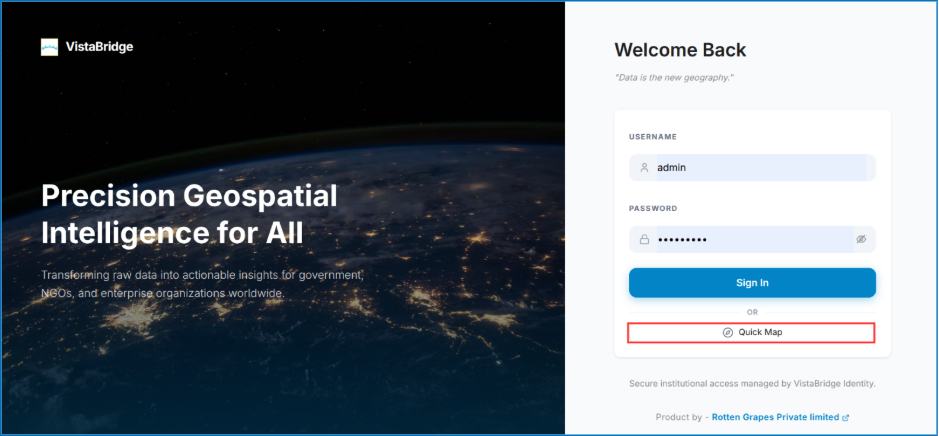 Figure: Quick Map Option on Sign In Page
Accessing Quick Map
- Open the VistaBridge Sign In page.
- Below the Sign In button, locate the Quick Map option.
- Click Quick Map to open the map workspace.
- The application redirects the user to the Quick Map workspace.
Quick Map Workspace
The Quick Map workspace provides an interface similar to the New Map workspace, allowing users to interact with the map using the available tools.
Only layers that are publicly accessible are displayed in Quick Map.
Available Functionalities
Users can access the following functionalities:
- Left-Side Tools — Use the available map navigation and interaction tools.
- Right-Side Tools — Access the available map utilities and layer-related tools.
- Print Map — Print the map using the print option available in the top toolbar.
- Share Map Link — Copy the URL from the browser's address bar and share it with others.
Limitations
Since Quick Map is accessible without signing in, certain platform functionalities are not available:
- Save Map: Users cannot save maps in Quick Map.
- Map Title Management: Users cannot edit the map title or manage it as a saved map.
- Dashboard Access: Dashboards are not visible or accessible in Quick Map.
- Other Platform Functionalities: Features that require user authentication are not visible or accessible in the Quick Map workspace.
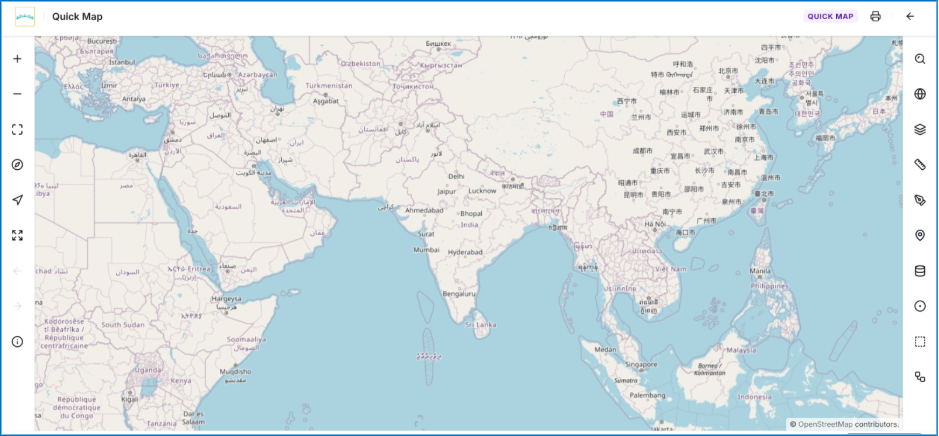 Figure: VistaBridge Quick Map Workspace Interface
Authenticated Access
To access dashboards and other authenticated platform functionalities, users must sign in to VistaBridge.