Raster Analysis Operations
Raster Analysis is used to process and analyze raster datasets such as satellite imagery, digital elevation models (DEM), and continuous grid-based surfaces.
1. Crop Coverage Operation
The Crop Coverage operation returns the portion of a raster layer that is covered by a specified geometry.
To perform Crop Coverage:
- Click Configure for the Crop Coverage operation.
- Under Coverage, select the required input raster layer.
- Under Cropshape, define the area to crop the raster:
- Draw Rectangle – Draw a rectangular area directly on the map.
- Draw Polygon – Draw a custom polygon boundary on the map.
- Enter a Result Layer Name for the output layer.
- Click Run Raster Analysis to execute the operation.
- The cropped raster will be generated as a new result layer in the Layer List.
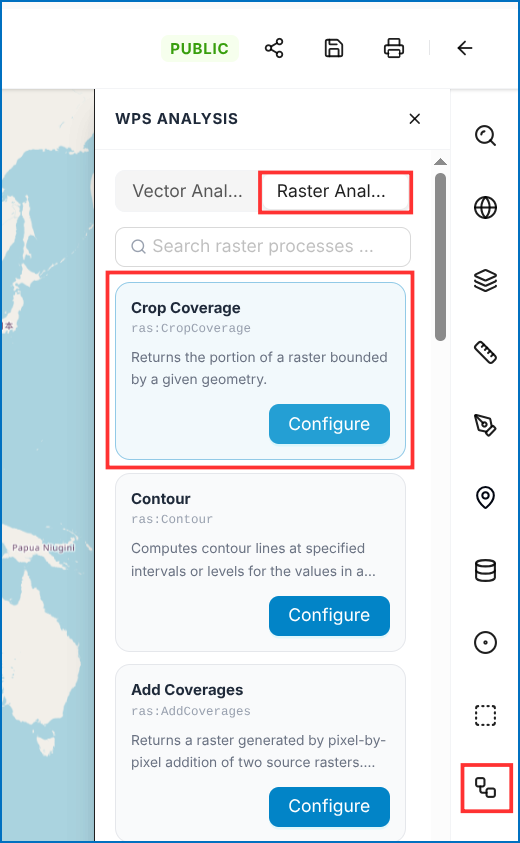 Figure: Crop Coverage Parameters
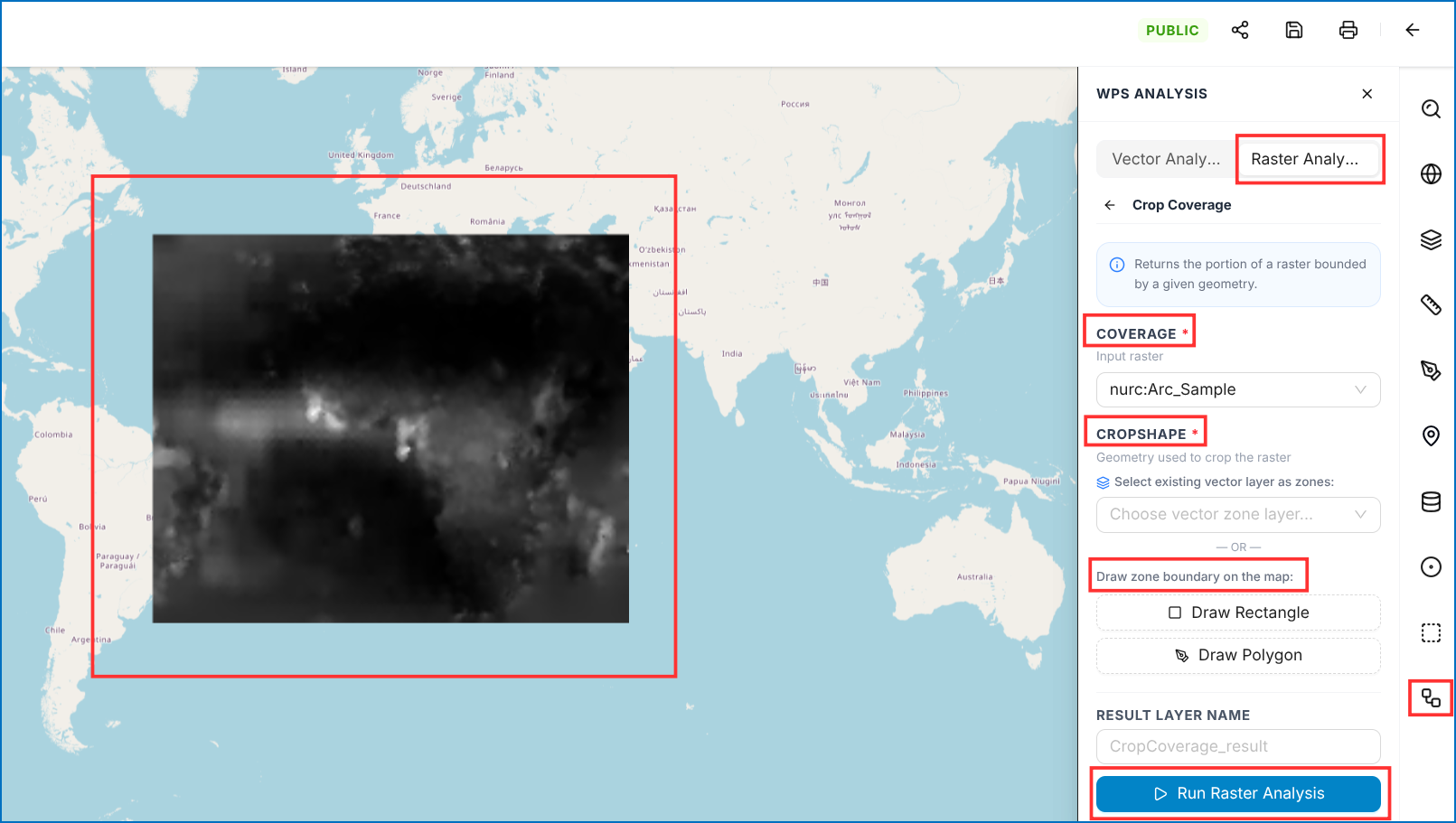 Figure: Cropped Raster Layer Result on Map
2. Contour Generation
The Contour operation generates contour lines from a raster layer at specified values or intervals. It is commonly used to represent elevation or other continuous raster values.
To perform Contour analysis:
- Open WPS Analysis and select the Raster Analysis tab.
- Select Contour and click Configure.
- Under Data, select the required input raster layer.
- Under Band, enter the raster band number to be used for generating contours (Default: 0).
- Under Levels, enter specific values at which the contour lines should be generated.
- Under Interval, specify the interval between contour values. This is used when specific levels are not provided.
- Use Simplify to enable or disable simplification of the generated contour lines.
- Use Smooth to enable or disable smoothing of the contour lines.
- Under ROI (Region of Interest), optionally define the area for analysis:
- Draw Rectangle – Select a rectangular area on the map.
- Draw Polygon – Draw a custom polygon area on the map.
- Enter a Result Layer Name for the output.
- Click Run Raster Analysis to execute the operation.
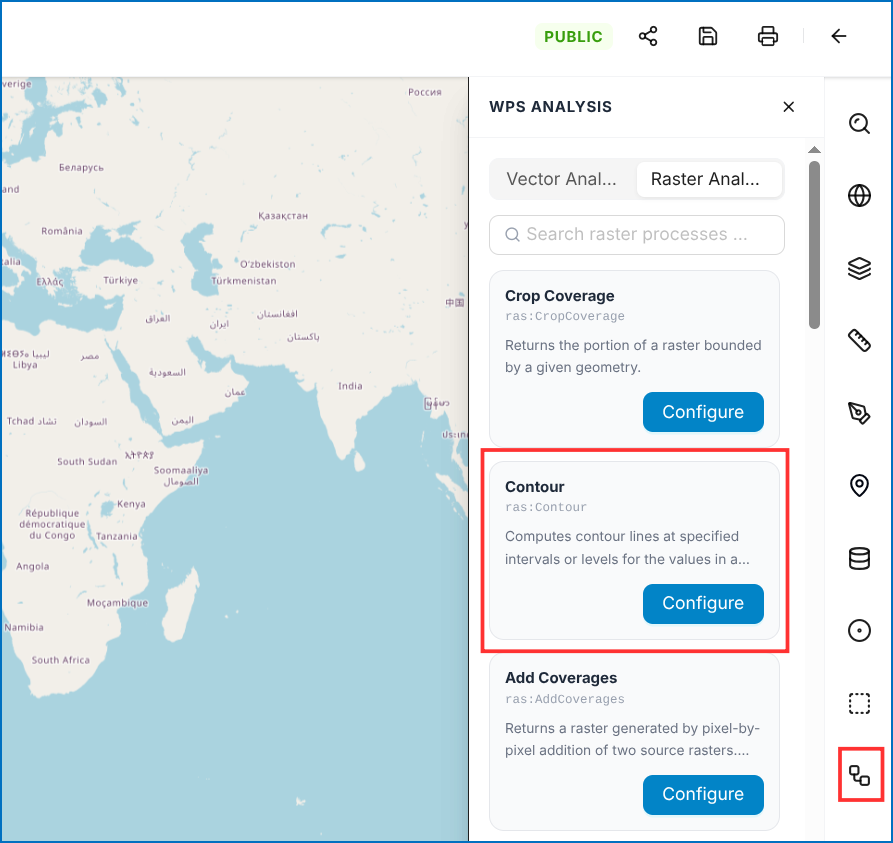 Figure: Contour Parameters Configuration
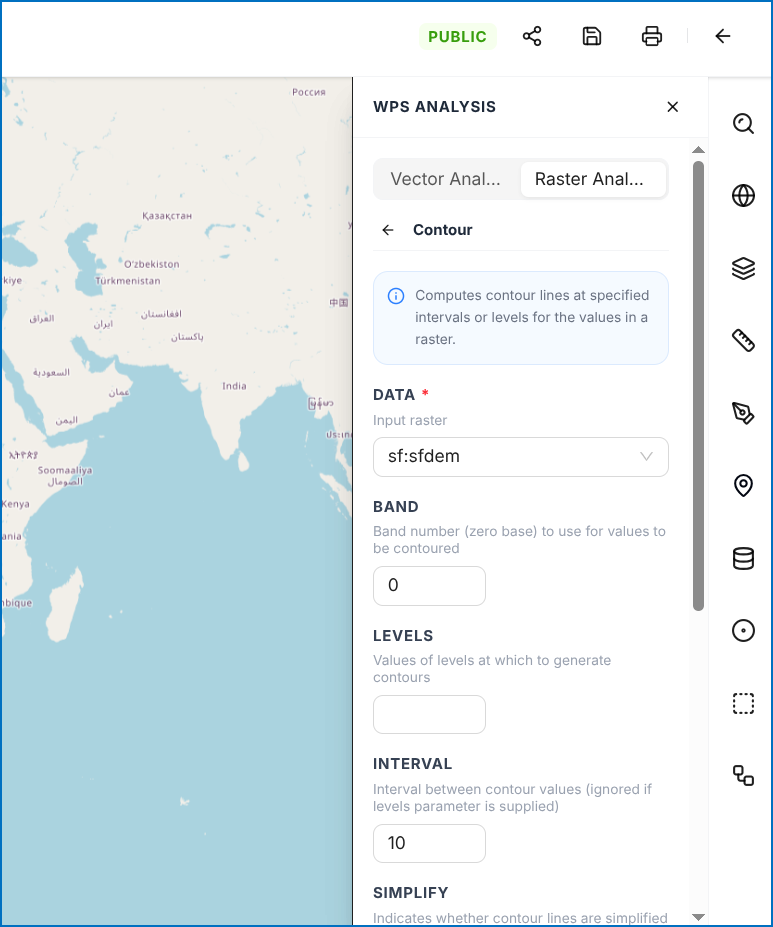 Figure: Region of Interest (ROI) Selection
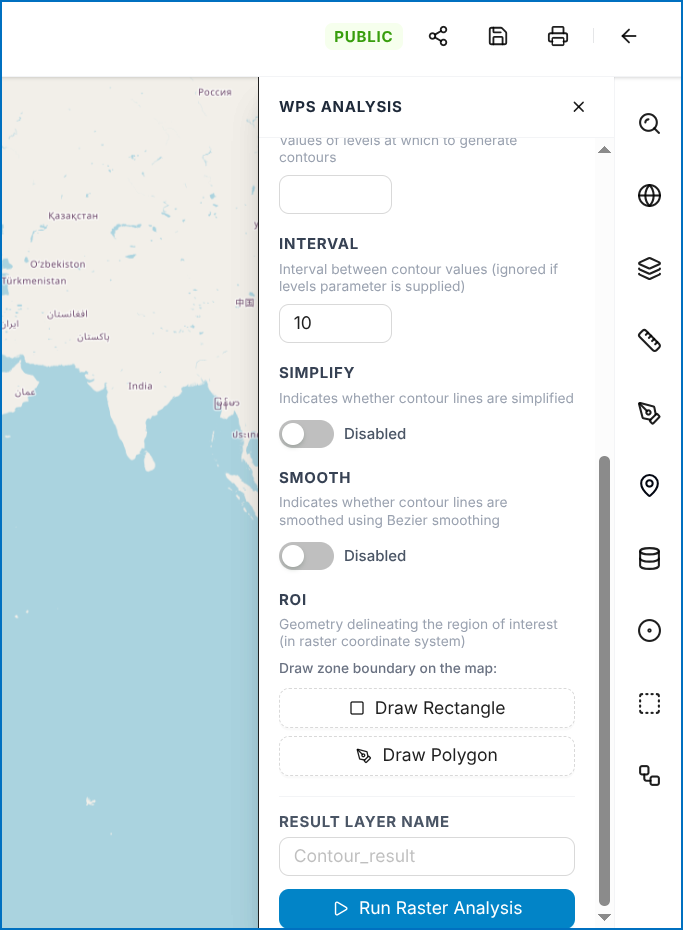 Figure: Contour Processing Execution
The generated contour lines will be added as a new result layer and can be viewed from the Layer List:
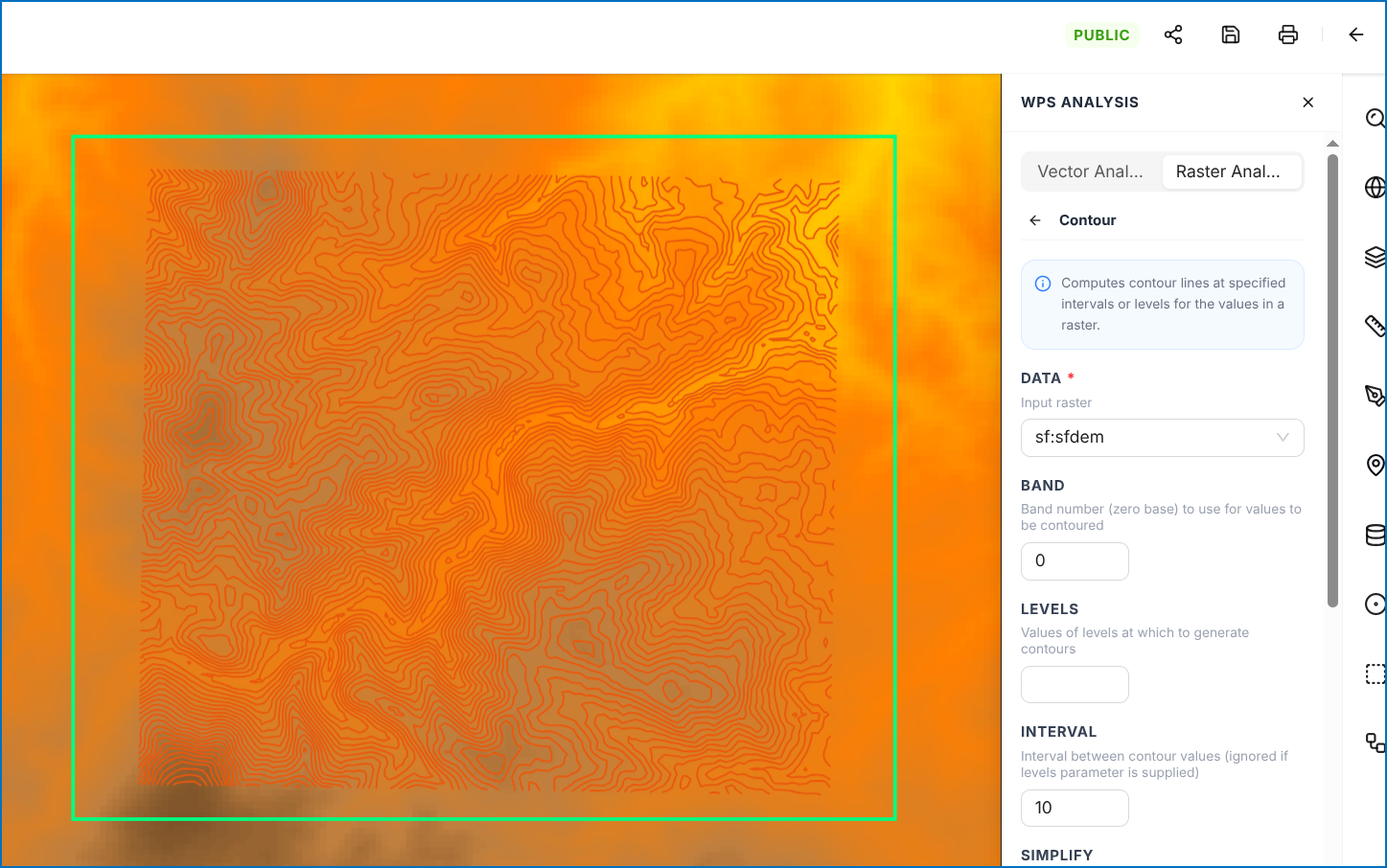 Figure: Generated Contour Result in Layer List