Query Tools Engine
The Query Tools allow users to search and analyze geographic data from Vector and Raster layers.
Vector Layer Query Options
The following query tools are available for vector layers:
- Query by Attribute – Search and filter features based on their attribute values.
- Buffer Query – Identify features within a specified distance around a selected feature or location.
- Spatial Query – Find features based on their spatial relationship with other features, such as intersects, contains, or within.
1. Query by Attribute
- Select Target Layer.
- Set Matches (All, Any, None), select column, filter (e.g., Contains), and value (e.g.,
"tan"). - Click Run Query.
Each Vector Layer contains an attribute table with information about its features. Query by Attribute allows users to filter and find specific features based on the values in the attribute table.
To run a Query by Attribute:
- Select the Target Layer.
- Under Matches, select All, Any, or None according to your requirement.
- Select the required string from the dropdown.
- Select the appropriate filter such as Contains.
- Enter the value to search for. For example, enter "tan".
- Click Run Query.
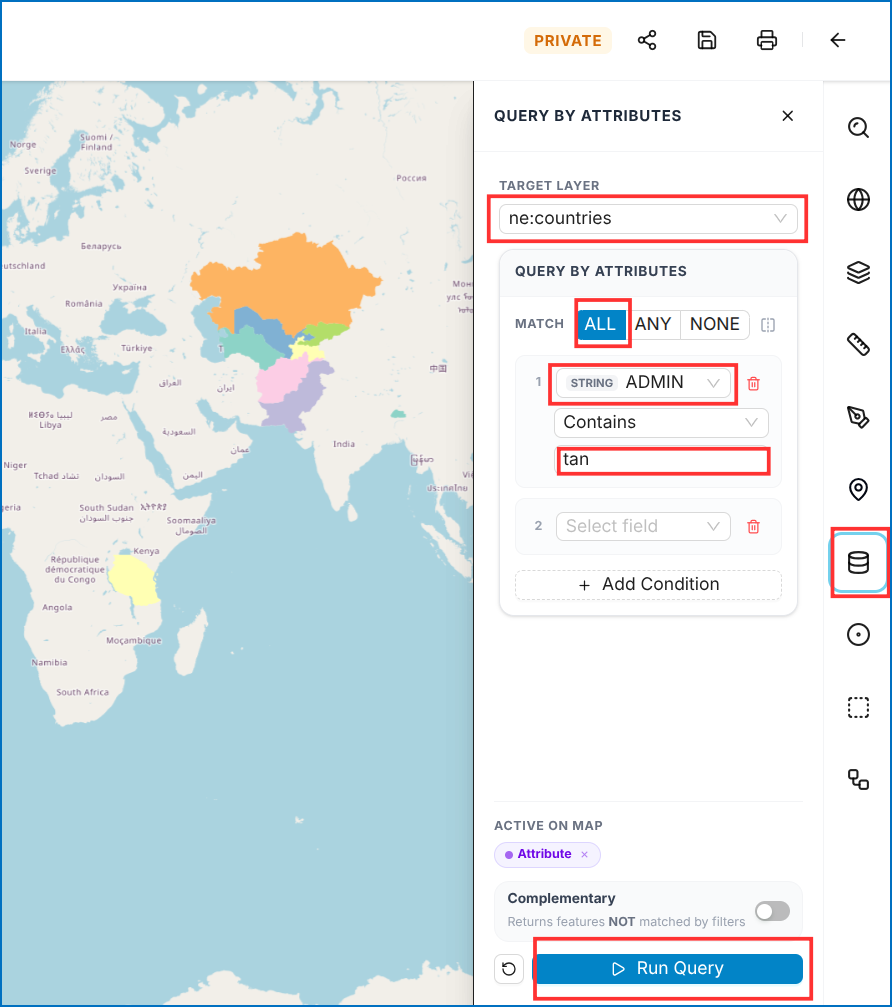 Figure: Query by Attribute Configuration
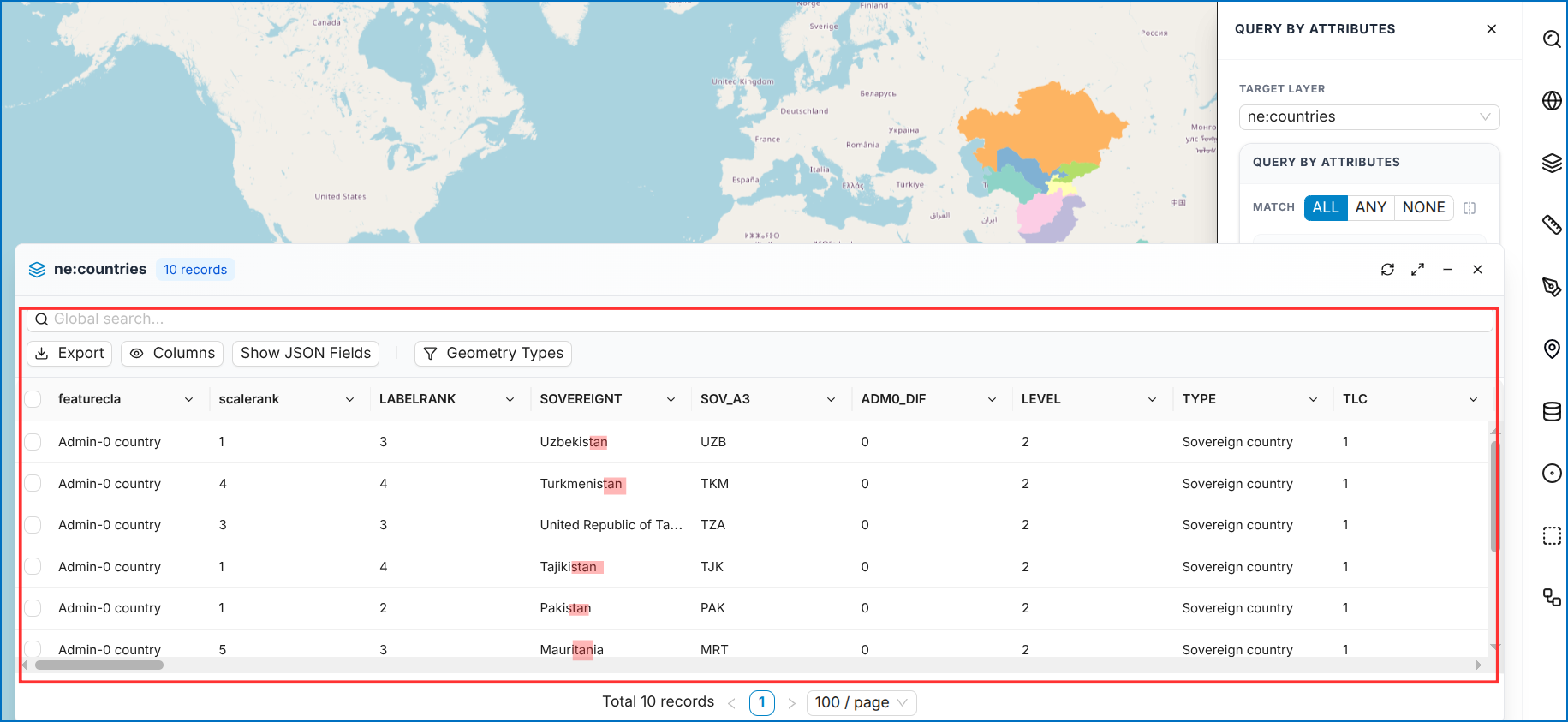 Figure: Filtered Query Results Table
Figure: Query by Attribute Filtered Results
Figure: Filtered Query Results Table
Figure: Query by Attribute Filtered Results
The results will display only the features whose selected attribute contains "tan" in their name. Once the results are displayed, you can view them from the table or export them.
2. Buffer Query
- Select Target Layer (e.g.,
ne: countries). - Select shape geometry type (e.g., polygon buffer).
- Set Buffer Radius (up to 500 km).
- Click Draw on Map, draw on canvas, and double-click to finish.
- Click Run Query.
Buffer Query – Identify features within a specified distance around a selected feature or location.
To run a Buffer query:
- Select the Target Layer (e.g.,
ne: countries). - Select the shape from geometry type (e.g., Polygon buffer).
- Select buffer radius (e.g., maximum 500 km).
- Click on Draw on map.
- Draw on the map by clicking points, and double-click when you finish.
- Click Run Query.
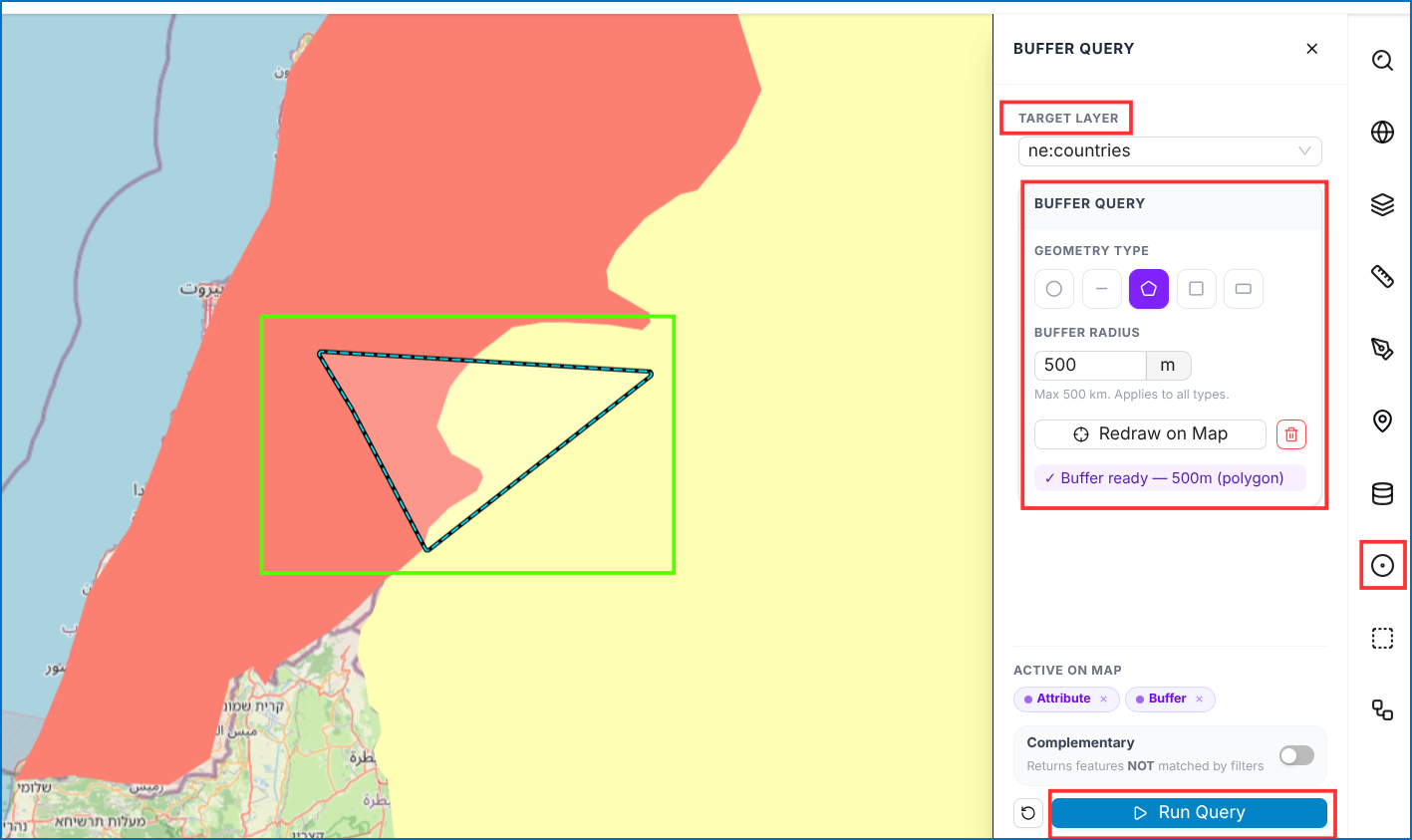 Figure: Buffer Query Configuration on Map
Figure: Buffer Query Configuration and Drawing on Map
Figure: Buffer Query Configuration on Map
Figure: Buffer Query Configuration and Drawing on Map
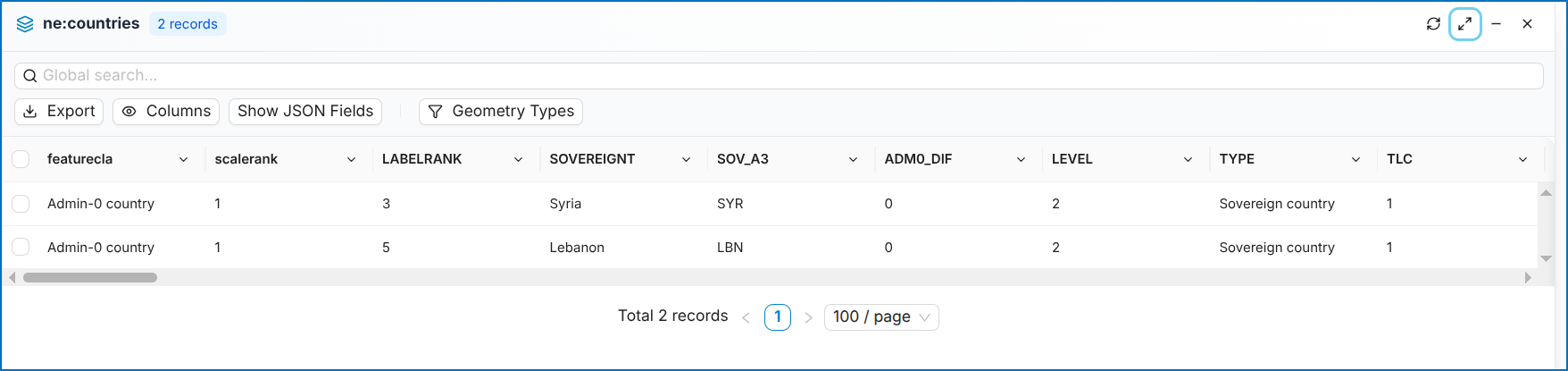 Figure: Buffer Query Results Table
Once the results are displayed, you can view them from the table or export them.
3. Spatial Query
- Select Target Layer.
- Select Use another layer, choose spatial operator (Intersects, Contains, Within, etc.), and reference dataset.
- Click Run Query.
A Spatial Query allows users to find features based on their spatial relationship with another layer or selected feature. You can perform multiple spatial operations.
To run a Spatial query:
- Select the Target Layer (e.g.,
ne: countries). - Select Use another layer.
- Select the Spatial operation from the dropdown list.
- Select the Reference dataset from the dropdown.
- Click Run Query.
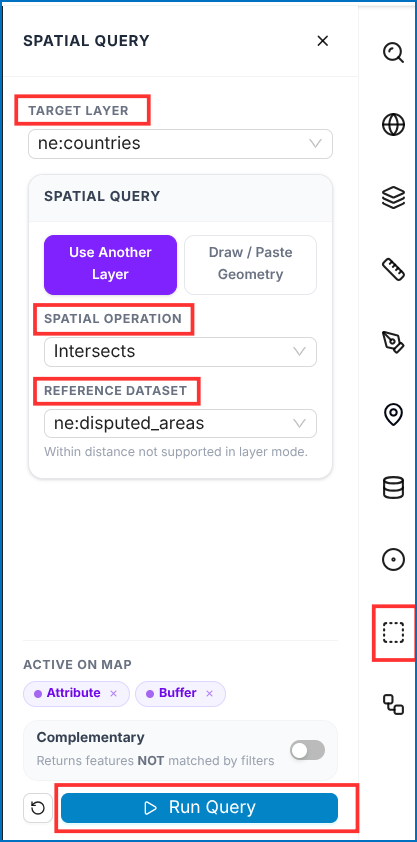 Figure: Spatial Topological Query Configuration
Figure: Spatial Query Configuration
Figure: Spatial Topological Query Configuration
Figure: Spatial Query Configuration
Once you click on run query, you will see the results in the table:
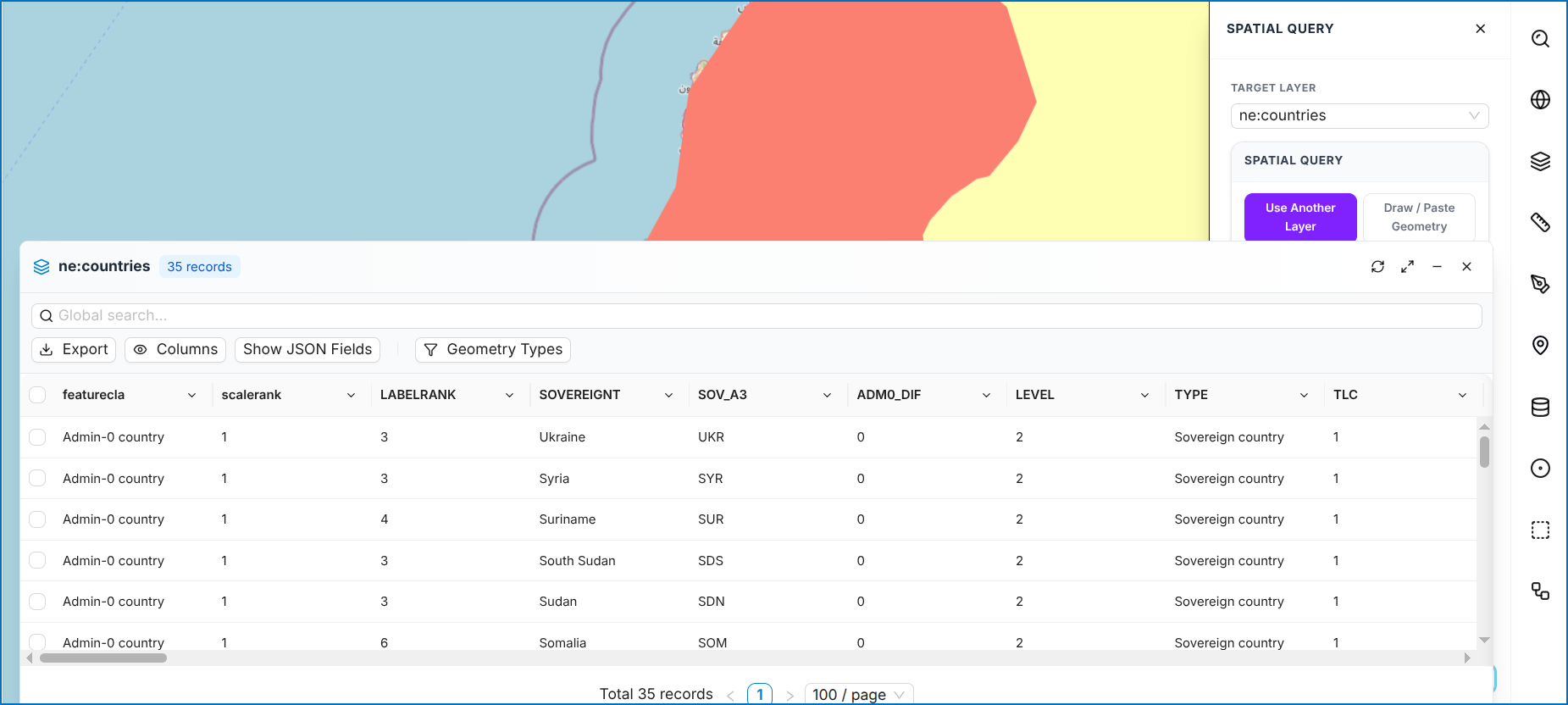 Figure: Spatial Query Output Table
Figure: Spatial Query Results Table
Figure: Spatial Query Output Table
Figure: Spatial Query Results Table