Navigation & Toolbar Controls
Right-Side Panel Tools Overview
The right-side toolbar contains the primary geospatial tools:
| # | Tool Name | Description |
|---|---|---|
| 1 | Fuzzy Feature Search | Search features across accessible layers using keyword matching |
| 2 | Basemap Selector | Switch between OpenStreetMap, Google Maps, and Esri imagery |
| 3 | Layer List | Manage map layers, adjust opacity, view legends, and reorder |
| 4 | Measure Tools | Measure geographic distances and polygon surface areas |
| 5 | Annotation | Draw points, lines, polygons, and text labels directly on canvas |
| 6 | Go to XY | Navigate and pinpoint coordinates using DD, DMS, or UTM formats |
| 7 | Query by Attributes | Filter features using SQL-like attribute condition rules |
| 8 | Buffer Query | Identify features within a specified distance buffer |
| 9 | Spatial Query | Intersect and query features using topological relationships |
| 10 | WPS Analysis | Execute vector and raster geospatial processing algorithms |
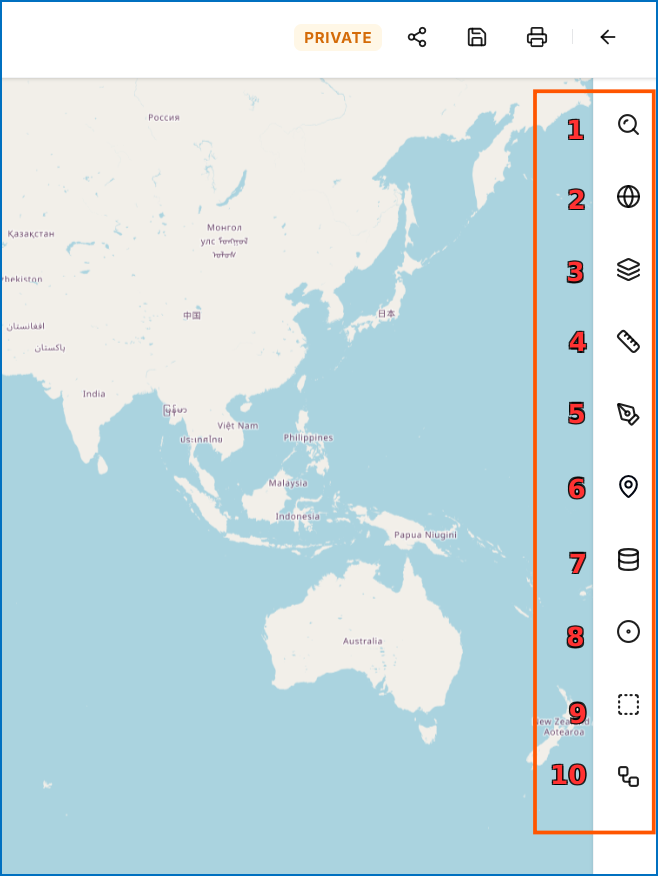 Figure: Right-Side Panel Geospatial Tools
To learn how to use the right-side tools in the VistaBridge Map Workspace, click here to watch the video tutorial.
Left-Side Map Navigation Tools
- Zoom In / Zoom Out — Adjust map magnification.
- Toggle Full Screen — Expand map view to full monitor display.
- Rotate Map — The Rotate Map tool allows users to change the map's orientation using the rotation slider. The current rotation angle is displayed in degrees. Click Reset North (0°) to restore the map to its default north-facing orientation.
- Zoom to Current Location — Center map on user's current GPS position.
- Full Extent — Zoom to the outer bounding box of all active layers.
- Previous / Next Extent — Cycle through navigation history.
- Toggle Info Popup — Toggle feature popups on click.
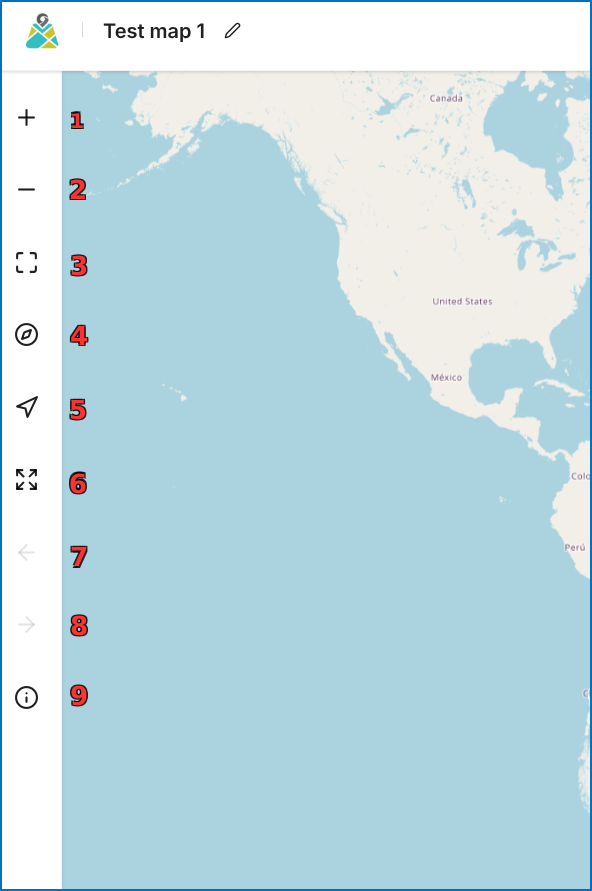 Figure: Left-Side Map Navigation Toolbar
To learn how to navigate the VistaBridge interface using the left-side navigation toolbar, click here to watch the video tutorial.
Top Toolbars
Map Details (Top Left)
Click to edit the map name, description, and metadata directly:
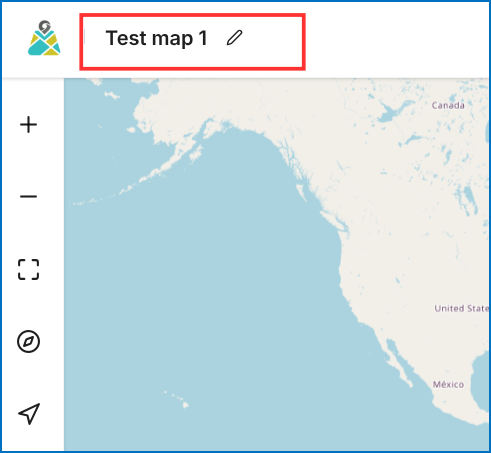 Figure: Workspace Name and Metadata Editor
Primary Actions (Top Right)
- Share — Share the map workspace.
- Save — Persist all changes made to layers, annotations, and extent.
- Print — Open the print and export layout modal.
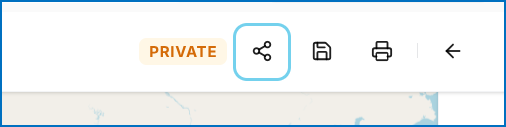 Figure: Top Right-Side Workspace Actions