Dashboard Widgets & Visualizations
The right-side panel contains multiple elements and analytical widgets that can be added to the canvas to create and customize the dashboard.
1. Map Widget
To add a map widget to the dashboard:
- Click Map Widget.
- The Configure Map Widget window will open.
- Enter a Title for the map widget.
- Select the required Layers from the dropdown list.
- Adjust the opacity of the selected layers as required.
- Remove any selected layer if required.
- Click Add Map Widget to add the map widget to the dashboard.
The selected map will be displayed in the dashboard with its associated layers.
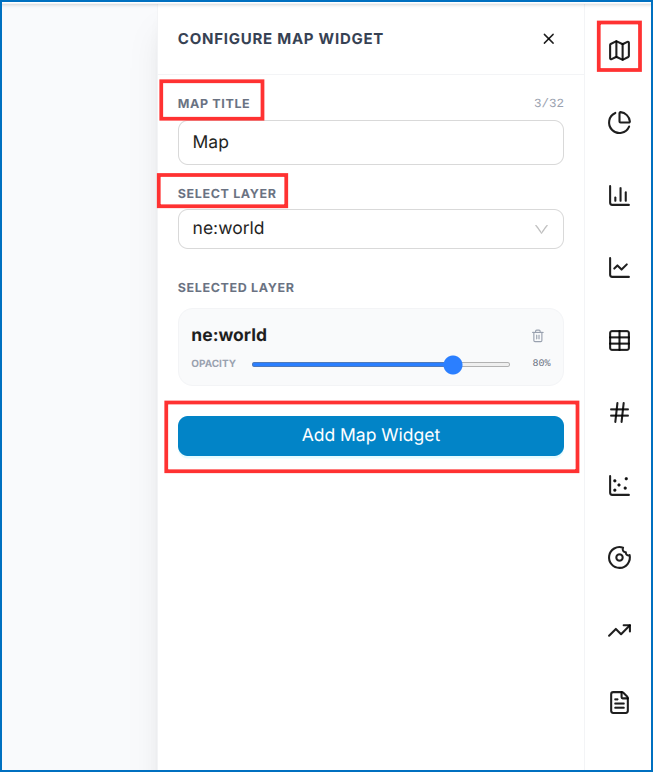 Figure: Configure and Add Map Widget
Map Widget Controls
Once the Map Widget is added to the canvas, you can manage it using the options available in the top-right corner of the widget:
- Lock Icon – Click the Lock icon to lock or unlock the widget. When unlocked, you can drag the widget to reposition it and resize it by dragging its bottom-right corner.
- Zoom to Fit (Eye Icon) – Zooms the map to fit all selected layers.
- Delete – Click the Delete icon to remove the map widget from the dashboard.
- Customize Charts Colors – Click the Color Palette icon to open the Customize Chart Colors panel. Select a color palette, such as Vibrant Multi-Spectrum, Ocean Reef & Marine, Emerald Botanic, or Sunset Mirage, to change the chart's color scheme.
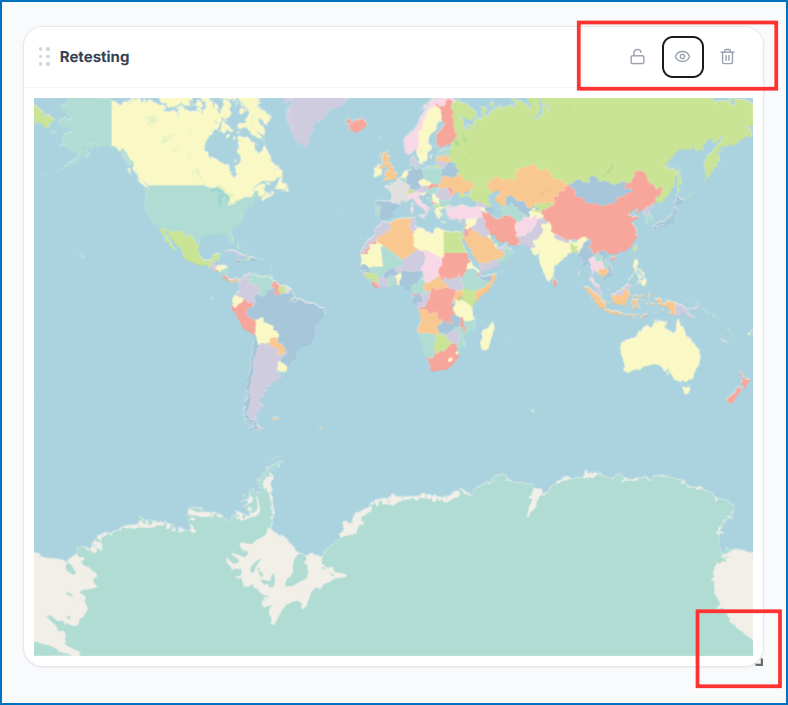 Figure: Map Widget Header Controls
2. Pie Chart
The Pie Chart displays the distribution of features across different categories in a selected vector layer.
Configure the following options:
- Vector Layer: Select the required vector layer (e.g.,
ne: Populated_Places). - Slice By: Select the attribute used to define the categories (e.g.,
ID). - Slice Value: Select Count to display the number of features in each category.
The pie chart will display a separate slice for each ID, with the size of each slice representing the number of features associated with that ID.
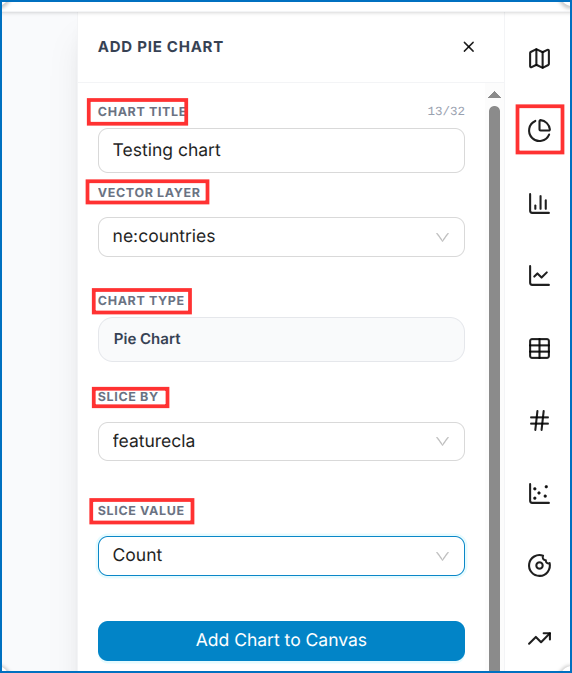 Figure: Pie Chart Configuration Options
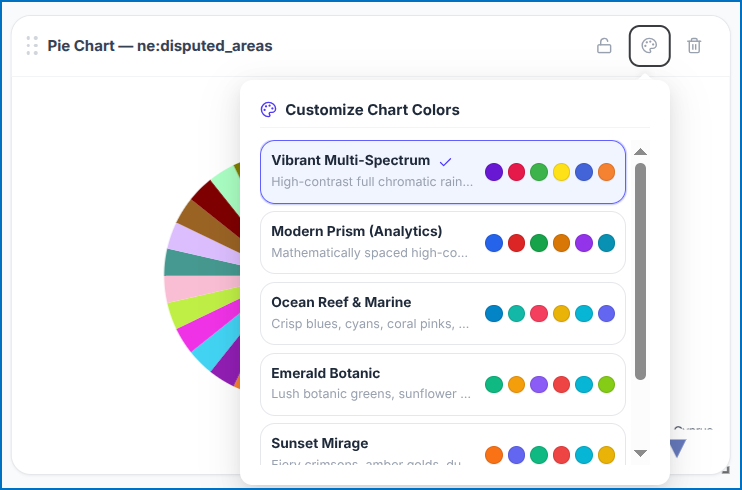 Figure: Pie Chart Added to Dashboard Canvas
3. Bar Chart
A Bar Chart is used to compare values across different categories.
Configure the following options:
- Chart Title: Enter a title for the chart. If left blank, a title will be generated automatically.
- Vector Layer: Select the required vector layer.
- Chart Type: The chart type is automatically set to Bar Chart.
- X Axis: Select the attribute/column used to define the categories.
- Y Axis Measure: Select the attribute/column to be measured.
- Y Axis Aggregation: Select the required aggregation method, such as Count.
- Click Add Chart to Canvas to add the chart to the dashboard.
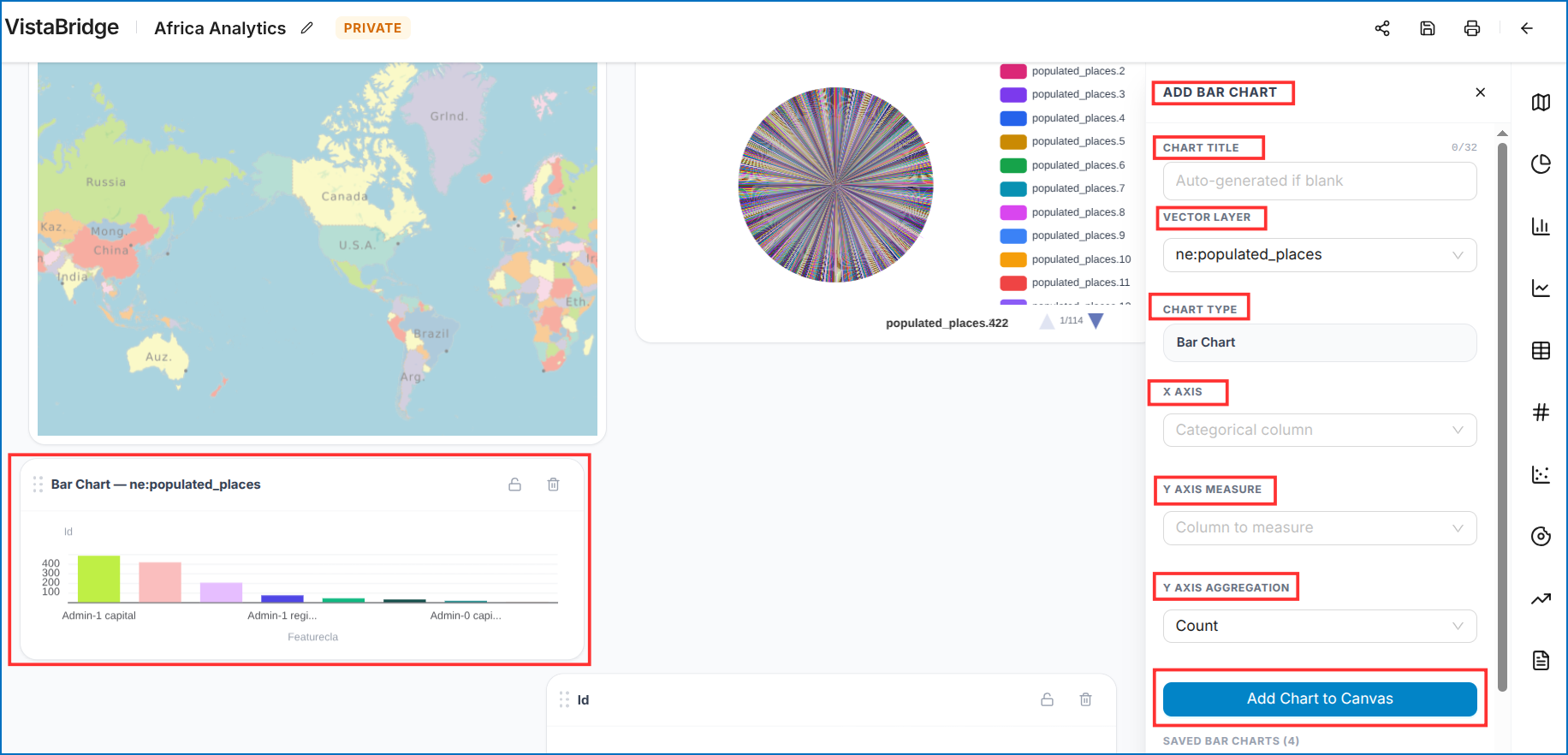 Figure: Configure Bar Chart Dialog
4. Line Chart
A Line Chart is used to visualize values and identify patterns or trends across categories or data points.
To add a Line Chart:
- Click Line Chart.
- The Add Line Chart configuration window will open.
- Enter a Chart Title. If left blank, the title will be generated automatically.
- Select the required Vector Layer.
- The Chart Type is automatically set to Line Chart.
- Select the attribute for the X Axis.
- Select the required field for the Y Axis Measure.
- Select the required Y Axis Aggregation, such as Count.
- Click Add Chart to Canvas.
The Line Chart will be added to the dashboard canvas.
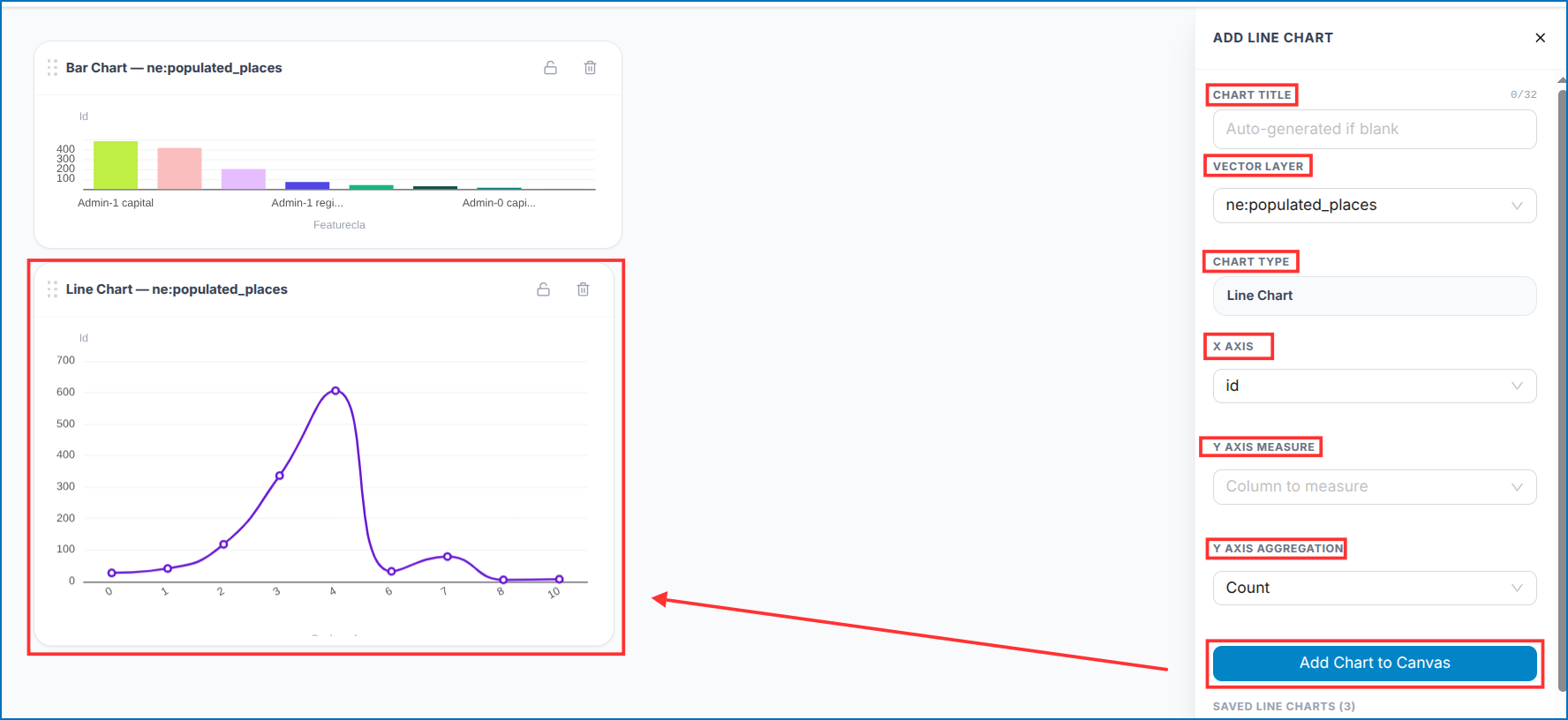 Figure: Add Line Chart Configuration Window
5. Data Table
The Data Table displays selected attribute information from a vector layer in a tabular format.
To add a Data Table:
- Click Data Table from the dashboard elements.
- The Add Data Table configuration window will open.
- Enter a Chart Title. If left blank, the title will be generated automatically.
- Select the required Vector Layer.
- The Chart Type is automatically set to Data Table.
- Under Columns to Display, select the required attribute columns. Multiple columns can be selected.
- Click Add Chart to Canvas.
The Data Table will be added to the dashboard canvas and display the selected columns and their corresponding data.
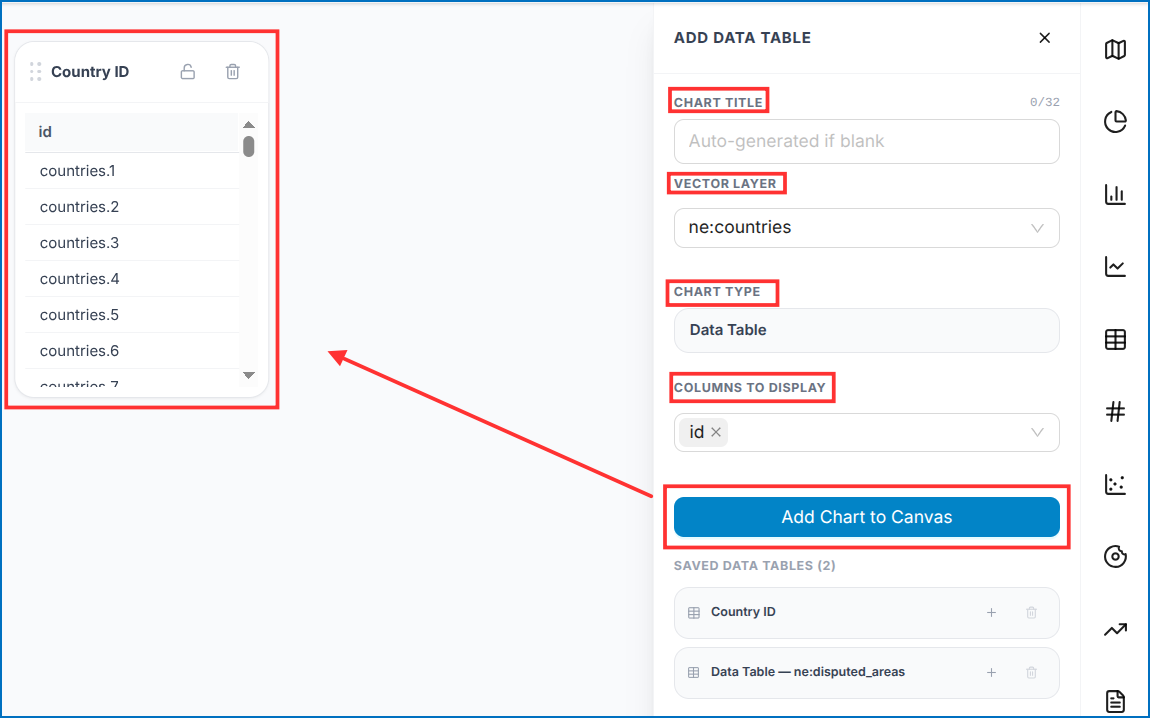 Figure: Add Data Table Configuration Window
6. KPI / Big Number Metric
The KPI widget displays a key value or metric from a selected vector layer.
To add a KPI widget:
- Click KPI Widget from the dashboard elements.
- The Add KPI configuration window will open.
- Enter a Chart Title. If left blank, the title will be generated automatically.
- Select the required Vector Layer.
- The Chart Type is automatically set to KPI / Big Number.
- Select the required Value Field.
- Select the required Aggregation, such as Count.
- Click Add Chart to Canvas.
The KPI widget will be added to the dashboard canvas and display the calculated value.
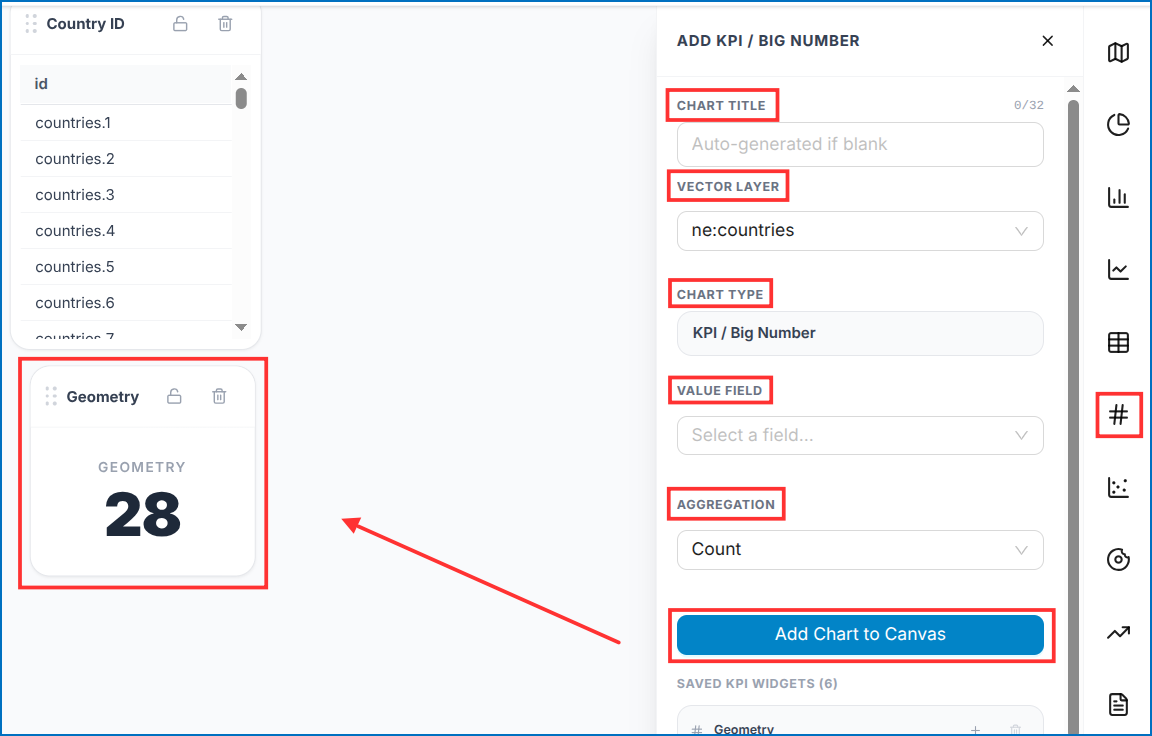 Figure: Add KPI / Big Number Widget Window
7. Scatter Plot
A Scatter Plot is used to show the relationship or distribution between data values.
To add a Scatter Plot:
- Click Scatter Plot from the dashboard elements.
- The Add Scatter Plot configuration window will open.
- Enter a Chart Title. If left blank, the title will be generated automatically.
- Select the required Vector Layer.
- The Chart Type is automatically set to Scatter Plot.
- Select the required field for the X Axis (Category).
- Select the required field for the Y Axis Measure.
- Select the required Y Axis Aggregation, such as Count.
- Click Add Chart to Canvas.
The Scatter Plot will be added to the dashboard canvas to visualize the selected data.
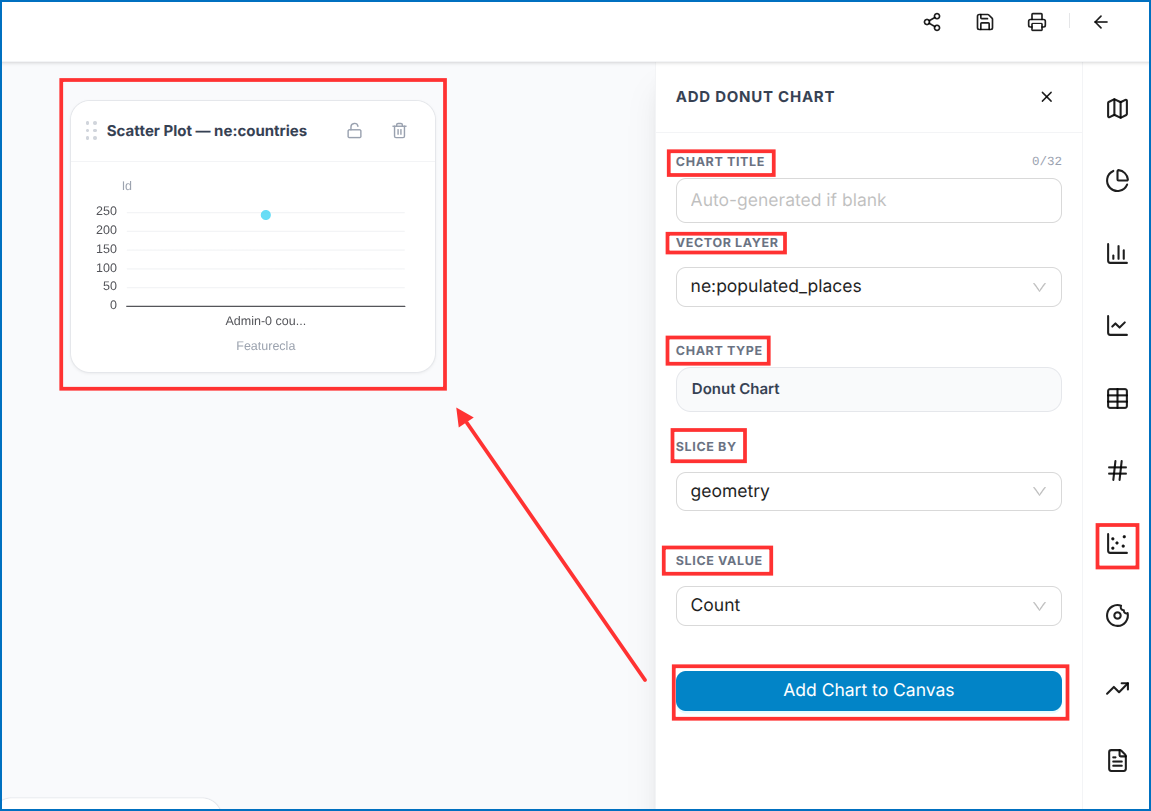 Figure: Add Scatter Plot Configuration Window
8. Donut Chart
A Donut Chart is used to show the distribution of features across different categories, similar to a pie chart, with a hollow center.
To add a Donut Chart:
- Click Donut Chart from the dashboard elements.
- The Add Donut Chart configuration window will open.
- Enter a Chart Title. If left blank, the title will be generated automatically.
- Select the required Vector Layer.
- The Chart Type is automatically set to Donut Chart.
- Under Slice By, select the attribute used to define the categories.
- Under Slice Value, select the value to be measured, such as Count.
- Click Add Chart to Canvas.
The Donut Chart will be added to the dashboard canvas and display the distribution of the selected categories.
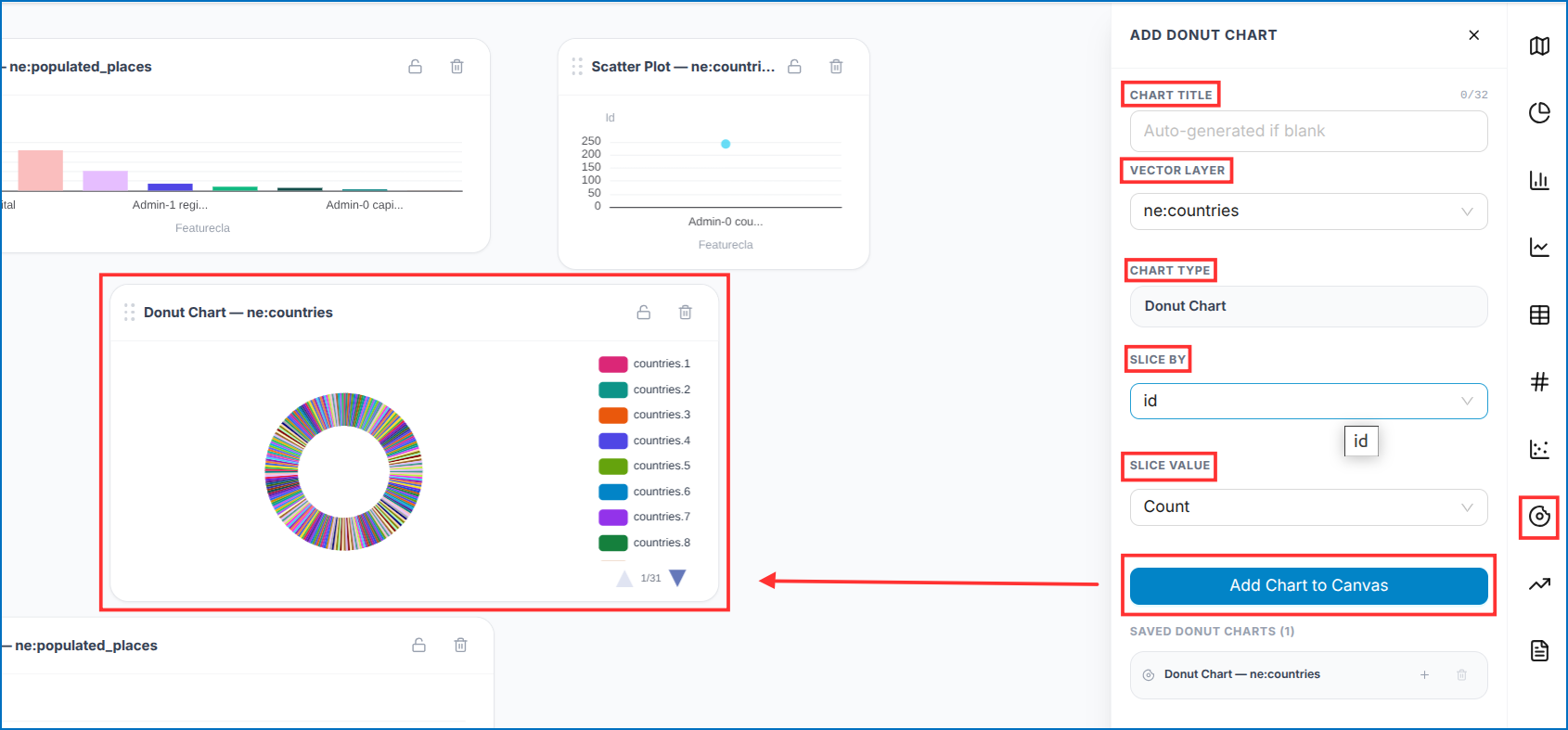 Figure: Add Donut Chart Configuration Window
9. Area Chart
An Area Chart is used to visualize values across categories and highlight the magnitude or distribution of data.
To add an Area Chart:
- Click Area Chart from the dashboard elements.
- The Add Area Chart configuration window will open.
- Enter a Chart Title. If left blank, the title will be generated automatically.
- Select the required Vector Layer.
- The Chart Type is automatically set to Area Chart.
- Select the required attribute for the X Axis.
- Select the required field for the Y Axis Measure.
- Select the required Y Axis Aggregation, such as Count.
- Click Add Chart to Canvas.
The Area Chart will be added to the dashboard canvas to visualize the selected data.
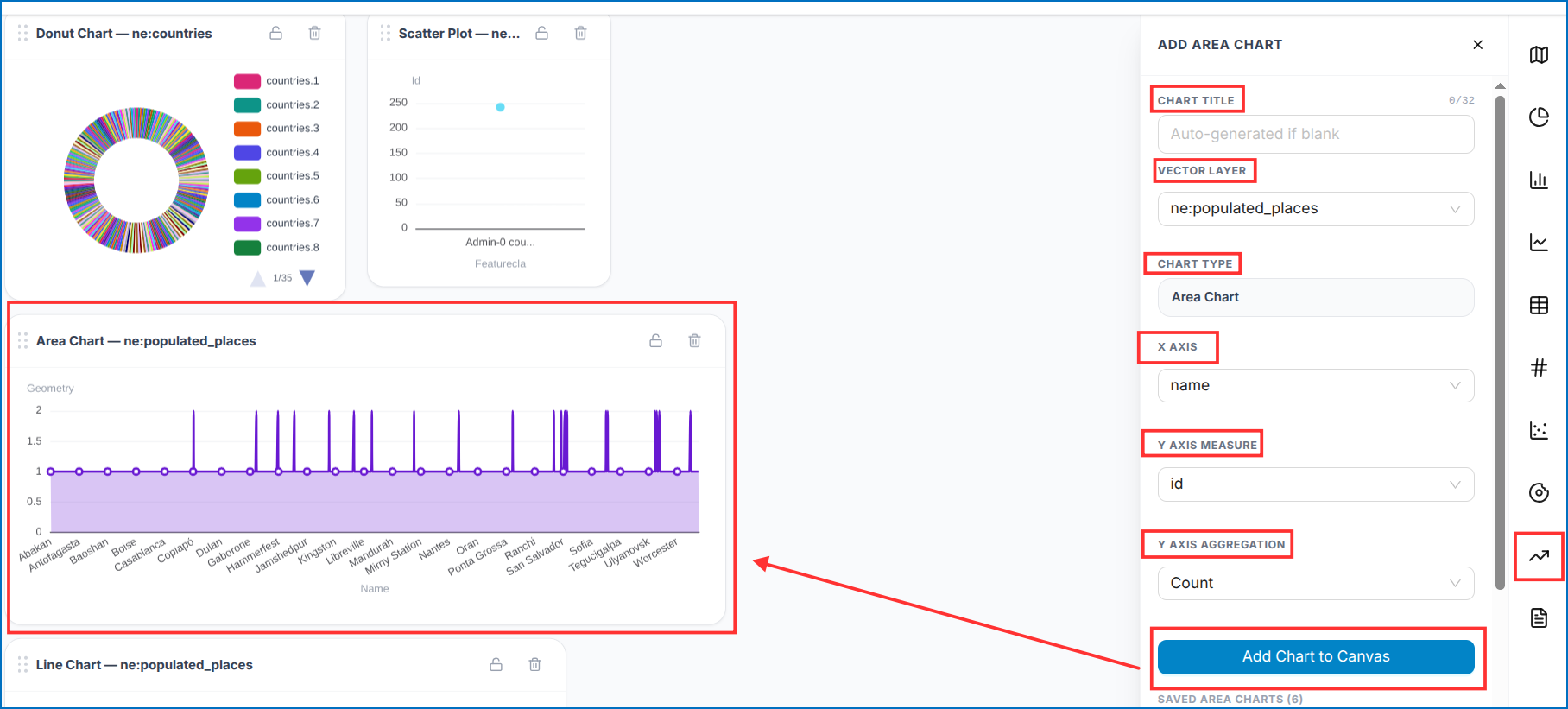 Figure: Add Area Chart Configuration Window
10. Rich Text Box
The Rich Text Box allows users to add text content to the dashboard, such as titles, descriptions, and formatted text.
To add a Rich Text Box:
- Click Rich Text Box from the dashboard elements.
- Add the required text or description.
- Use Markdown formatting to format the content as required.
- Add the Rich Text Box to the dashboard canvas.
The Rich Text Box can be used to provide headings, descriptions, instructions, or additional information within the dashboard.
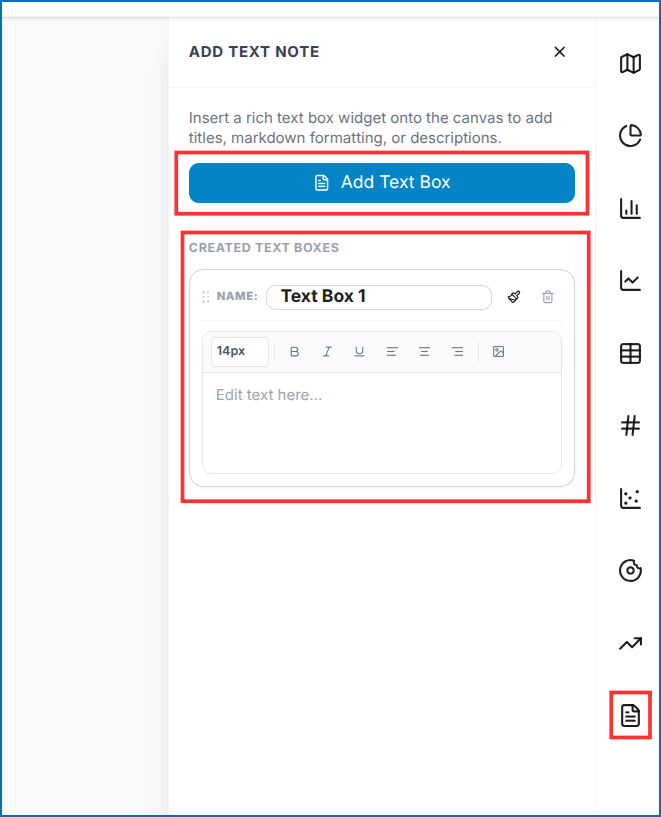 Figure: Add Rich Text Box Window
Once you are done, you can save the dashboard from the top right corner.