Print Map
The Print Map option allows users to prepare and export the current map view as a high-resolution PDF document or JPEG image.
1. Map Export Settings
Configure basic document parameters before exporting:
- Map Title: Enter the title to be displayed on the printed map.
- File Name: Specify the name of the exported file.
- Layout: Select Portrait or Landscape orientation.
- Template: Select a predefined template or create a custom layout template.
2. Layout Templates
The Template dropdown provides flexible layout arrangements:
- Details on Right — Displays map details, legend, scale, and metadata on the right side of the map viewport.
- Details on Left — Displays map details, legend, and metadata on the left side of the map viewport.
- Add New Template (Custom) — Allows users to create, configure, and save a custom print template.
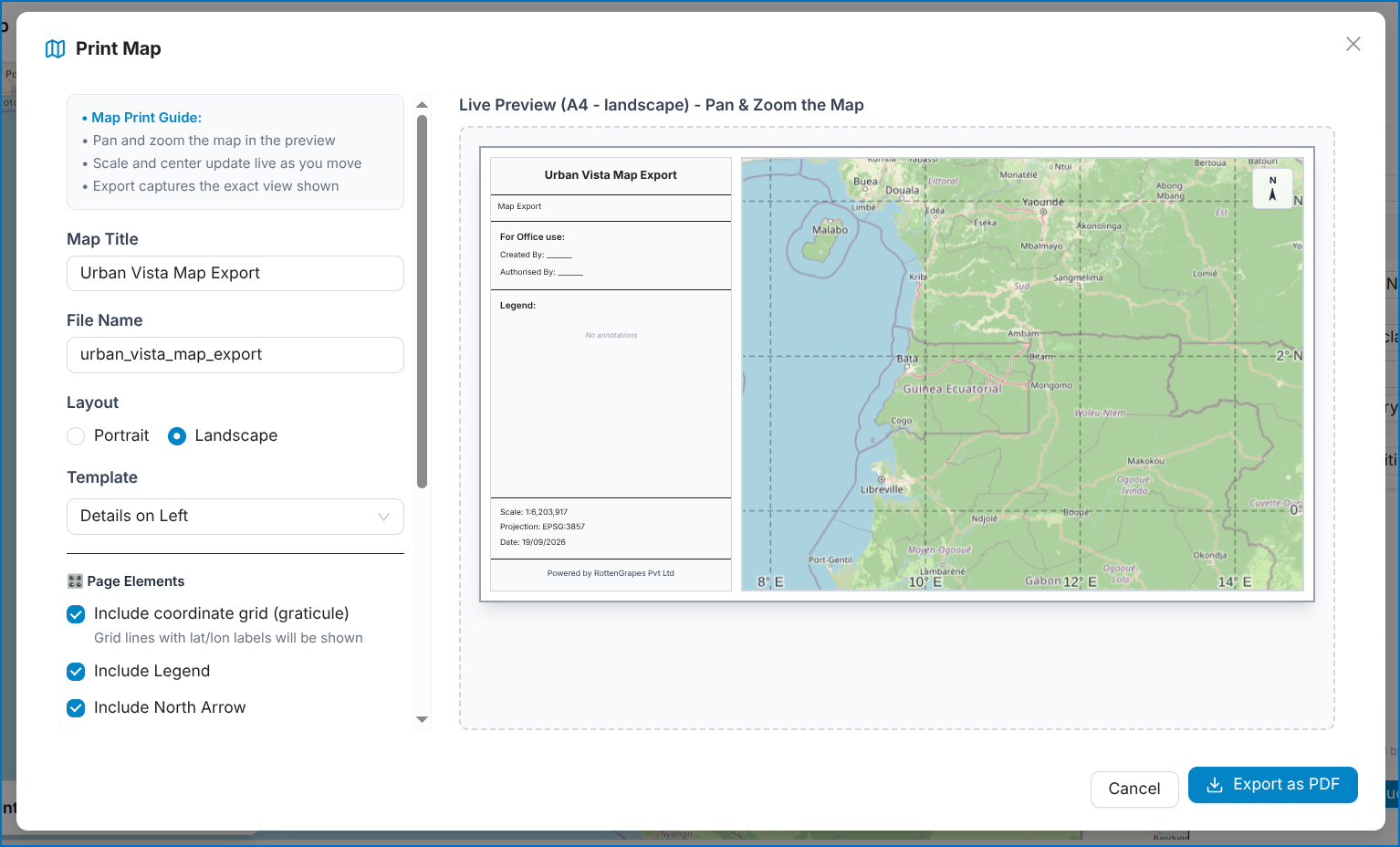 Figure: Print Map Settings & Layout Templates
3. Page Elements
Use the Page Elements toggles to include or remove elements from the printed layout:
- Include Office Use section — Adds designated fields for internal sign-off (Created By, Authorised By).
- Include Scale & Metadata — Embeds current map scale ratio and geographic metadata.
- Legend — Renders the active layer symbology key.
- North Arrow — Inserts a customizable north orientation indicator.
- Footer — Displays organization copyright and metadata.
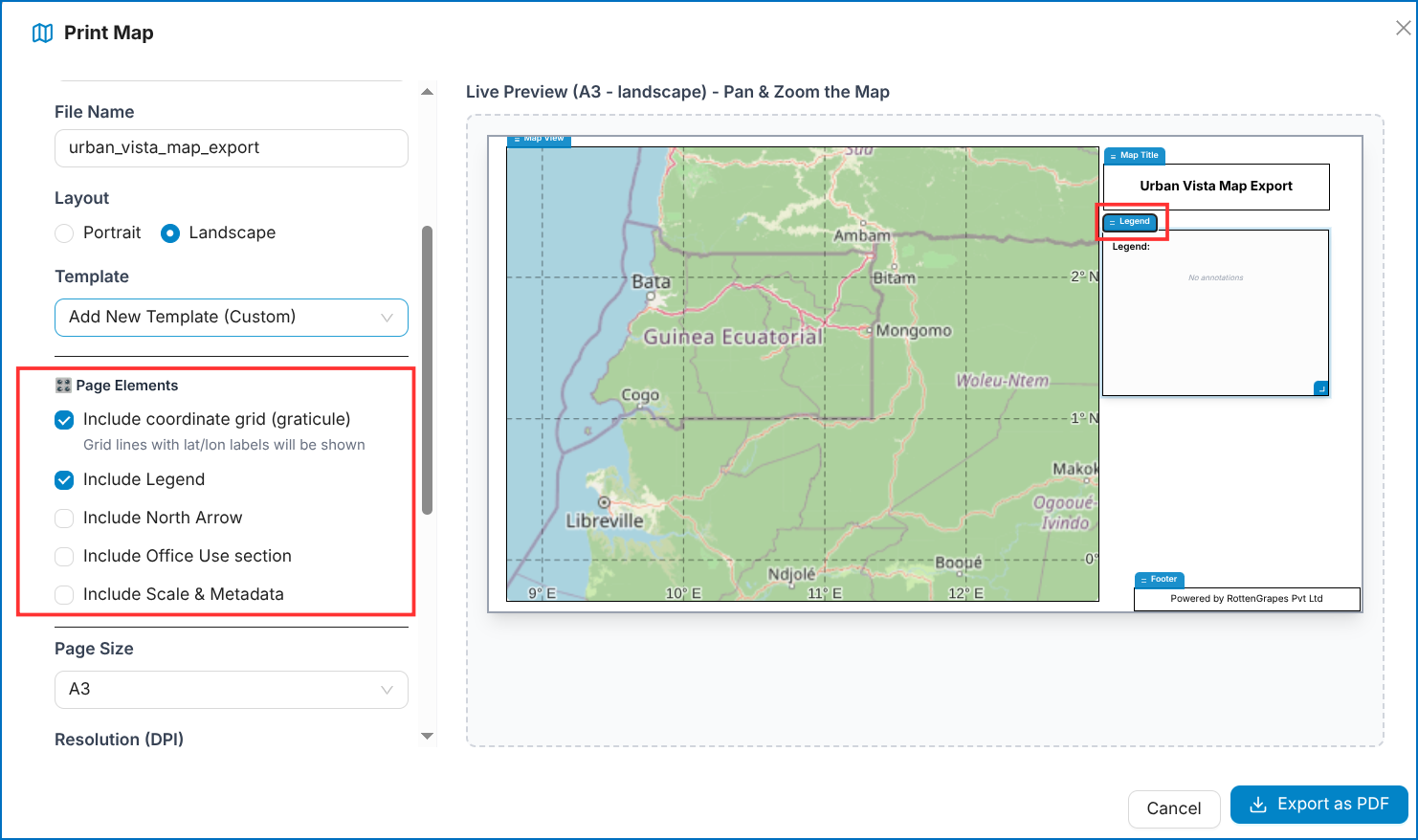 Figure: Page Elements Toggle Selection
4. Element Styling
The Element Styling section allows users to customize the visual appearance of individual map elements (such as the Legend, Scale & Metadata, Office Use, and Footer):
- Background Color: Set custom background fill color (e.g.,
#FFFFFF). - Text Color: Select text font color (e.g.,
#000000). - Background Transparency: Adjust element opacity from
0%(fully opaque) to100%(transparent). - Border Color & Width: Set border outline color and thickness in pixels (e.g.,
1.5px). - Corner Radius: Adjust corner roundness in pixels (
0pxfor square corners, higher values for rounded boxes). - Font Size: Configure text size in points (
pt). - Bold & Italic: Apply typographic emphasis to element labels.
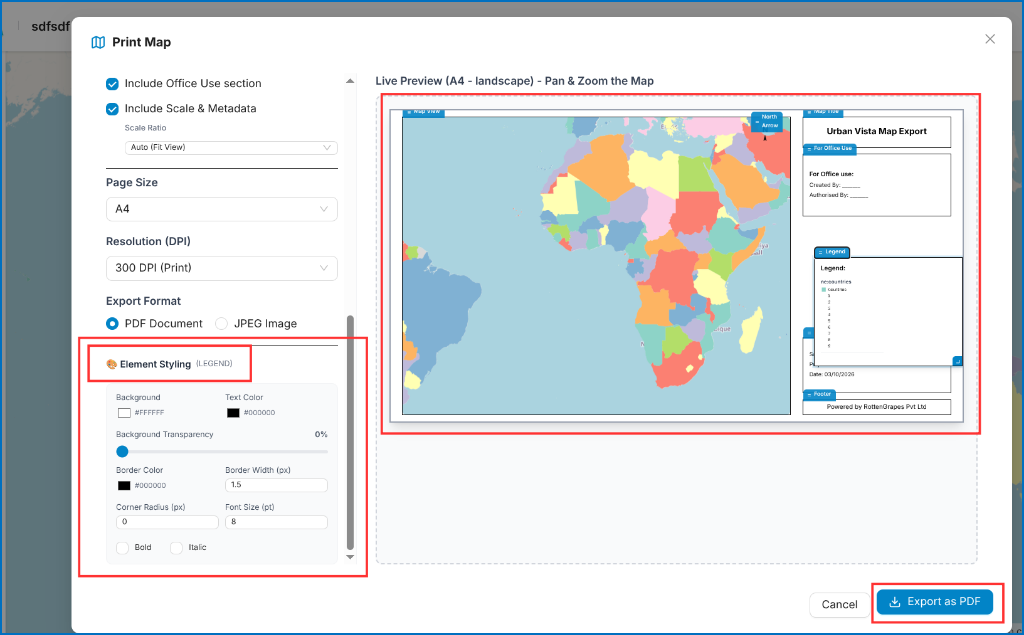 Figure: Print Map Element Styling & Interactive Live Preview
5. Page Size & Resolution (DPI)
Select the target page dimensions and DPI (dots per inch) based on intended use:
| Setting | Options | Intended Output |
|---|---|---|
| Page Size | A4, A3, Letter | Standard international and US paper dimensions |
| 71 DPI | Web Screen Resolution | Quick online preview & lightweight digital sharing |
| 150 DPI | Medium Resolution | Draft document insertion & report compilation |
| 300 DPI (Print) | High Resolution | Professional document printing |
| 600 DPI | Ultra Resolution | High-grade publication & large-format poster printing |
6. Exporting the Map
- Verify the layout in the Live Preview pane (supports interactive panning and zooming within the map frame).
- Choose the Export Format:
- PDF Document
- JPEG Image
- Click Export as PDF (or Export as JPEG) to generate and download the final high-resolution map product.
Figure: Export Map with Live Preview and Export as PDF Action