Manage Dashboards
The Manage Dashboards section allows users to manage, configure, and preview analytical dashboard workspaces.
1. Dashboard Workspace Overview
The dashboard page provides an overview of the available dashboards, including:
- Total Dashboards — Total count of dashboard projects created in the system.
- Public Dashboards — Dashboards accessible by all authorized users.
- Private Dashboards — Dashboards restricted to the creator and administrative roles.
Users can also filter dashboards by:
- Date — Filter projects by creation or last modification timestamp.
- Visibility — Filter by Public or Private access level.
Dashboard Actions
A dashboard table displays the available dashboards. Users can perform the following actions:
- View — Open and preview an existing dashboard.
- Delete — Delete a dashboard.
- Clone — Create an exact copy/duplicate of an existing dashboard workspace.
Click the Eye icon to open and view the selected dashboard.
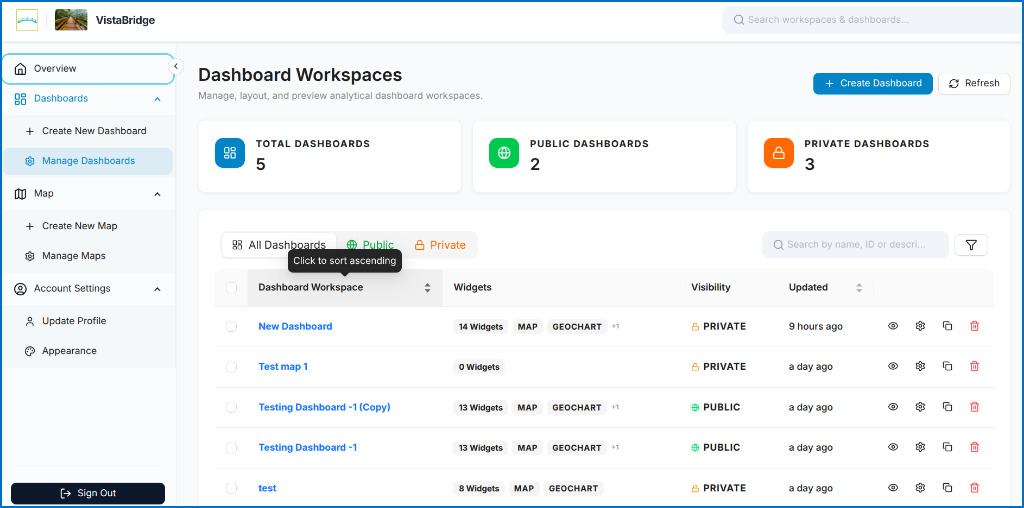 Figure: Manage Dashboards Workspace Overview Table
2. Create & Configure a New Dashboard
After clicking Create Dashboard, the Configure Dashboard window will open:
- Enter a Dashboard Name (e.g.,
Africa Analytics). - Add a Description for the dashboard (e.g.,
Visualize and analyze geospatial data). - Set the Access Control to Public or Private.
- Click Create Dashboard to proceed.
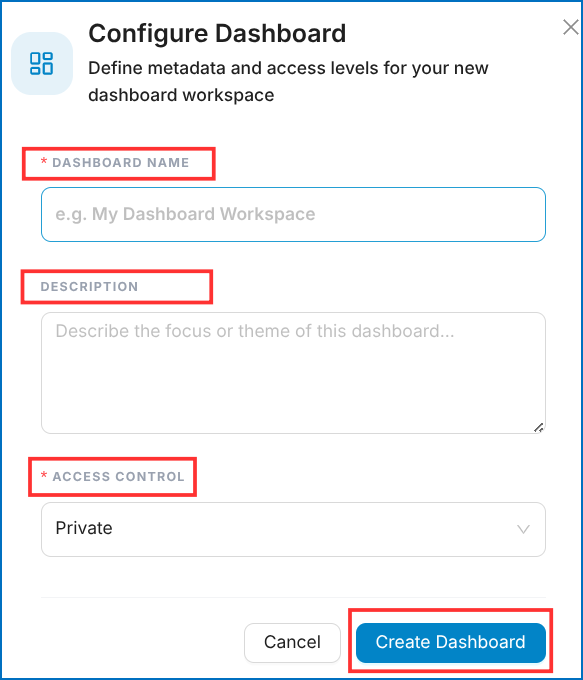 Figure: Configure Dashboard Modal
3. Blank Canvas & Elements Panel
After clicking Create Dashboard, a blank interactive canvas will appear:
- The right-side panel contains multiple analytical elements (Map, Charts, KPI, Tables, Rich Text) that can be dragged or added to the canvas to create and customize the dashboard.
- The top-right corner provides options to Share, Save, and Print the dashboard workspace.
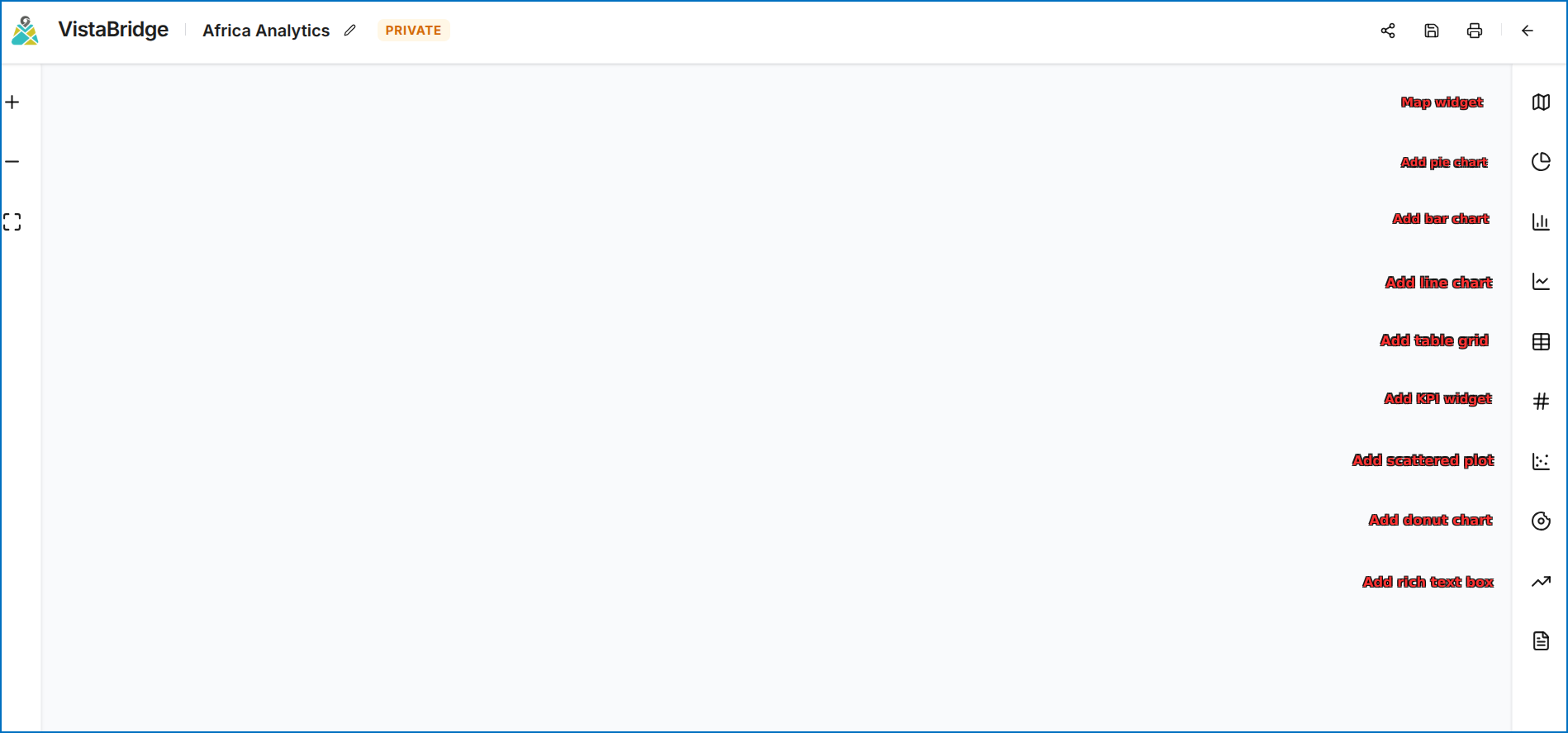 Figure: Blank Dashboard Canvas and Right-Side Elements Panel